.png)



Because Savings Plans last for one or three years, small purchasing mistakes often become long-term financial commitments.
Many organizations overcommit before rightsizing, choose the wrong type of Savings Plan, or fail to monitor whether their purchased commitment still matches their infrastructure.
This guide explains the seven most common EC2 Savings Plan mistakes, why they happen, and how to avoid them.
Whether you manage a single AWS account or hundreds through AWS Organizations, these best practices will help you make better commitment decisions while maintaining flexibility as your environment evolves.
How EC2 Savings Plans Work
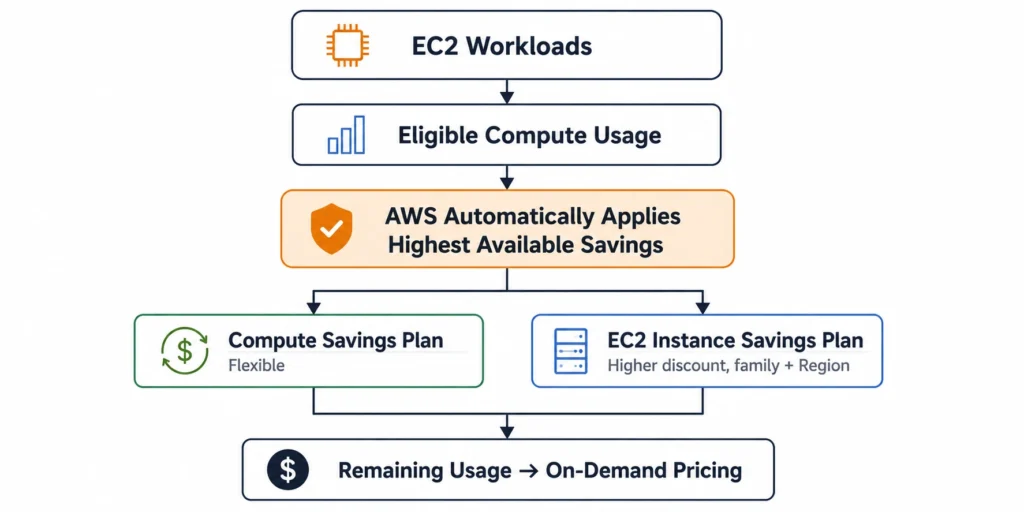
A Savings Plan is a commitment to spend a fixed amount per hour (measured in dollars per hour) for either one or three years. In return, AWS automatically applies discounted pricing to eligible compute usage instead of charging standard On-Demand rates.
For EC2 workloads, there are two primary options:
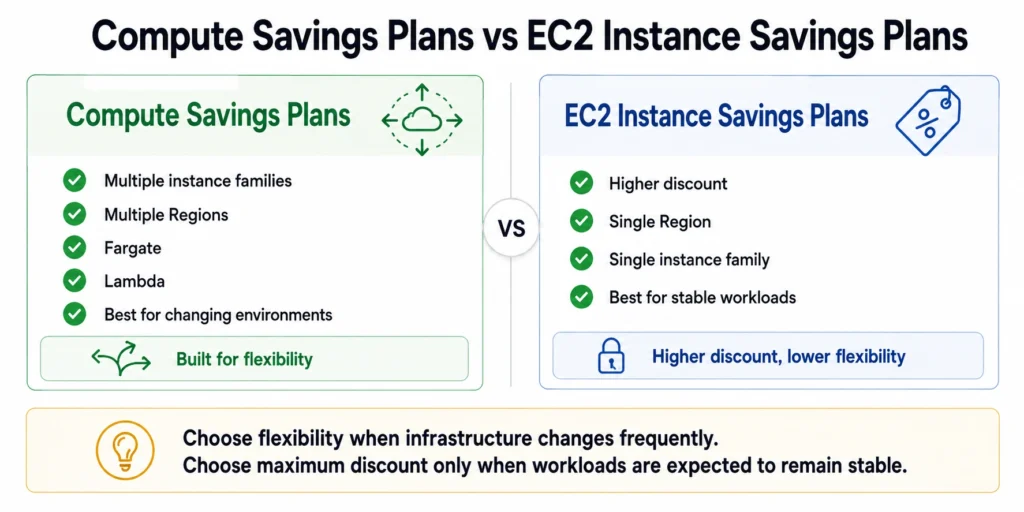
- Compute Savings Plans offer the greatest flexibility, automatically applying to eligible EC2 usage across instance families, Regions, operating systems, tenancies, as well as AWS Fargate and AWS Lambda.
- EC2 Instance Savings Plans generally provide higher discounts but are limited to a specific EC2 instance family within a single AWS Region, while still allowing flexibility across instance sizes, operating systems, and tenancy within that family.
Learn more in the AWS documentation on Savings Plans and How Savings Plans Apply to Usage.
Related Read: Compute vs EC2 Instance Savings Plans: Which One Actually Saves More
Mistake 1: Buying a Savings Plan Before Rightsizing
One of the most expensive EC2 Savings Plan mistakes is purchasing a commitment before optimizing your EC2 fleet. If instances are oversized, you’re locking in discounts on infrastructure you’re already overpaying for.
For example, imagine an application running ten m5.4xlarge instances that consistently average only 15–20% CPU utilization.
After reviewing recommendations in AWS Compute Optimizer, you discover the workload can run on significantly smaller instances without affecting performance.
Buying a Savings Plan before rightsizing means your hourly commitment is based on inflated compute costs. Even though the Savings Plan lowers the hourly rate, you’re still paying for unnecessary capacity throughout the commitment term.
How to avoid it
- Review recommendations from AWS Compute Optimizer before purchasing a Savings Plan.
- Rightsize consistently underutilized instances.
- Allow workloads to stabilize for several weeks after major infrastructure changes.
- Size your Savings Plan using the optimized baseline instead of historical infrastructure.
Mistake 2: Committing to Peak Usage Instead of Baseline Demand
A common mistake is sizing the commitment around peak demand rather than the lowest consistent level of hourly usage.
Suppose an application typically consumes $400/hour of eligible compute but increases to $700/hour during weekday business hours.
If you purchase a Savings Plan covering the full $700/hour, AWS continues billing that commitment even when usage returns to its normal $400/hour baseline during evenings and weekends.
In many environments, it’s more cost-effective to commit only to predictable baseline usage while allowing temporary demand to run on On-Demand pricing or Spot Instances.
There isn’t a universal commitment percentage that works for every organization. Instead, evaluate:
- historical hourly usage patterns
- workload seasonality
- planned infrastructure changes
- acceptable commitment risk
How to avoid it
- Review 60–90 days of Cost Explorer or Cost and Usage Report (CUR) data.
- Identify your lowest consistent hourly compute usage.
- Exclude temporary spikes caused by seasonal events, testing, or one-time projects.
- Leave room for workload variability instead of committing to maximum demand.
Mistake 3: Choosing EC2 Instance Savings Plans for Changing Workloads
| Compute Savings Plans | EC2 Instance Savings Plans |
|---|---|
| Apply across AWS Regions | Limited to one AWS Region |
| Work across EC2 instance families | Limited to one EC2 instance family |
| Cover AWS Fargate | EC2 only |
| Cover AWS Lambda | EC2 only |
| Greater flexibility | Higher potential discounts |
By contrast, EC2 Instance Savings Plans are best suited to mature workloads that have remained stable over time.
For example, if you purchase an EC2 Instance Savings Plan for the m5 instance family in US East (N. Virginia) and later migrate most production workloads to m7g instances, the commitment doesn’t automatically move with the new architecture.
It may become partially or fully underutilized if sufficient matching usage no longer exists.
Decision checklist
Mistake 4: Choosing a 3-Year Term for Unstable Workloads
If your organization expects to modernize applications, migrate Regions, adopt AWS Graviton, or move workloads to containers within the next few years, a longer commitment can become difficult to fully utilize.
For example, a production workload may appear stable today, but an infrastructure modernization project scheduled next year could significantly change compute consumption. In that case, the additional discount from a 3-year commitment may not offset the reduced flexibility. Learn more about AWS Savings Plans.
When evaluating commitment length, consider:
How to choose
- cloud adoption is still evolving
- infrastructure modernization is ongoing
- workload demand changes frequently
- workloads have demonstrated long-term stability
- engineering roadmaps show minimal architectural change
- predictable savings outweigh flexibility
Mistake 5: Ignoring Savings Plan Utilization After Purchase
Buying a Savings Plan isn’t the end of optimization. As workloads scale, migrate, or are decommissioned, your commitment may no longer align with actual compute usage.
Two metrics are particularly important:
| Metric | What it Measures |
|---|---|
| Utilization | How much of your purchased Savings Plan commitment is being used. |
| Coverage | How much of your eligible compute usage receives Savings Plan pricing. |
Likewise, infrastructure changes can reduce utilization over time if purchased commitments no longer match workload demand.
Because Savings Plans reporting isn’t always immediate, review utilization after major infrastructure events such as rightsizing, migrations, or application retirements rather than relying solely on historical dashboards.
How to monitor
- Review Savings Plan utilization and coverage regularly.
- Check utilization after major deployments or infrastructure changes.
- Compare current usage with purchased commitments before buying additional Savings Plans.
- Use Cost Explorer together with Cost and Usage Reports (CUR) for deeper analysis.
Mistake 6: Not Sharing Savings Plans Across AWS Organizations
Without sharing, unused commitment in one linked account may remain unused while another linked account continues paying On-Demand prices for eligible compute usage.
Instead of purchasing additional commitments independently for each account, review organization-wide usage to determine whether existing commitments can be shared more effectively. Learn more about Reserved Instances and Savings Plans discount sharing.
How to avoid it
- Enable Savings Plan sharing in the AWS Organizations management account.
- Verify that linked accounts are receiving shared Savings Plan benefits.
- Review organization-wide utilization before purchasing additional commitments.
- Reassess sharing settings after restructuring or adding AWS accounts.
Mistake 7: Purchasing Based Only on Historical Recommendations
Before purchasing a commitment, confirm that recent infrastructure changes haven’t made the recommendation less representative of future demand.
A simple validation workflow
EC2 Savings Plan Mistakes: Quick Checklist
Before purchasing your next EC2 Savings Plan, use this checklist to avoid the most common commitment mistakes.
| Mistake | Warning Sign | What to Do |
|---|---|---|
| Buying before rightsizing | Oversized EC2 instances | Rightsize first, then calculate commitments |
| Committing to peak demand | Large daily or seasonal usage spikes | Size commitments around consistent baseline usage |
| Choosing the wrong Savings Plan | Frequent infrastructure changes | Consider Compute Savings Plans for greater flexibility |
| Selecting the wrong term | Roadmap includes migrations or modernization | Match commitment length to workload stability |
| Ignoring utilization | Infrastructure changes after purchase | Review utilization and coverage regularly |
| Not sharing commitments | Multiple AWS accounts | Enable Savings Plan sharing in AWS Organizations |
| Relying only on recommendations | Recent workload changes | Validate recommendations against current usage |
When Does Savings Plan Automation Make Sense?
New applications launch, existing workloads are rightsized, teams migrate to newer instance families, and compute demand changes over time.
If your organization manages multiple AWS accounts, frequent infrastructure changes, or a large portfolio of Savings Plans, automation can help continuously evaluate commitment opportunities and identify underutilized commitments sooner.
Usage.ai automates Savings Plan analysis using billing data, helping FinOps and engineering teams make purchasing decisions based on current usage rather than static point-in-time recommendations.
How Usage.ai Addresses All Seven Mistakes Systematically
On recommendation latency
At $6,000–$12,000 per day in uncovered spend, a 48-hour difference in data freshness can leave $12,000–$24,000 of additional spend exposed before a new recommendation becomes available.
On over-commitment protection
On cashback protection
This helps prevent workload changes from leaving customers with stranded commitment spend.
On rightsizing integration
On multi-account management
Onboarding requires billing-layer access and does not require infrastructure or code changes. Usage.ai charges a percentage of realized savings only, with no subscription or minimum fee.
Learn how EC2 Savings Plan automation works at Usage.ai and book a 15-minute savings assessment to compare your current commitment coverage with Usage.ai’s recommendations.
Get a personalized Savings Plan savings estimate in about 60 seconds.
Frequently asked questions
What happens if I overcommit on an EC2 Savings Plan?
If your Savings Plan commitment exceeds your eligible compute usage, AWS still charges the full hourly committed amount. Any unused portion of the commitment remains billable until the plan expires, making accurate commitment sizing essential.
Should I rightsize EC2 instances before purchasing a Savings Plan?
Yes. Rightsizing before purchasing a Savings Plan ensures your commitment reflects actual workload requirements rather than over-provisioned infrastructure. Services such as AWS Compute Optimizer can help identify consistently underutilized instances before you commit.
What's the difference between Compute Savings Plans and EC2 Instance Savings Plans?
Compute Savings Plans provide greater flexibility by applying across EC2 instance families, Regions, AWS Fargate, and AWS Lambda. EC2 Instance Savings Plans generally offer deeper discounts but are limited to a specific EC2 instance family within a single AWS Region, while remaining flexible across instance sizes, operating systems, and tenancy within that family.
Is a 1-year or 3-year Savings Plan better?
It depends on workload stability. A 3-year commitment usually provides higher discounts but assumes your infrastructure will remain relatively consistent. If significant architecture changes or migrations are expected, a 1-year commitment often provides a better balance between savings and flexibility.
How can I check whether my Savings Plan is fully utilized?
You can monitor Savings Plan utilization and coverage using AWS Cost Explorer, Savings Plans Budgets, and AWS Cost and Usage Reports (CUR). Reviewing both metrics after major infrastructure changes helps ensure your purchased commitments continue matching your compute usage.