
 AWS
AWS Microsoft Azure
 Google Cloud

BigQuery cost conversations usually start in the wrong place. Teams notice a big bill, open a spreadsheet comparing on-demand versus slot pricing, calculate a break-even point, and decide whether to buy commitments. That whole process is worth doing, but it’s the second thing to do, not the first.
The first thing is simpler: look at what your queries are actually scanning. BigQuery charges on-demand users $6.25 per TiB processed, and that number is directly tied to which columns and partitions a query touches. A poorly written query that scans a 10 TiB table to return 500 rows costs $62.50 every time it runs. Fix the query, and that same result might cost $0.63. No pricing model change needed.
Once you have queries in reasonable shape, the on-demand versus capacity pricing question becomes much cleaner to answer. This guide walks through both layers in the order they should actually be tackled.
Layer One: The Query Behavior Fixes That Cost Nothing
Before you touch any pricing model setting, there are three query-level behaviors that drive unnecessary cost on BigQuery, and all three can be fixed without spending another dollar.
Querying columns you don’t need
BigQuery stores data in a columnar format, which means it only reads the columns you actually select. When you run SELECT *, BigQuery reads every column in the table, even if your query only uses three of them. On a wide table, that’s a massive amount of unnecessary data scanned.
The fix is simple: select only the columns you need. Google’s own documentation calls this out as one of the primary best practices for cost control. On a table with 50 columns where you only need 4, you can reduce scan volume by around 90% just by being explicit in your SELECT statement. On an on-demand plan, that’s a 90% cost reduction for that query with zero architectural changes.
Also read: GCP CUD Types Compared: Resource-Based vs. Flex
Not using partitioned and clustered tables
Partition pruning is BigQuery’s mechanism for skipping data that doesn’t match your query’s filter. If a table is partitioned by date and you add a WHERE clause filtering on a specific date range, BigQuery only reads those partitions instead of the whole table. When a clustered table has a filter on the clustering columns, BigQuery can prune individual blocks within partitions.
Neither of these is exotic. BigQuery provides partition pruning and block pruning automatically once the tables are set up correctly, and Google’s documentation lists both as standard cost control mechanisms. The stumbling block is usually that tables were created without partitioning because it wasn’t a priority at the time. Adding partitioning to an existing table requires a table recreation, but for any high-frequency queries hitting large tables, the cost reduction almost always justifies the migration effort.
One thing worth knowing: setting a LIMIT clause on a query doesn’t reduce bytes scanned. BigQuery scans all the relevant data to identify which rows to return, then applies the limit. If you’re testing queries and using LIMIT to ‘see a small sample’, you’re still paying for the full scan. Using the query dry-run feature or setting a project-level custom quota to cap daily bytes processed is the right way to prevent runaway costs during development and testing.
Not monitoring which queries are causing the spend
BigQuery stores metadata about every job that’s ever run in INFORMATION_SCHEMA.JOBS. That view includes total_bytes_billed for each query, which makes it straightforward to find out which queries, which users, and which scheduled jobs are generating the majority of your scan volume. If 10% of your queries are responsible for 70% of your bytes billed, knowing which 10% is the most actionable thing you can do before making any pricing decisions.
The FinOps Foundation defines three iterative phases in their cloud cost management framework: Inform, Optimize, and Operate. The Inform phase comes first deliberately — you cannot optimize what you cannot see. It is the right order here too. Pulling a week of INFORMATION_SCHEMA.JOBS data and sorting by total_bytes_billed costs nothing and takes about 30 minutes, and it almost always surfaces a handful of queries that are easy to fix.
BigQuery INFORMATION_SCHEMA.JOBS documentation
Layer Two: On-Demand vs Capacity Pricing
Once queries are reasonably optimized, the on-demand versus slots question has a clearer answer, because you’re comparing realistic costs rather than inflated ones.
When on-demand is the right call
On-demand pricing, at $6.25 per TiB processed with the first 1 TiB per month free, works well when query volume is low or genuinely unpredictable. You pay only for what you scan, you get up to 2,000 concurrent slots per project allocated automatically by Google, and you don’t need to think about capacity planning at all.
For a team running a few analytical queries per day against well-partitioned tables, on-demand is probably fine. The simplicity is real, and there’s no risk of paying for capacity you don’t use.
When capacity pricing starts winning
Capacity pricing flips the model: instead of paying per byte, you pay for compute slots by the hour. BigQuery offers three editions for capacity pricing. Standard Edition at $0.04 per slot-hour pay-as-you-go is designed for development and ad-hoc workloads. Enterprise Edition at $0.06 per slot-hour pay-as-you-go (dropping to $0.038 with a 3-year commitment) is the main production tier and unlocks idle slot sharing, BigQuery ML, and folder-level assignments. Enterprise Plus adds compliance controls for regulated industries at $0.10 per slot-hour.
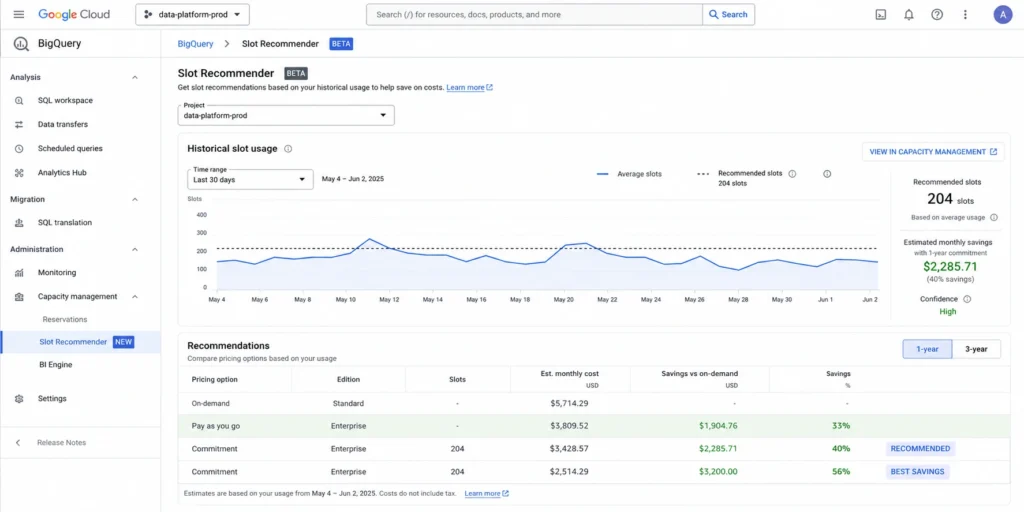
The break-even point depends on your specific slot consumption rate, which you can only measure accurately after running a trial reservation. But as a rough guideline: at consistent scan volumes above about 30-50 TiB per month, it’s almost always worth running the comparison. Google provides a Slot Recommender in the BigQuery console that estimates slot consumption from your last 30 days of usage and calculates projected costs across commitment options. That tool is the right starting point, not a manual spreadsheet built on assumptions.
The autoscaling advantage people miss
One of the most practically useful features of BigQuery editions is that autoscaling goes to zero when queries aren’t running. Baseline slots are charged continuously, but autoscaled capacity only charges for the slot-hours actually consumed. If your data team runs scheduled pipelines for two hours in the morning and then light ad-hoc queries the rest of the day, you’re not paying for eight hours of slots at peak capacity. You’re paying for two hours of burst plus the trickle for the rest.
Baseline and committed slots are still charged whether or not jobs are running, which is the reason Google’s documentation is explicit about making sure your baseline reflects your actual steady-state floor, not your peak capacity requirement.
Layer Three: Committed Use Discounts on Top of Slots
If you’re already on capacity pricing and your slot usage is stable, spend-based Committed Use Discounts add another discount layer on top of what you’re already paying.
BigQuery spend-based CUDs work differently from typical capacity commitments. Instead of committing to a specific number of slots, you commit to a consistent hourly spend amount measured in dollars per hour. In exchange, you get a 10% discount on a 1-year term or a 20% discount on a 3-year term, applied across all BigQuery pay-as-you-go slot usage in the committed region. Any usage above the committed amount runs at the standard pay-as-you-go rate.
The practical advantage is flexibility: since the commitment tracks spend rather than specific slots or editions, it applies automatically as your workload mix shifts. If you change editions or add new projects in the same region, the CUD discount continues applying without needing manual adjustments.
Like any commitment, CUDs cannot be cancelled after purchase. Google’s own documentation on CUDs is direct about this: once you make the commitment, you’re charged that minimum hourly amount even if you reduce usage for the duration of the term. Size commitments conservatively against your stable floor spend, not your average or peak.
Also read: GCP Committed Use Discount vs Sustained Use Discount
Storage Optimization: The Other Side of the Bill
BigQuery storage is often the second-largest cost line after compute, and it has a few non-obvious behaviors worth knowing about.
Tables that haven’t been modified in 90 days automatically transition to long-term storage pricing, which is significantly lower than active storage rates. You don’t need to do anything to trigger this, and the data remains fully queryable. Any modification to the table resets the 90-day clock. This creates a meaningful incentive to separate static reference data and historical tables from active working tables if you’re storing them in the same dataset and frequently touching them.
BigQuery also offers compressed storage billing, which reflects the actual compressed size rather than the logical size. Since BigQuery compresses columnar data heavily by default, the compressed price per GB is lower than the logical price per GB, but you’re billed for less data. Some organizations with data that compresses particularly well have seen compression ratios above 10:1 on certain workloads.
The most directly controllable storage cost lever is table expiration. BigQuery lets you set a default partition expiration on partitioned tables or a default table expiration on datasets. Temporary tables used for intermediate processing steps are a common source of storage waste: they get created, used once, and then forgotten. Setting automatic expiration policies on dev and staging datasets keeps those tables from accumulating indefinitely.
Putting It Together
The teams that get BigQuery costs under control reliably follow the same sequence. They start by pulling INFORMATION_SCHEMA.JOBS and finding out where the bytes are actually coming from. They fix the worst queries, add partitioning and clustering to the tables those queries hit, and stop using SELECT * in production workloads.
Once the query patterns are clean, they run a slot trial on their heaviest project, use the Slot Recommender to estimate what capacity pricing would cost versus on-demand, and make the model decision based on actual data rather than estimates. If slots win, they start with Enterprise Edition pay-as-you-go with autoscaling before committing, give it a few billing cycles to establish a usage pattern, and then size a CUD commitment to the stable floor.
None of this requires a platform change or a migration. BigQuery lets you run on-demand and capacity pricing simultaneously on a per-project basis, which means you can pilot slots on your heaviest project without touching anything else. That makes it unusually low-risk to run the comparison and see what actually happens to the bill.
Usage.ai helps with the commitment sizing piece on GCP alongside AWS and Azure in a single platform. For BigQuery specifically, the platform tracks your slot spend and surfaces CUD commitment recommendations sized to your stable hourly floor, with a buyback guarantee on commitments that go underutilized if usage drops. Fee is a percentage of realized savings only. No savings, no fee.
Frequently Asked Questions
1. When does capacity pricing beat on-demand in BigQuery?
There is no universal threshold because it depends on your actual slot consumption rate, not just bytes scanned. The right approach is to run a trial reservation on your heaviest project using Enterprise Edition with autoscaling and 0 baseline slots, then compare your slot-hour spend against what the same queries would have cost on-demand. Google’s Slot Recommender in the BigQuery console can estimate this comparison from your last 30 days of usage without requiring a live trial first.
2. Does LIMIT reduce BigQuery costs?
No. BigQuery scans all relevant data to identify results and then applies the limit. Setting LIMIT 100 on a query that scans a 5 TiB table still costs the same as running the query without the limit. The correct ways to reduce scan costs are selecting only necessary columns, using WHERE clauses that leverage partitioning or clustering, and querying against smaller tables or materialized views.
3. What is the difference between BigQuery editions?
Standard Edition ($0.04 per slot-hour pay-as-you-go) is designed for development and ad-hoc workloads. It caps reservations at 1,600 slots, does not include BigQuery ML, and has no commitment plans available. Enterprise Edition ($0.06 per slot-hour, dropping to $0.038 on a 3-year commitment) is the main production tier and adds idle slot sharing, BigQuery ML, folder-level slot assignments, and a higher SLO. Enterprise Plus adds compliance features for regulated industries. You cannot buy commitment discounts on Standard Edition, only on Enterprise and Enterprise Plus.
4. Can I use BigQuery on-demand and slots at the same time?
Yes. BigQuery lets you run different projects on different pricing models simultaneously. You can assign your highest-spend production projects to a slot reservation while leaving lower-volume or experimental projects on on-demand. This makes it practical to pilot slots on a subset of your workload without disrupting everything else.
5. What are BigQuery spend-based CUDs?
Spend-based Committed Use Discounts are a commitment to a minimum hourly spend amount on BigQuery pay-as-you-go capacity in a specific region. In exchange you get 10% off on a 1-year term or 20% off on a 3-year term, applied automatically across all eligible BigQuery slot usage. Unlike capacity commitments which lock in a specific slot count, spend-based CUDs track spend, so they adjust automatically as your workload mix changes. CUDs cannot be cancelled after purchase.