 AWS
 Microsoft Azure
 Google Cloud

Key terms to know
| Term | What it means |
|---|---|
| MCP (Model Context Protocol) | The open standard AI assistants use to connect to outside tools and data. |
| MCP server | The service an assistant connects to. Usage.ai's is at https://mcp.usage.ai/mcp. |
| Consent screen | Where you choose View or Manage access for each area before the assistant connects. |
| Preview | A no-change summary of what an approval or Autopilot change will do, shown before you confirm. |
| Autopilot | Automatic approval of a product's pending and new commitment recommendations. |
It is the second week of the month, and last month’s invoice just landed. Your CFO pings you: “How much did we actually save on cloud last month, and what did we pay for it?”
Until now, that meant opening a dashboard, picking the right month, switching between clouds, and copying numbers into a message. Today it means typing one sentence into the AI assistant you already have open.
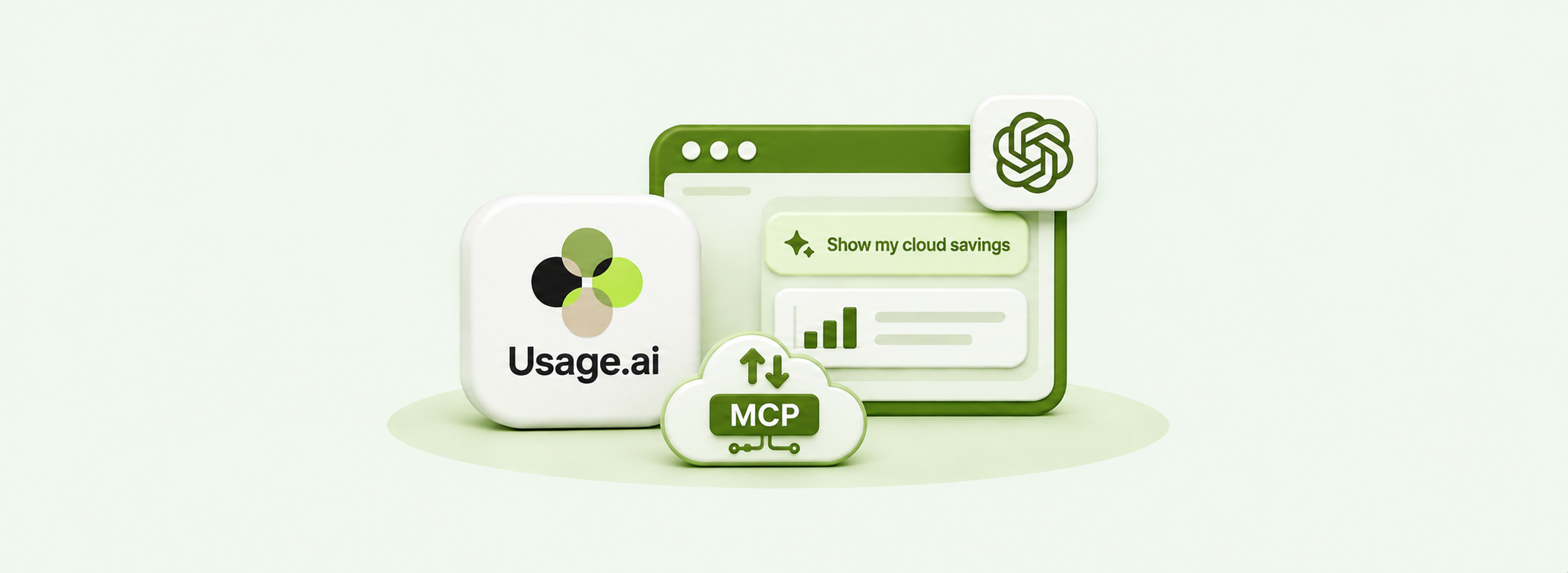
The Usage.ai MCP server is live. It connects Claude, ChatGPT, Cursor, Gemini and other AI assistants directly to your Usage.ai account, so you can ask about savings, bills, commitments and recommendations in plain words, and act on them, without leaving the chat.
What is the Usage.ai MCP server?
It is a secure bridge between your AI assistant and your Usage.ai data. MCP (Model Context Protocol) is the open standard that AI assistants use to plug into outside tools. Add one URL to your assistant and it can read your Usage.ai numbers and take approved actions for you.
The server lives at https://mcp.usage.ai/mcp and works with:
- Claude (web, desktop and Claude Code)
- ChatGPT Codex
- Cursor, Windsurf, Cline, Gemini CLI, VS Code and similar tools
- Copilot Studio, Microsoft 365 Copilot, Amazon Quick and Gemini Enterprise (set up with our team on request)
The most important detail: the assistant sees the exact same figures as your Usage.ai dashboard, calculated the same way. There is one version of the truth, whether you click or chat.
What you can ask
If it is on your dashboard, you can ask about it. Here are real questions customers can type today:
| Area | Try asking |
|---|---|
| Savings | "What did we save last cycle?" or "Show our savings trend for six months by service." |
| Billing | "Explain our September bill." or "How much were credits and fees?" |
| Invoices | "Send me the October invoice PDF." |
| Commitments | "List our savings plans." or "What expires in the next 90 days?" |
| Coverage and utilization | "What was our AWS coverage last month?" or "How well are our Google Cloud commitments used?" |
| Rightsizing | "Which instances are oversized?" |
| Recommendations | "Which recommendations are pending approval?" |
| Autopilot | "Is Autopilot on for EC2?" |
| Getting started | "Connect our AWS account to Usage.ai." |
Because it is a conversation, you can also chain questions. Ask for last month’s savings, then “break that down by commitment type,” then “draft a two line summary for our CFO.” The assistant does the reporting work, and Usage.ai keeps the numbers honest.
Invoice and savings breakdown PDFs come back as a secure download link that works once and expires after 5 minutes, so a forwarded chat never leaks your billing documents.
From answers to action, with you in control
The assistant does more than read. It can approve recommendations and switch Autopilot on or off, but never without your explicit yes. Every change follows the same four steps:
- Preview. You ask, for example, “Approve the three pending RDS recommendations.” The assistant shows each item, its estimated annual savings, and whether it will be applied or skipped. Nothing has changed yet.
- You say yes. The assistant waits for your clear confirmation in the conversation.
- Confirm. Only then is the change applied. The preview is valid for 10 minutes and can be used once.
- Record. The approval appears on your Recommendations page and in your audit log, marked as coming from an AI assistant.
If anything changes between the preview and your yes, the request stops and asks you to preview again. Retrying is always safe: a confirmed change is never applied twice.
Autopilot works one product at a time. Turn it on for AWS RDS or Google Cloud Compute Flexible CUD, and only that product changes. Turning it on approves that product’s pending recommendations now and new ones automatically. Autopilot changes are limited to organization Admins, exactly as on the dashboard.
One line we want to be very clear about: approving tells Usage.ai to buy the commitment for you. The assistant itself never buys anything.
Connect AWS, Azure or Google Cloud by just asking
Onboarding a new cloud account is usually the most tedious part of getting started. Now an organization Admin can type “Connect our AWS account to Usage.ai” and the assistant walks them through it.
It prepares each step, gives you the exact link or command, checks the result, and finishes the connection. For AWS, that includes the CloudFormation quick-create link, role verification and connecting member accounts in an AWS Organization. For Google Cloud, it provides the setup scripts, discovers your projects and registers billing exports.
For Azure, you enter your app’s client secret on the Usage.ai dashboard, never in the chat.
You still click the link or run the script in your own cloud console. No password, access key, service account key or client secret ever passes through the assistant. If something goes wrong, such as a trust policy mismatch, the assistant tells you exactly what to fix.
What it will never do
Giving an AI assistant access to your cloud finances should feel boring and safe. We designed it that way.
| The assistant can | The assistant cannot |
|---|---|
| Read the same figures your dashboard shows | Show another organization's data or unpublished months |
| Give a one time download link for a published invoice | Expose a raw storage link or any unpublished file |
| Approve recommendations after a preview and your yes | Buy anything by itself |
| Connect AWS, Azure and Google Cloud step by step | Take any password, key or secret |
| Explain each figure the way the dashboard calculates it | Invent numbers or give financial advice |
Every single call passes four checks: you are signed in with your own Usage.ai login, you approved the assistant on the consent screen, your organization has AI access enabled, and your dashboard role allows that action. You never get more power through the assistant than you have in the dashboard.
On the consent screen, you choose View or Manage for each of five areas: Reporting, Billing, Commitments, Recommendations and Settings. Untick anything you do not want. Every request lands in your audit log under User Management, and you can revoke a connection at any time with one click.
One more safeguard: rejecting a Google Cloud recommendation is permanent, so the assistant refuses to do it. That decision stays on the dashboard where you can see exactly what you are rejecting.
Get started in about five minutes
- Request AI access. An organization Admin opens Settings › AI connections in the Usage.ai dashboard and clicks Request AI access. Our team reviews and approves it.
- Add the server to your assistant. Use the URL https://mcp.usage.ai/mcp with the steps below.
- Sign in and choose permissions. A Usage.ai sign in window opens. Sign in, pick View or Manage for each area, and click Allow.
- Start asking. Try “What did we save last month?”
| Assistant | How to add it |
|---|---|
| Claude (web or desktop) | Settings › Connectors › Add custom connector. Paste the URL and click Connect. |
| Claude Code | Run claude mcp add --transport http usage-ai https://mcp.usage.ai/mcp, then /mcp › usage-ai › Authenticate. |
| ChatGPT Codex | Run codex mcp add usage-ai --url https://mcp.usage.ai/mcp, then codex mcp login usage-ai (Codex 0.148 or newer). |
| Cursor, Windsurf, Cline, Gemini CLI, VS Code | Add a remote MCP server with the URL. It registers itself the first time. |
| Copilot Studio, Microsoft 365 Copilot, Amazon Quick, Gemini Enterprise | Contact us and we will set it up with you. |
Your cloud savings, one question away
FinOps should not require a dashboard tour every time someone asks a question. With the Usage.ai MCP server, the answer is wherever you already work: in Claude, in Cursor, in Codex, in your team’s assistant of choice.
Ask your organization Admin to request AI access in Settings › AI connections, add https://mcp.usage.ai/mcp to your assistant, and ask your first question. We would love to hear what you ask it.
Ask your Admin to enable AI access, add one URL, and start asking in Claude, Cursor or Codex. Same numbers as your dashboard, and nothing changes without your yes.
Frequently asked questions
What is the Usage.ai MCP server?
It is a Model Context Protocol server at https://mcp.usage.ai/mcp that lets AI assistants like Claude, ChatGPT Codex and Cursor read your Usage.ai cloud savings data and take approved actions.
Which clouds does it support?
It answers for every cloud your organization has connected. Connecting new AWS, Azure and Google Cloud accounts through the assistant is live as well.
Will the numbers match my dashboard?
Yes. The assistant uses the same data and the same calculations as the dashboard, and billing answers come from published months, with anything not yet final clearly labelled.
Can the AI assistant buy commitments on its own?
No. It can approve a recommendation only after showing you a preview and getting your explicit yes. Usage.ai then buys the commitment. The assistant never buys anything.
Who can use it?
Any user in an organization with approved AI access. What each person can see or change follows their dashboard role. Autopilot changes and connecting clouds are limited to organization Admins.
How do I disconnect an assistant?
Go to Settings › AI connections in the dashboard, open the connection's menu and choose Revoke access. Access ends immediately.
Is it secure?
It never accepts passwords or keys, uses short lived sign in tokens, re-checks your permissions on every call, applies daily limits on changes, and records every action in your audit log.