
 AWS
AWS Microsoft Azure
 Google Cloud

If you have spent any time with AWS cost optimization tooling, you have almost certainly looked at Trusted Advisor at some point. It shows up in the AWS console, runs checks in the background, flags idle resources and open security groups, and generally gives the impression that AWS is watching out for you. That impression is partly right and partly misleading, and the difference matters if you are trying to build a real cost governance practice.
This guide covers how Trusted Advisor actually works, what each check category does, and — critically — the support plan changes that affect what checks you can access. If you are on Business Support today, that plan is going away. What replaces it, and what Trusted Advisor access comes with it, is something most guides written before mid-2025 do not cover correctly.
%2021%20(2).svg)
The Support Plan Change That Affects Everything
Before getting into what Trusted Advisor checks, here is the news most 2026 guides have not fully absorbed: AWS is retiring Developer Support and Business Support on January 1, 2027. Both plans stopped accepting new subscriptions on December 2, 2025. Existing customers can continue on their current plan until December 31, 2026 — after that date, the plans are officially discontinued.
The replacement is Business Support+, which has a $29/month minimum per account, not a flat $29 fee. The charge is the greater of that minimum and tiered percentages of applicable monthly AWS charges: 9% of the first $10,000, 7% of the next $70,000, 5% of the next $170,000, and 3% above $250,000. At $20,000 of applicable charges, support is $1,600/month. Source: AWS Support pricing. The plan includes AI-powered assistance and 24/7 access to AWS experts. Developer Support customers need to make an active choice to either upgrade to Business Support+ or accept a downgrade to Basic Support before January 1, 2027. Business Support customers can transition to Business Support+ at any time during 2026.
For Trusted Advisor specifically, Business Support+ is the new floor for full check access. If you were relying on Business Support’s access to the full check library, your transition to Business Support+ maintains that access. If you let the transition lapse to Basic Support, your Trusted Advisor access drops to the service limit and select security checks available on the Basic tier.
If your organization is on Business Support and has not yet started planning the transition to Business Support+, January 1, 2027 is a hard deadline. AWS documentation is explicit that Business Support will not continue after that date. Contact your AWS account team or go to aws.amazon.com/premiumsupport/plans/ to review the transition options. Enterprise On-Ramp customers are being automatically upgraded to Enterprise Support during contract renewal or in periodic batches throughout 2026, with email notifications sent one month before each upgrade.
What Trusted Advisor Actually Checks
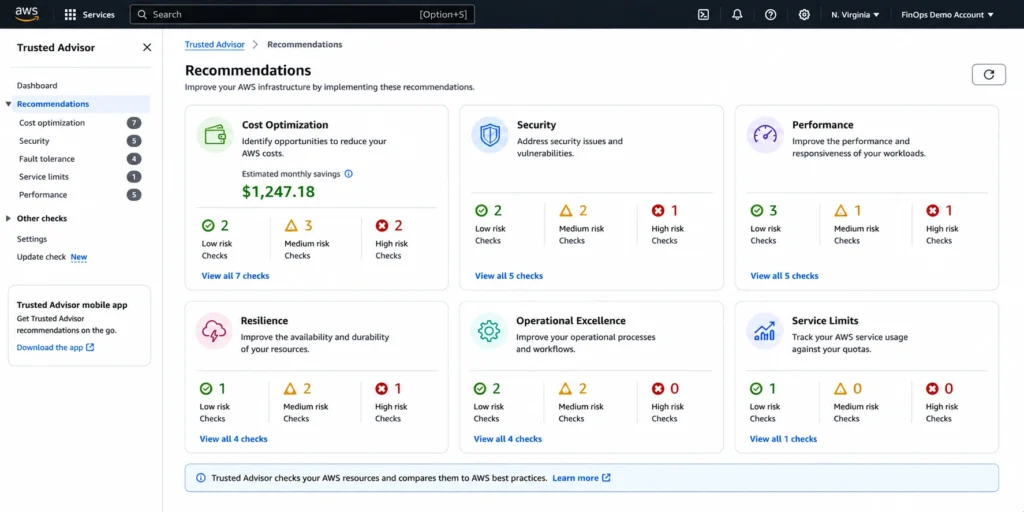
Trusted Advisor evaluates your AWS account against a library of best-practice checks organized across six categories. The number of checks accessible to you depends on your support plan. Business Support+ and above provides access to more than 500 checks with automatic weekly refresh. Basic and Developer Support accounts get service limit checks and a subset of security and fault tolerance checks, but automatic refresh is not included — on those plans, you refresh checks manually.
Cost optimization
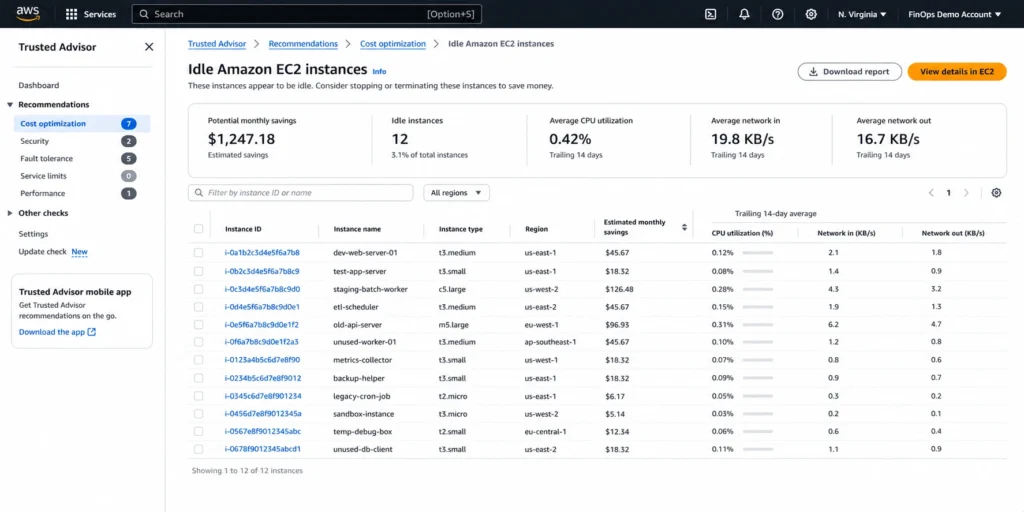
Cost optimization checks identify resources you are paying for but not fully using. These include idle EC2 instances (defined as those with CPU utilization below 10% and network I/O below 5 MB over the trailing 14 days), EBS volumes that are either unattached or have very low read/write activity, unassociated Elastic IP addresses, and RDS instances with no connections over the past seven days.
Beyond idle resource detection, Trusted Advisor also surfaces recommendations for Reserved Instance purchases based on your recent on-demand usage patterns, and flags Savings Plan opportunities for EC2, Lambda, and Fargate usage. These are the same types of recommendations the native AWS tooling generates — they are useful as a starting point, but the refresh cycle matters for how actionable they are.
On Business Support+ and above, cost optimization check results refresh automatically on a weekly basis. For recommendations that depend on usage patterns — like RI purchase suggestions — a 7-day refresh cycle means the recommendation may be based on usage that is between 1 and 7 days old. For rapidly changing environments or teams that want to act on fresh data, this is a real constraint.
Also read: The Business Case for Migrating to AWS Savings Plans: ROI, Risk, and the Commitment Framework
Security
Security checks identify misconfigurations that expose your AWS environment. On the free Basic tier, you get checks for publicly accessible S3 buckets, public EBS snapshots, public RDS snapshots, unrestricted security group ports on common high-risk ports, and whether MFA is enabled on the root account. These six checks are available to everyone regardless of support plan.
Business Support+ and above adds the full security check library, which includes IAM access key rotation status, CloudTrail logging configuration, checks for whether exposed access keys are in use, and a broader set of security group and network configuration checks. AWS Config-powered checks in the security category are also available on Business Support+ and above — these run on the AWS Config evaluation engine and can be tied to specific compliance rule sets.
Performance
Performance checks flag resources that could be delivering better performance with configuration adjustments. Examples include EBS volumes with high read/write throughput that are on volume types that would perform better or more cost-effectively on a different configuration, EC2 instances running previous-generation instance types where a newer generation would provide better price-performance, and CloudFront distributions configured in ways that limit cache efficiency.
These checks are useful for identifying obvious performance anti-patterns but are not a substitute for workload-specific profiling. A check that flags an older-generation EC2 instance type does not know whether you have a specific reason for using that type — compatibility requirements, specific hardware features, or contractual factors. The output is always a recommendation to investigate, not a definitive action item.
Resilience (formerly Fault Tolerance)
Resilience checks evaluate whether your architecture is designed to withstand component failures. These include load balancers without instances registered in more than one Availability Zone, Auto Scaling groups configured across only one AZ, EBS volumes that have not had a recent snapshot, and Route 53 health check configurations.
One nuance: Trusted Advisor checks resilience patterns at the configuration level. It can tell you that a load balancer does not have instances in multiple AZs, but it cannot tell you whether that is intentional for a single-AZ workload or an accidental gap in a production system that should be multi-AZ. The context behind the recommendation requires human judgment.
Operational excellence
Added as a category in 2023, operational excellence checks cover management hygiene. Examples include whether your Lambda functions are using deprecated runtimes, whether your CloudFormation stacks have drifted from their templates, and whether you have AWS Config rules enabled for key services. These checks reflect the operational maturity model more than immediate cost or security impact.
Service limits
Service limit checks compare your current resource usage against AWS account quotas. If you are at 80% or more of a quota — VPCs per region, Auto Scaling groups, EC2 instance limits by family — Trusted Advisor flags it. These checks are available to all accounts regardless of support plan, which makes them the one Trusted Advisor capability that genuinely costs nothing to access. For teams approaching limits on key resources, proactive monitoring here prevents the kind of capacity errors that are difficult to diagnose in the moment.
Also read: AWS Savings Setup: Save 30–50% in Under 5 Minutes (Complete Guide)
Trusted Advisor Priority: the Enterprise-Only View
Trusted Advisor Priority is a feature available exclusively on the Enterprise Support and Unified Operations plans. It provides a prioritized, filtered view of the most critical recommendations for your organization, aggregated across member accounts.
What makes Priority different from the standard Trusted Advisor dashboard is that it incorporates input from your AWS account team. Your Technical Account Manager can proactively flag high-risk issues they have identified in your environment based on their knowledge of your workloads. Recommendations in Priority are designed for IT leaders and technical decision-makers rather than being a raw check-by-check output.
For organizations on Business Support+, the standard Trusted Advisor dashboard with 500+ checks and the Organizational View for multi-account aggregation is the available toolset. For organizations that need the proactive, account-team-assisted prioritization, Enterprise Support is required.
What Trusted Advisor Cannot Do
Trusted Advisor is genuinely useful within its scope, and understanding that scope clearly is more valuable than a vague critique. Here are the specific things it does not cover.
Commitment purchasing
Trusted Advisor can flag that you have on-demand usage patterns that would benefit from a Reserved Instance or Savings Plan. It does not purchase those commitments for you. The recommendation sits in a dashboard until someone acts on it. For teams without a dedicated FinOps function, this gap between recommendation and action is where most of the potential savings gets lost. The AWS Cost Explorer Reserved Instance and Savings Plan recommendations tool covers similar ground with slightly different mechanics, but it also stops at the recommendation — the purchasing step is always manual.
Commitment management after purchase
Once you have purchased RIs or Savings Plans, Trusted Advisor does not track their utilization over time, flag underutilized commitments, or alert you when a commitment is approaching expiration. Those functions live in the AWS Cost Management console’s commitment utilization reports. Managing a growing commitment portfolio across EC2, RDS, Redshift, ElastiCache, and other services is a workflow that sits entirely outside Trusted Advisor.
Real-time or near-real-time analysis
Trusted Advisor refreshes checks on a weekly basis on Business Support+ and above. Checks are refreshed automatically, but the data underlying each check is not more than 7 days current for most categories. For rapidly growing or changing environments — a product launch, a migration in progress, a team actively adding new services — the 7-day lag means checks may not reflect the current state of your account. Trusted Advisor automatically refreshes some checks more frequently, such as the AWS Well-Architected high-risk issues for reliability check, but this is the exception rather than the rule.
Cross-service cost attribution and chargebacks
Trusted Advisor identifies waste at the individual resource level. It does not provide cost allocation across teams, departments, or business units. Understanding which team owns the idle EC2 instance that Trusted Advisor flagged, or which product line is driving the RI purchase gap, requires Cost Allocation Tags and Cost Explorer or a third-party FinOps tool. Trusted Advisor operates entirely at the resource configuration layer, not the organizational finance layer.
Rightsizing with workload context
The EC2 rightsizing check in Trusted Advisor uses a relatively simple threshold: if CPU utilization averaged below 10% and network I/O below 5 MB in the trailing 14 days, the instance is flagged as idle. This is a low bar. An instance at 25% average CPU with 5-minute peaks at 80% would not be flagged, but might still be significantly over-provisioned for its actual workload profile. Real rightsizing requires per-instance utilization analysis with workload-aware thresholds, not a single pass at the low-utilization tail.
Also read: AWS Savings Plans: Complete guide to Compute Savings Plans for EC2, Fargate, and Lambda
The Organizational View: Multi-Account Aggregation
For organizations with multiple AWS accounts under AWS Organizations, Trusted Advisor’s Organizational View aggregates check results across all member accounts into a single report. You can download the results as a CSV or JSON file, create up to 50 reports, and use the data for cross-account compliance tracking.
A few operational details worth knowing: if accounts in your organization are on Developer or Basic support plans, a user for each of those accounts needs to have signed into the Trusted Advisor console at least once to initialize check results. You cannot trigger that initialization from the management account. For large organizations managing dozens or hundreds of accounts, ensuring baseline check initialization across all accounts is an operational task that requires coordination.
For organizations that want to use the Organizational View data in custom dashboards or alerting systems, the Trusted Advisor API and Amazon EventBridge integration allow programmatic access to check results and automated routing of high-priority findings.
AWS Config Integration
A subset of Trusted Advisor checks — available to Business Support+ and above — are powered by AWS Config managed rules. When you enable certain AWS Config managed rules in your account, the corresponding Trusted Advisor checks are automatically enabled. These checks run on the Config evaluation engine, which provides continuous compliance monitoring rather than periodic batch evaluation.
The practical implication: for accounts where AWS Config is already enabled and managed rules are in use, some Trusted Advisor checks reflect near-real-time compliance status rather than the weekly batch refresh. This is the closest Trusted Advisor gets to real-time monitoring for a subset of checks.
How Trusted Advisor Fits in a Complete Cost Optimization Picture
The most useful way to think about Trusted Advisor is as a lightweight first pass, not a complete cost governance system. It catches obvious anti-patterns — idle resources, open security groups, approaching service limits — that are worth fixing regardless of any other tooling you have. For organizations early in their cloud cost management journey, the Basic tier’s service limit checks and core security checks cost nothing and take minutes to review weekly.
Where Trusted Advisor runs out of scope is everything that requires action beyond the flag: purchasing commitments, managing commitment utilization over time, tracking cost allocation across teams, rightsizing with real workload context, or acting on recommendations faster than a weekly refresh allows. That is not a criticism — it is just the design boundary. Trusted Advisor was built to surface issues. Acting on them at scale is a different capability.
The FinOps Foundation’s cloud cost optimization framework describes three phases: Inform, Optimize, and Operate. Trusted Advisor covers a portion of the Inform phase for security, resilience, and idle resource identification. The Optimize phase — purchasing commitments, executing rightsizing, eliminating waste — and the Operate phase — continuous monitoring, commitment management, chargeback — are largely outside its scope.
For teams running significant AWS spend, Usage.ai complements Trusted Advisor by handling the commitment purchasing and management layer. Where Trusted Advisor tells you that on-demand usage patterns suggest you should have Reserved Instances, Usage.ai actually purchases and manages those RIs and Savings Plans, with a 24-hour recommendation refresh cycle versus Trusted Advisor’s weekly refresh, and a buyback guarantee on commitments that go underutilized. The two tools operate on different layers of the cost optimization stack and are not substitutes for each other.
$91M+ in savings delivered to 300+ customers across AWS, Azure, and GCP. Fee is a percentage of realized savings only. No savings, no fee. 30-minute setup, billing-layer access only.
%2024.svg)
Frequently Asked Questions
1. What is AWS Trusted Advisor?
AWS Trusted Advisor is a built-in AWS service that continuously evaluates your AWS environment against a library of best-practice checks and provides recommendations. It covers six categories: cost optimization, security, performance, resilience, operational excellence, and service limits. The number of checks available and whether they refresh automatically depends on your support plan. Business Support+ and above provides access to more than 500 checks with automatic weekly refresh. Basic and Developer Support accounts get service limit checks and a subset of security and fault tolerance checks with manual refresh only.
2. Is AWS Trusted Advisor free?
Partially. All AWS accounts have free access to the service limits check category and a small subset of security and fault tolerance checks. These do not require a paid support plan. Access to the full check library — more than 500 checks across all six categories with automatic weekly refresh — requires Business Support+ at minimum. Business Support+ starts at $29/month minimum per account. The cost of the support plan is the cost of full Trusted Advisor access.
3. What is happening to Business Support and Developer Support?
Both plans stopped accepting new subscriptions on December 2, 2025. Existing customers can remain on their current plan until January 1, 2027, after which both plans are discontinued. Developer Support customers must actively choose to upgrade to Business Support+ or they will be downgraded to Basic Support. Business Support customers transition to Business Support+. The new Business Support+ plan starts at $29/month minimum per account and includes AI-powered assistance with 24/7 access to AWS experts. Source: AWS official support documentation.
4. How often does Trusted Advisor refresh its checks?
For accounts on Business Support+ and above, Trusted Advisor automatically refreshes checks on a weekly basis. Some specific checks, such as the AWS Well-Architected high-risk issues for reliability check, refresh more frequently. For Basic and Developer Support accounts, automatic refresh is not available — checks must be manually refreshed by signing into the Trusted Advisor console. AWS Config-powered checks on eligible accounts refresh continuously based on Config evaluation events rather than the weekly batch schedule.
5. Can Trusted Advisor purchase Reserved Instances or Savings Plans for me?
No. Trusted Advisor can flag that your on-demand usage patterns suggest a Reserved Instance or Savings Plan would reduce costs, but it does not execute purchases. Acting on the recommendation requires navigating to the AWS Cost Management console and manually completing the purchase, or using a third-party tool that automates commitment purchasing. The recommendation-to-action gap is one of the main practical limitations of Trusted Advisor for cost optimization.
6. What is Trusted Advisor Priority?
Trusted Advisor Priority is a feature available on Enterprise Support and Unified Operations plans only. It provides a curated, prioritized view of the most critical recommendations for your organization, incorporating input from your Technical Account Manager about high-risk issues they have proactively identified in your environment. It aggregates across member accounts and is designed for IT leaders and technical decision-makers rather than being a raw check output. Business Support+ accounts have access to the standard Trusted Advisor dashboard with Organizational View, but not Priority.