.png)



What Are AWS Savings Plans?
AWS Savings Plans are a commitment-based AWS pricing model that lowers your compute bill in exchange for a minimum hourly spend commitment. You pick a plan type, a term length (1 or 3 years), a payment structure, and a dollar-per-hour commitment amount. AWS automatically applies the discounted rate to eligible usage up to that committed amount every hour. Usage above the commitment is billed at standard On-Demand rates.
AWS launched Savings Plans in November 2019 as a more flexible alternative to EC2 Reserved Instances. The key structural difference being Reserved Instances lock you to a specific instance type and region. Savings Plans lock you to a spend rate, which gives the discount room to follow your workloads automatically as they change shape over time. For most engineering teams, that distinction is the difference between a discount that survives infrastructure changes and one that turns into dead committed spend the moment a workload gets rightsized or migrated.
For teams spending $20K/month or more on AWS compute, Savings Plans are not optional; they are the primary lever available to reduce that bill without changing architecture. A Compute Savings Plan running at 90%+ utilization on a $50K/month On-Demand baseline delivers roughly $15K-$30K in annual savings on that spend alone (exact figure depends on instance mix and regional rates, verify at Amazon docs). The reason many teams leave that money unrealized is the lack of confidence in commitment sizing, specifically, the fear of over-committing to usage that later drops.
That is what this guide resolves, the mechanics behind each plan type, the actual discount math, how to size a commitment without over-extending, what happens if usage drops below commitment, and how to monitor utilization and coverage before problems get expensive.
What Are the 4 Types of AWS Savings Plans?
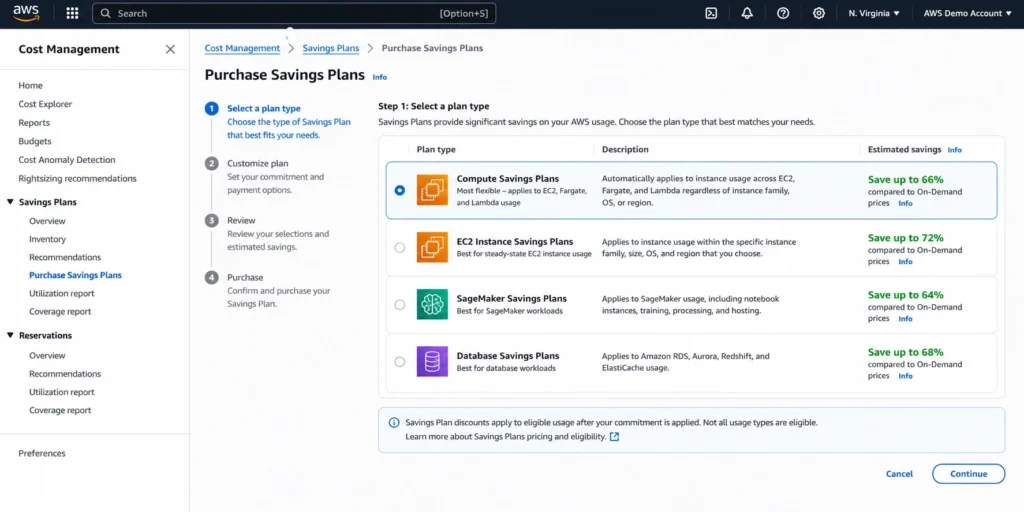
AWS currently offers four distinct Savings Plan types: Compute, EC2 Instance, SageMaker, and Database each covering a different set of services with its own balance between maximum discount and flexibility.
Compute Savings Plans
Compute Savings Plans are the most flexible AWS Savings Plan type, applying to EC2, AWS Fargate, and AWS Lambda usage regardless of instance family, size, region, operating system, or tenancy. If you move a workload from c5 to m6i, or from us-east-1 to ap-southeast-2, the Savings Plan discount follows automatically. Coverage extends to EC2 instances running inside Amazon EMR, EKS, and ECS clusters (though the EKS control plane fee itself is not discounted), to the vCPU and memory dimensions of Fargate (OS license fees are excluded), and to the duration charge on Lambda (request charges receive no discount).
Maximum discount is up to 66% off On-Demand rates (verify current rates at Amazon Savings Plan Pricing – rates change).
This flexibility comes with a slightly lower discount rate compared to EC2 Instance Savings Plans. For most teams, that tradeoff is worth it, especially those running multi-region architectures or expecting instance family changes within the plan term.
EC2 Instance Savings Plans
EC2 Instance Savings Plans lock your commitment to a specific instance family within a single AWS region in exchange for the highest available Savings Plan discount. For example, committing to the M5 family in us-east-1 means the discount only applies to M5 instances in that region. Within that constraint, the plan covers all sizes, operating systems, and tenancy options within the family.
Maximum discount is up to 72% off On-Demand rates (verify at Amazon as rates change).
The higher discount reflects the reduced flexibility. This plan type suits teams with stable, predictable, single-region workloads where the instance family is unlikely to change over the plan term.
SageMaker Savings Plans
SageMaker Savings Plans are a dedicated commitment type for Amazon SageMaker workloads, covering training jobs, real-time inference endpoints, processing jobs, and Studio notebooks. Discounts apply across instance types, regions, and SageMaker components without requiring instance-level specificity.
Maximum discount is up to 64% off On-Demand SageMaker rates (verify at Amazon as rates change).
For teams running production ML workloads at meaningful scale, SageMaker Savings Plans are one of the highest-leverage commitment options available given the typically high On-Demand costs of ML instance types.
Database Savings Plans
Database Savings Plans cover Amazon Aurora, Amazon RDS (MySQL, PostgreSQL, MariaDB, SQL Server, Oracle), Amazon DynamoDB, Amazon ElastiCache, Amazon DocumentDB, Amazon Neptune, Amazon Keyspaces, Amazon Timestream, AWS Database Migration Service, and Amazon OpenSearch Service. This is the newest Savings Plans category and was introduced to reduce reliance on per-service Reserved Instances for database cost management. Amazon Redshift is not covered under Database Savings Plans.
Maximum discount is up to 35% off On-Demand rates for serverless database deployments, with provisioned instance usage discounted up to 20% (verify current rates at Amazon as they change).
Database Savings Plans are available only as a 1-year term with No Upfront payment — unlike Compute, EC2 Instance, and SageMaker Savings Plans, there is no 3-year term or partial/all-upfront payment choice.
Note: Compute Savings Plans and EC2 Instance Savings Plans do NOT cover database services — see “Four Important Savings Plans Boundaries” below.
How AWS Savings Plans Pricing and Discounts Actually Work
The Savings Plan commitment is a dollar-per-hour amount billed at the discounted Savings Plan rate, not a dollar-for-dollar match against your On-Demand bill. When you commit to $10/hour, you are agreeing to pay at least $10 every hour (on average, across the term) for usage billed at your Savings Plan rate. Because that $10 is already the discounted rate, it corresponds to a larger amount of On-Demand-equivalent usage specifically, commitment ÷ (1 − discount rate). Any usage beyond what that commitment covers is billed at standard On-Demand rates.
The discount percentage itself is set per instance type, region, OS, tenancy, and term length. AWS publishes these rates on their pricing page at aws.amazon.com/savingsplans/pricing. The discount is expressed as a percentage reduction from the On-Demand rate for that specific configuration.
A worked example with real math
Scenario: You purchase a Compute Savings Plan at $5.00/hour, No Upfront, 1-year term. Your compute workload in a given hour costs $8.00 at On-Demand rates, and your Compute Savings Plan delivers a 50% discount on covered usage (illustrative – verify your specific rates at Amazon).
At a 50% discount, your $5.00 commitment covers up to $10.00/hour of On-Demand-equivalent usage ($5.00 ÷ (1 − 0.50) = $10.00). Since your actual usage ($8.00/hour On-Demand) falls entirely within that $10.00 of covered capacity, all of it is billed at the discounted rate.
Effective hourly cost: $5.00 (the full committed amount, which is what you’re billed regardless of whether your usage exactly matches the commitment).
Without any Savings Plan: $8.00. Actual savings: $3.00/hour, roughly 37.5% on total spend. Note that $2.00/hour of your $10.00 covered capacity went unused this hour ($10.00 covered − $8.00 actual usage) that headroom is not refunded; see “What Happens If You Over-Commit” below. If your usage had instead exceeded $10.00/hour, only the portion above $10.00 would be billed at On-Demand rates.
How payment options affect the effective discount rate
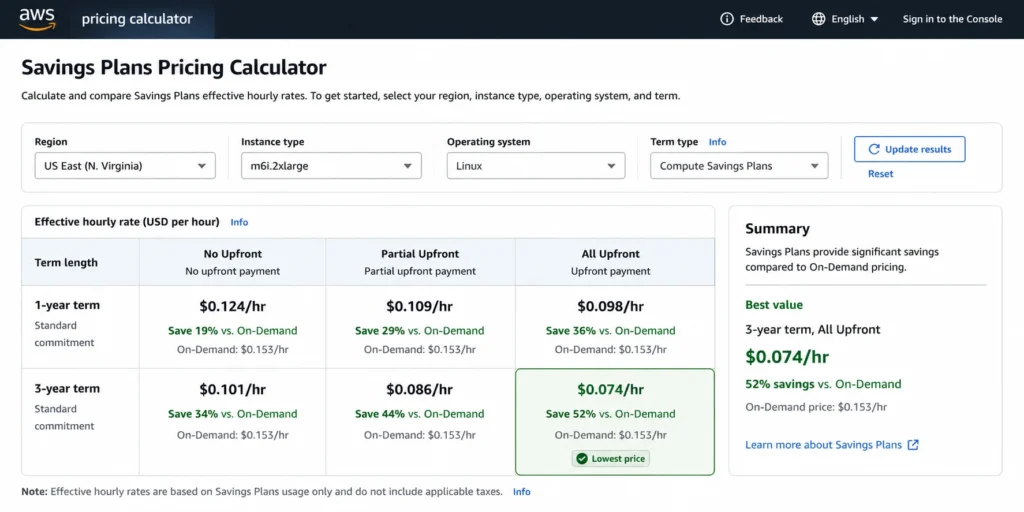
AWS offers three payment structures for all Savings Plan types:
No Upfront – Pay monthly over the full term. The effective discount rate is slightly lower than other options because AWS accounts for the time value of the deferred payment. Partial Upfront – Pay a portion of the term cost at purchase, remainder monthly. Delivers a better effective discount than No Upfront. All Upfront – Pay the full term cost at purchase.
Delivers the maximum possible discount rate for that plan type and term. The 3-year term always yields a higher discount than the 1-year term for the same payment option and plan type: a 3-year All Upfront commitment produces the lowest effective hourly rate, while a 1-year No Upfront commitment produces the highest (smallest discount).
Also see: How to Choose Between 1-Year and 3-Year AWS Commitments.
Which option is right depends on your organization’s capital position and appetite for locking up cash. A company optimizing for cash flow typically prefers No Upfront. A company with available capital and a stable long-term architecture that wants to maximize savings often chooses All Upfront.
Compute Savings Plans vs EC2 Instance Savings Plans: Which One to Buy
Choose Compute Savings Plans for flexibility across instance families and regions; choose EC2 Instance Savings Plans for the deepest discount on a single, stable instance family and region. This is the decision most FinOps engineers wrestle with. Here is a precise comparison across the dimensions that matter for the decision.
| Dimension | Compute Savings Plans | EC2 Instance Savings Plans |
| Maximum discount | Up to 66% | Up to 72% |
| Instance family flexibility | Any family | Locked to one family per region |
| Region flexibility | Any AWS region | Locked to one region |
| Operating system flexibility | Any OS | Any OS (within locked family/region) |
| Instance size flexibility | Any size | Any size (within locked family) |
| Fargate coverage | Yes | No |
| Lambda coverage | Yes | No |
| Best for | Dynamic, multi-region, multi-family | Stable, single-region, predictable |
| Lock-in risk | Lower | Higher |
The discount gap between the two plan types is roughly 6 percentage points at maximum. In most scenarios, that difference in saved dollars is smaller than the cost of accidentally over-committing to a specific instance family that later gets rightsized or migrated.
Choose Compute Savings Plans when your workloads span multiple regions, you anticipate instance family changes (for example, older to newer generation), your workloads include Fargate or Lambda, or you want the broadest coverage from a single commitment.
Choose EC2 Instance Savings Plans when you have highly stable, single-region workloads anchored to one instance family, the usage pattern has been consistent for 6+ months, and you want to extract the maximum discount from that predictable baseline.
When uncertain, default to Compute Savings Plans. The flexibility premium is worth more than the 6% discount difference in most real-world architectures.
AWS Savings Plans vs Reserved Instances: The Real Differences
AWS Savings Plans and Reserved Instances both offer steep discounts off On-Demand pricing, but Savings Plans commit you to a dollar-per-hour spend rate while Reserved Instances commit you to a specific instance configuration. These two AWS commitment discounts are frequently confused. They serve similar goals but operate differently.
| Dimension | Savings Plans | Reserved Instances |
| Commitment unit | $/hour spend rate | Specific instance type and region |
| Flexibility | High (Compute SP) or moderate (EC2 Instance SP) | Low (Standard RI) or moderate (Convertible RI) |
| Automatic application | Yes, to all eligible usage | Yes, to matching instance usage |
| Database coverage | Database Savings Plans | Database-specific Reserved Instances |
| Can be sold | No | Yes (Standard RIs only, on RI Marketplace) |
| Can be converted | No | Yes (Convertible RIs only) |
| Term options | 1 or 3 years | 1 or 3 years |
| Payment options | No Upfront, Partial, All Upfront | No Upfront, Partial, All Upfront |
| Management overhead | Low (auto-applies) | Moderate (must match instance spec) |
When both Reserved Instances and Savings Plans are active on the same account, AWS applies Reserved Instances first, then EC2 Instance Savings Plans, then Compute Savings Plans, with any usage left over billed at standard On-Demand rates. This priority order runs automatically every hour and applies the most specific, highest-value discount before broader coverage kicks in.
If you launch a Savings Plan and then change instance types or regions, the Savings Plan (especially Compute) continues to apply to the new configuration. A Standard Reserved Instance tied to the old instance type stops generating a discount the moment you stop running that specific configuration.
Reserved Instances retain one unique advantage: Standard RIs can be listed and sold on the AWS Reserved Instance Marketplace if you no longer need them, which is relevant for organizations that might need to exit a commitment early. AWS also offers a Convertible RI variant, trading part of the Standard RI discount for the ability to exchange the reservation for a different instance family, OS, tenancy, or region, a middle ground between Standard RIs and the automatic flexibility of Savings Plans.
For a deeper breakdown, see: AWS Savings Plans vs Reserved Instances: A Practical Guide to Buying Commitments.
How to Buy AWS Savings Plans: Step-by-Step
Buying an AWS Savings Plan takes six steps: review your usage, check Cost Explorer’s recommendation, choose a plan type and term, pick a payment option, set a conservative commitment amount, and confirm the purchase.
Prerequisites
Before purchasing, gather the following:
AWS Cost Management console access (requires billing-level permissions) At least 30 days of historical usage data visible in Cost Explorer A decision on plan type, term, and payment option A carefully calculated commitment amount (see the sizing section below)
Step 1: Open AWS Cost Management and navigate to Savings Plans Go to console.aws.amazon.com, open Cost Management, and select “Savings Plans” from the left navigation. The overview page shows your current inventory and utilization metrics.
Step 2: Review Cost Explorer Recommendations Navigate to “Recommendations” in the Savings Plans section. AWS Cost Explorer; AWS’s built-in cost analysis and forecasting tool analyzes your historical usage and suggests a commitment amount and plan type. These recommendations are based on a lookback period of your choice (7, 30, or 60 days) and target a coverage percentage you specify.
Important limitation: these recommendations run on data that’s 72 hours old or more, so a recent workload change won’t be reflected yet (see “How the AWS Cost Explorer recommendation engine actually works” below for the full mechanics).
Review the recommendations as a starting point, not a final answer. Cross-reference against your own understanding of recent workload changes before committing.
Before finalizing a commitment, AWS also offers the Savings Plans Purchase Analyzer inside the Cost Management console. The Purchase Analyzer lets you model a specific commitment amount against your historical usage and see the projected cost, coverage, and utilization before you buy, including the option to exclude Savings Plans that are expiring soon. Use it alongside the Cost Explorer recommendation, not instead of it, to stress-test the exact dollar amount before you commit.
Step 3: Choose plan type and term Select the plan type that matches your coverage goals. Choose a 1-year or 3-year term based on how confident you are in your usage trajectory. For most teams new to Savings Plans, 1-year is the lower-risk starting point even if the 3-year discount is more attractive.
Step 4: Select a payment option Choose No Upfront, Partial Upfront, or All Upfront. The console displays the effective hourly rate for each combination. Higher upfront payment yields a lower effective rate (higher effective discount).
Step 5: Set the commitment amount conservatively Enter your commitment in $/hour. The right starting point for most teams is 70-80% of current baseline usage, not 100%. This leaves room for usage drops without stranding committed spend. See the next section for detailed sizing guidance.
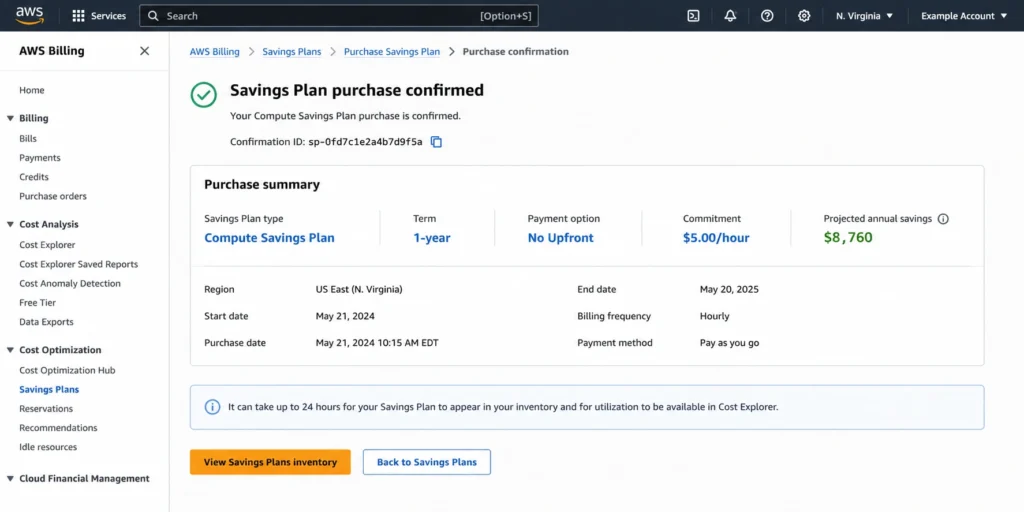
Step 6: Review and purchase Confirm all parameters. The console shows an estimated annual savings figure. Complete the purchase. Discounts begin applying to eligible usage within the hour.
If you purchased in error or sized the commitment incorrectly, AWS allows a limited return window: Savings Plans with an hourly commitment of $100 or less can be returned within 7 days of purchase, within the same calendar month, for a full refund of any upfront charges, up to 10 returns per management account per calendar year. This window does not help with larger commitments, so verify your sizing carefully before purchasing at scale.
How to verify it worked
Check the Savings Plans utilization dashboard in Cost Management 24-48 hours after purchase see “Understanding Savings Plans Utilization Rate and Coverage Rate” below for the healthy target range.
How to Size a Savings Plan Commitment Without Over-Committing
Size a Savings Plan commitment to your stable usage floor, not your average or peak usage, and start at 70-80% of that floor to leave room for change. Correct sizing is the single most important factor in Savings Plans management. Over-commit and you pay for unused capacity. Under-commit and you leave savings unrealized. The goal is to cover the stable, predictable floor of your compute usage without extending into variable or elastic territory.
Step 1: Identify your baseline usage
Pull your On-Demand equivalent spend from Cost Explorer for the last 60-90 days. Exclude Spot Instance spend – Savings Plans do not apply to Spot. Look at the minimum hourly spend across that period, not the average. The minimum represents your true baseline and it is the usage that is always running regardless of traffic spikes.
Step 2: Apply a conservative coverage ratio
Most FinOps practitioners recommend covering 70-80% of baseline with Savings Plans in the first purchase. Covering 100% of even the minimum leaves no buffer for any reduction in steady-state usage. If you add Savings Plans over time (layering additional commitments as confidence grows), you can increase coverage toward 90%+ without the risk of a single large over-commitment.
Step 3: Account for planned changes
If you know a workload is being decommissioned, rightsized, or migrated in the next 3-6 months, exclude that usage from your commitment calculation. Savings Plans cannot be cancelled after purchase (through AWS natively), you will pay the committed rate for the full term regardless.
Step 4: Model the break-even point
For any commitment, calculate the break-even utilization rate — the point below which you’d have been better off not buying the plan at all. Because you pay the full commitment regardless of usage (see above), a Savings Plan only saves money once your covered usage passes (1 − discount rate) of your covered capacity. For a plan with a 30% discount, that break-even point is 70% utilization: below it, plain On-Demand pricing would have cost you less than your flat commitment. At 100% utilization, you realize the full 30% discount. Utilization between 70% and 100% still saves money, just less than the full discount rate implies.
The break-even math is specific to your plan type, term, and discount rate. Run it against your actual discount rate from the AWS pricing page before committing.
What Happens If You Over-Commit or Usage Drops?
If your usage falls below your commitment, you still pay the full committed amount, the shortfall is not refunded, credited, or carried forward. This is the question competitors consistently avoid answering clearly. Here is the precise answer.
If you purchase a Savings Plan for $10/hour and your actual compute usage drops to $6/hour, you still owe the committed $10/hour. AWS bills you for the full commitment whether the capacity is consumed or not. The $4/hour gap generates zero discount and zero value. It is committed spend with no return.
At $10/hour over-commitment, the annual cost of that gap is $87,600. At $4/hour underutilization, you are paying $35,040/year for capacity you are not using.
AWS does not offer refunds, credits, or buybacks for underutilized Savings Plans. The commitment is legally binding for its full term, with no AWS-native mechanism to exit early, transfer it, or sell it.
The most common causes of over-commitment
Workload migrations. A team commits to cover EC2 usage that subsequently moves to containers on Fargate. The Compute Savings Plan continues to apply to Fargate, so this specific scenario is handled. But if the workload moves to a non-covered service or is shut down entirely, the commitment orphans. Organizational rightsizing. A cost optimization initiative reduces instance sizes across a fleet. The On-Demand equivalent spend drops. The Savings Plan commitment stays at the original level. Seasonal traffic patterns. A commitment sized for peak season carries excess committed spend through off-peak months. Recommendation lag. Cost Explorer’s recommendations run on stale data (see below), so a workload reduction from a few days ago won’t appear in your next recommendation yet.
How to monitor for over-commitment
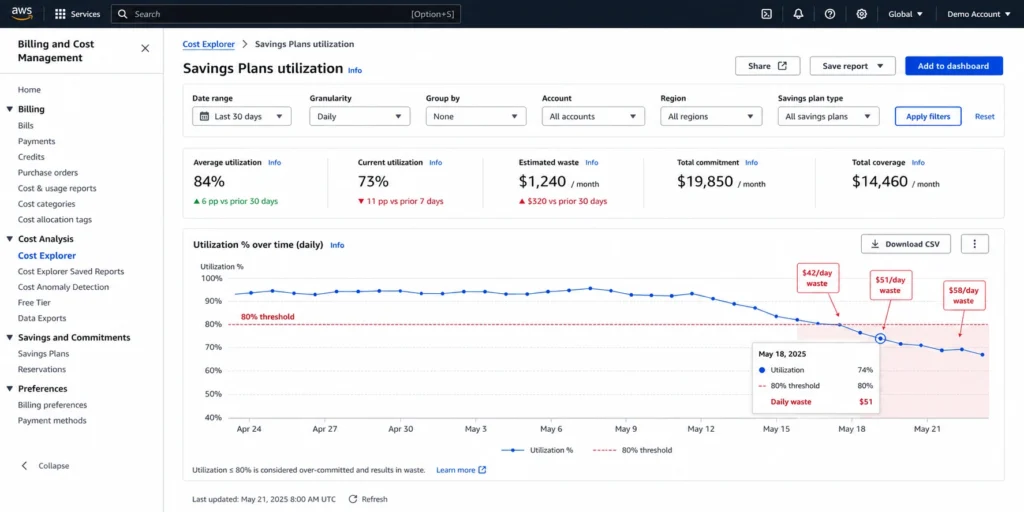
Watch the Savings Plans utilization dashboard for any multi-day drop below the 90% target (see below) that’s the early signal of an emerging over-commitment, and the earlier you catch it, the more room you have to compensate by scaling usage or buying less aggressively next time.
Understanding Savings Plans Utilization Rate and Coverage Rate
Utilization rate measures how much of your committed spend is actually generating a discount; coverage rate measures how much of your eligible spend is covered by a commitment at all and the two metrics fail in opposite directions.
Utilization rate answers: of the commitment I purchased, how much am I actually consuming?
A 95% utilization rate means 95 cents of every committed dollar is generating a discount. A 70% utilization rate means 30 cents of every committed dollar is waste; you committed to it, AWS is charging for it, but nothing in your infrastructure is consuming it.
Coverage rate answers: of my eligible On-Demand spend, how much is covered by a Savings Plan?
A 40% coverage rate means 60% of your eligible compute spend is still at On-Demand pricing. That 60% is a savings opportunity you have not captured yet.
The healthy operating range for most teams:
Utilization rate: 90% or higher (signals appropriately sized commitment) Coverage rate: 80% or higher (signals adequate coverage of eligible spend) Running high utilization with low coverage means you have a well-sized commitment that is too small – you are leaving savings on the table. Running high coverage with low utilization means you have over-committed – you are paying for committed spend that your actual usage does not consume.
Both metrics need to be tracked together. AWS Cost Management shows both in the Savings Plans section under “Coverage” and “Utilization” reports separately.
Four Important Savings Plans Boundaries Most Teams Get Wrong
Savings Plans do not apply to Spot Instances
Savings Plans discounts apply only against On-Demand-equivalent usage, Spot Instance usage never draws down your commitment. Spot Instances are priced through a separate market mechanism and already carry significant discounts from On-Demand rates. If your fleet is heavily Spot-based, your effective Savings Plan utilization will be lower than your total compute spend suggests. Size your commitment only against the portion of your workload that runs On-Demand or reserved-equivalent.
Also see: On-Demand vs Reserved vs Spot Instances.
Compute Savings Plans do not cover RDS or other database services
Compute Savings Plans and EC2 Instance Savings Plans do not cover any database service: RDS, Aurora, ElastiCache, Redshift, and OpenSearch all require a separate commitment. Database services require either Database Savings Plans or database-specific Reserved Instances purchased separately per service. Teams that buy a Compute Savings Plan expecting RDS coverage will find their database still fully at On-Demand pricing.
Savings Plans discount rates are not uniform across regions
Savings Plans discount rates are not uniform across regions, because the underlying On-Demand rates they’re discounted from vary by region. An m5.large in us-east-1 has a different On-Demand rate than the same instance in ap-southeast-1, and therefore a different Savings Plan effective rate. The same committed spend goes further in some regions than others depending on relative On-Demand pricing; always verify regional rates at aws.amazon.com/savingsplans/pricing before sizing a commitment.
Savings Plans cannot be sold or transferred
Savings Plans have no secondary market, unlike Standard Reserved Instances, which can be listed and sold on the AWS Reserved Instance Marketplace. Once purchased, the commitment runs for its full term with no exit option through AWS beyond the 7-day return window on commitments of $100/hour or less. If there is a reasonable chance a workload will be decommissioned within the plan term, either size the commitment conservatively or evaluate whether a marketable Standard RI is a better fit.
How the AWS Cost Explorer recommendation engine actually works
AWS Cost Explorer’s Savings Plans recommendations are retrospective, not predictive: they calculate the commitment amount that would have achieved a specified coverage target (typically 80%) over the lookback period you select for 7, 30, or 60 days. It does not predict future usage, account for planned workload changes, or factor in decommissions. The 72-hour data refresh cycle means any usage change in the last three days is invisible to the recommendation. Use Cost Explorer recommendations as a starting data point, then adjust based on your own understanding of where usage is heading.
A Note on Automated Savings Plans Management
Manually tracking Savings Plans utilization, coverage, and recommendation freshness across multiple AWS accounts is a significant operational burden for teams spending $100K/month or more on compute. A 72-hour lag in detecting an over-commitment at $10K/day in committed spend costs real money.
Usage.ai automates this workflow: it refreshes commitment recommendations every 24 hours (versus Cost Explorer’s 72-hour cycle), purchases commitments with a buyback guarantee on underutilization, and pays cashback on any unused commitment in real money rather than credits. To date, Usage.ai has helped 100+ customers, including Motive, EVgo, and Secureframe, recover more than $91M in cloud spend. The platform covers EC2, Fargate, Lambda, RDS, ElastiCache, OpenSearch, Redshift, and DynamoDB with zero upfront cost and no multi-year lock-in. The fee model is a percentage of realized savings. Zero fee if nothing is saved.
If your team is spending engineering hours on what should be an automated AWS cost optimization process, it is worth running the numbers.
Frequently Asked Questions
1. What is an AWS Savings Plan and how does it work?
An AWS Savings Plan is a commitment-based pricing model that reduces compute, database, and ML service costs by 20-66% in exchange for a consistent hourly spend commitment over 1 or 3 years. AWS automatically applies the discounted price to eligible usage up to that rate each hour, and any usage exceeding the commitment is billed at standard On-Demand rates with no manual instance-level reservation required.
2. What happens if I don’t use all my AWS Savings Plan?
If your actual usage falls below your committed hourly rate, you still pay the full committed amount. AWS bills the committed rate regardless of actual consumption. The unused portion generates no discount and cannot be refunded, credited, or transferred. At a $10/hour over-commitment, the annual exposure is $87,600.
3. Is it worth buying AWS Savings Plans in 2026?
For teams with stable, predictable baseline compute usage, Savings Plans remain one of the most effective ways to reduce AWS bills by 30-66%. The calculation changes when usage is volatile or declining, if your workloads are in flux due to migrations, rightsizing, or organizational changes, a conservative commitment (70-80% of current baseline) reduces the risk of stranded committed spend.
4. What is the difference between Compute Savings Plans and EC2 Instance Savings Plans?
Compute Savings Plans deliver up to 66% savings across any EC2 instance family, region, OS, and tenancy, plus Fargate and Lambda. EC2 Instance Savings Plans deliver up to 72% savings but lock coverage to a specific instance family within one region. The 6% discount difference rarely justifies the flexibility penalty unless you have highly stable, single-region workloads anchored to one instance family. For most architectures, Compute Savings Plans are the correct default.
5. Do AWS Savings Plans cover RDS or database services?
No. Compute Savings Plans and EC2 Instance Savings Plans do not cover RDS, Aurora, ElastiCache, Redshift, or OpenSearch. Database services require Database Savings Plans (up to 35% on serverless, up to 20% on provisioned verify at Amazon) or dedicated database Reserved Instances purchased separately per service. Assuming a Compute Savings Plan covers RDS is one of the most common and expensive planning errors in AWS cost management.
6. How are AWS Savings Plans different from Reserved Instances?
Savings Plans commit you to an hourly spend rate and automatically apply across eligible service families. Reserved Instances commit you to a specific instance configuration and region. Standard RIs can be sold on the AWS Marketplace if unused; Savings Plans cannot. For most use cases, Savings Plans now offer better flexibility than Standard RIs, and Convertible RIs offer some exchange flexibility but at a lower discount.
7. How do I check if my Savings Plans are being fully utilized?
Open AWS Cost Management and navigate to Savings Plans, then select the Utilization report. A healthy utilization rate is 90% or higher; rates below 80% indicate over-commitment. Check weekly rather than monthly, a multi-day utilization drop is an early warning that requires either scaling usage toward the commitment or sizing future commitments more conservatively.
8. What is the minimum purchase amount for AWS Savings Plans?
AWS does not publish a formal minimum dollar amount, the commitment is expressed as $/hour, and technically any non-zero commitment is valid. In practice, meaningful savings only materialize when the commitment is sized against a substantial portion of your compute baseline. Use the Cost Explorer recommendation as a floor and adjust based on your actual usage analysis.
9. Can I return or cancel an AWS Savings Plan after purchasing it?
AWS offers a limited 7-day return window for Savings Plans with an hourly commitment of $100 or less, provided the return is requested within 7 days of purchase and in the same calendar month. Returning a plan refunds any upfront charges in full within 24 hours, and covered usage reverts to On-Demand rates or another active Savings Plan. Management accounts are limited to 10 returns per calendar year, and commitments above $100/hour have no return option.
10. If I have both Reserved Instances and Savings Plans, which discount applies first?
AWS applies Reserved Instances to matching usage first, since they are the most specific commitment type. Any remaining usage is then covered by EC2 Instance Savings Plans, followed by Compute Savings Plans, before anything left over is billed at standard On-Demand rates. This priority order runs automatically each hour and requires no manual configuration.
11. Do AWS Savings Plans reserve capacity for my instances?
No. Savings Plans are a billing discount only, they do not reserve EC2 capacity in any Availability Zone or region. If you need a guarantee that capacity will be available when you launch an instance, use an On-Demand Capacity Reservation alongside your Savings Plan; the Savings Plan discount can still apply to that reserved capacity’s usage. This is a common point of confusion since Reserved Instances can optionally provide a capacity reservation when scoped to a specific Availability Zone.
12. Is there a fee to purchase an AWS Savings Plan?
No. There is no separate purchase fee or subscription cost for a Savings Plan itself. The only financial commitment is the hourly spend rate you commit to, billed according to your chosen payment option (No Upfront, Partial Upfront, or All Upfront). You are not charged anything beyond your committed usage and any applicable upfront payment.
13. Can AWS Savings Plans be shared across multiple AWS accounts?
Yes. By default, Savings Plans purchased in any account within an AWS Organization or consolidated billing family are shared across all linked accounts, and AWS applies the discount to the purchasing account’s usage first before extending it to other accounts. This sharing behavior can be disabled at the payer account level if you need to restrict a Savings Plan’s benefit to a single account.