.png)
 AWS
AWS Microsoft Azure
 Google Cloud


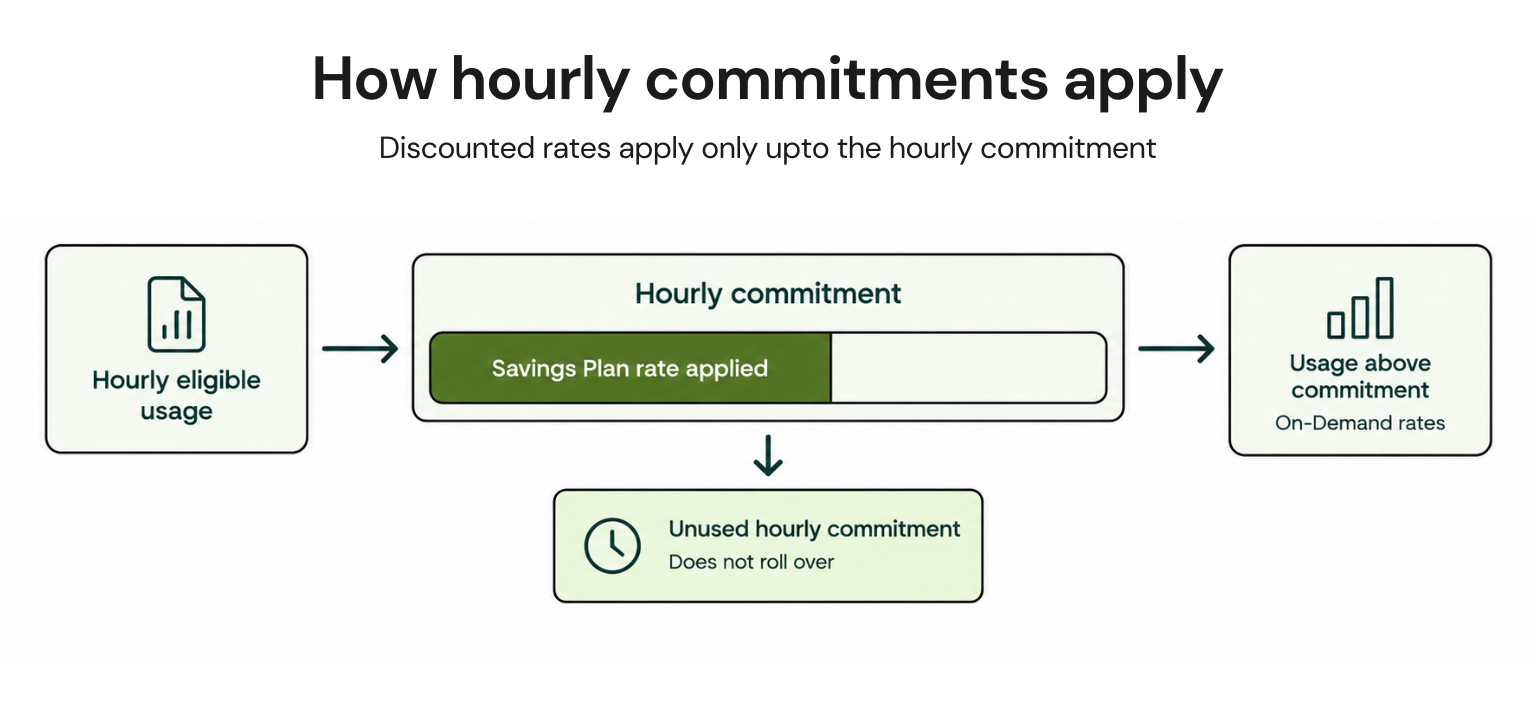
Usage above the commitment is billed at on-demand rates, while unused hourly commitment does not roll over.
Most teams understand the savings. The harder part is understanding exactly how the hourly commitment is consumed. Committing too high and quiet hours create waste. Commit too low and some eligible usage stays at on-demand rates.
This guide focuses on the mechanics: how the discount is applied, what happens above and below the commitment, how AWS and Azure differ, and how to size a commitment without treating a provider recommendation as a substitute for your own analysis.
What does commitment mean?
The commitment is expressed as a dollar-per-hour amount for a one-year or three-year term. It is not a promise to run a certain number of instances. AWS offers All Upfront, Partial Upfront, and No Upfront payment options. Azure allows upfront or monthly payments; for Microsoft Customer Agreement customers billed in a non-USD currency, monthly billed amounts can vary with the current month’s exchange rate.AWS now offers four Savings Plan types: Compute, EC2 Instance, Database, and SageMaker AI. This article covers Compute Savings Plans specifically. Database Savings Plans are a separate commitment for eligible database usage.
The key point is that the commitment is the financial baseline. Eligible usage consumes that baseline at the applicable discounted rate during each hour.
For more detail, see the official AWS Savings Plans types documentation and Microsoft Learn guide to Azure Savings Plans.
How does the discount apply each hour?
Once a plan is active, the provider automatically applies discounted rates to eligible usage. There is no resource tagging or manual matching step.On AWS, Compute Savings Plans can apply across EC2 instance families, sizes, operating systems, tenancies, and Regions, as well as Fargate and Lambda. AWS currently advertises savings of up to 66% for Compute Savings Plans.
Fargate coverage applies to vCPU and memory dimensions, while the Fargate OS license fee is excluded. For Lambda, duration usage can receive the Savings Plan rate, but Lambda request charges do not receive the discount.
Azure Savings Plan for Compute applies to eligible infrastructure costs from services including Virtual Machines, App Service, Functions Premium, Container Instances, Dedicated Host, Container Apps, and Azure Spring Apps for Enterprise. Microsoft currently states savings of up to 65%, depending on the product and term. Software, networking, and storage charges are excluded.
Both providers prioritize eligible usage according to their discount application rules. AWS applies Reserved Instances before Savings Plans, then applies Savings Plans to eligible usage based on savings percentage. Azure also applies reservation benefits before Savings Plans and applies a three-year Savings Plan before a one-year plan when both are eligible.
For the detailed AWS application order, see Understanding how AWS Savings Plans apply to usage. For Azure, see How Azure Savings Plan discounts are applied.
Why this matters: Automatic application makes Savings Plans easy to operate after purchase, but it does not make every cloud charge eligible. Scope and charge-level eligibility still matter.
What happens above the commitment?
Usage above the hourly commitment is billed at regular On-Demand rates. The Savings Plan does not discount the excess simply because the plan is active.For example, suppose an eligible compute would cost $30 at On-Demand rates in an hour and your commitment is $10 per hour. If the applicable Savings Plans rate is 60% below On-Demand, $25 of On-Demand-equivalent usage costs $10 at the Savings Plans rate and exhausts the commitment. The remaining $5 of usage stays at the regular On-Demand rate.
Your illustrative hourly cost is therefore:
If this pattern occurs frequently, your commitment may be too low. AWS allows additional Savings Plans to be purchased as usage changes, but the terms of an existing plan cannot be changed after purchase. Azure likewise states that Savings Plan purchases cannot be canceled or refunded.
Why this matters: Sustained excess usage is a coverage problem. Review the uncovered portion before adding another commitment.
What happens below the commitment?
Unused hourly commitment does not carry forward. Each hour is settled independently.There is one important calculation detail that is easy to get wrong. The commitment is consumed by the discounted Savings Plan cost, not by the equivalent on-demand value of the usage.
Illustrative example
| Item | Amount |
|---|---|
| Hourly commitment | $10.00 |
| Assumed Savings Plan discount | 60% |
| Eligible usage at on-demand rates | $4.00 |
| Savings Plan charge applied | $1.60 |
| Unused commitment | $8.40 |
The formula is:
For AWS’s documented hourly mechanics, see Understanding how AWS Savings Plans apply to usage.
Why this matters: The quiet hour is where an oversized commitment becomes expensive. Size for a durable baseline rather than the highest hour your workload can reach.
How should you size the commitment?
Start with your own usage history, then use the provider recommendation as a cross-check.A practical process is:
Pull several weeks of hourly eligible compute spend where the provider and service support the required granularity.
Separate stable baseline usage from short-lived peaks, launches, migrations, and unusual events.
Review the distribution of hourly spend instead of relying only on a monthly average.
Choose a conservative baseline that you can reasonably expect to consume across most hours.
Compare that baseline with the provider's recommendation.
Start conservatively and add another commitment later if sustained usage supports it.
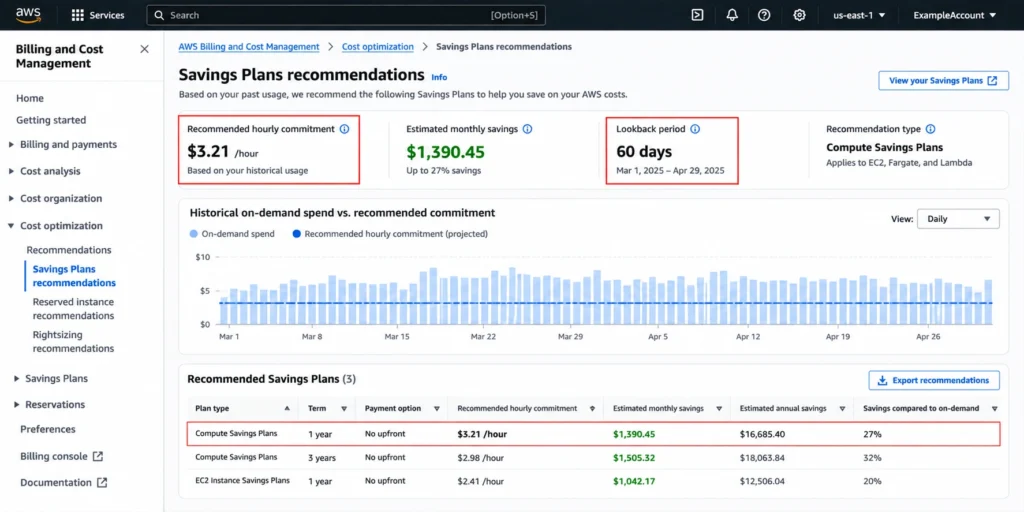
AWS Cost Explorer provides Savings Plan recommendations based on historical usage and active commitments. Azure provides recommendations through Azure Advisor, the Azure portal, and recommendation APIs.
For Azure’s documented recommendation process, see Determine your Azure Savings Plan commitment.
Do not treat either recommendation as a guaranteed optimal answer for every business. A team optimizing for maximum coverage may choose a different commitment from a team optimizing for lower underutilization risk.
If you are new to the concept, start with What Is a Compute Savings Plan? before using this page for the deeper hourly mechanics.
Why this matters: The right commitment is not necessarily the one that covers the most usage. It is the one that provides useful discounted coverage without creating unacceptable unused commitment.
Manual sizing vs. automated commitment management
| Decision factor | Manual approach | Automated approach |
|---|---|---|
| Usage analysis | Review historical billing data | Continuous analysis |
| Commitment sizing | Build and validate your own model | System-generated recommendation |
| Purchase timing | Human approval and execution | Automated within approved parameters |
| Underutilization | Detect and manage manually | Monitor and manage according to program terms |
| Multi-cloud | Separate provider workflows | Centralized workflow |
Why this matters: Manual management can work well when the team has the time and process discipline to monitor commitments continuously. Automation becomes more useful as cloud coverage and commitment decisions become harder to manage consistently.
What are the AWS and Azure differences?
The core hourly model is similar, but the purchase and eligibility rules are not interchangeable.| Area | AWS Compute Savings Plans | Azure Savings Plan for Compute |
|---|---|---|
| Term | 1 or 3 years | 1 or 3 years |
| Maximum advertised discount | Up to 66% | Up to 65% |
| Main coverage | EC2, Fargate, Lambda | VMs, App Service, Functions Premium, Container Instances, Dedicated Host, Container Apps, Azure Spring Apps for Enterprise |
| Payment options | All Upfront, Partial Upfront, No Upfront | Upfront or monthly |
| Unused hourly benefit | Does not roll over | Does not roll over |
| Exit constraints | Terms cannot be changed after purchase; narrow AWS return policy applies to qualifying purchases | Purchases cannot be canceled or refunded |
| Eligibility and scope | AWS billing structure and sharing settings affect where benefits apply | Eligible agreement types and benefit scope determine where benefits apply |
Azure also allows a defined benefit scope, so automatic application should not be interpreted as unlimited coverage across every subscription or charge.
For the broader provider comparison, including commitment trade-offs, see Compute Savings Plans: The Complete AWS and Azure Guide.
Why this matters: A sound sizing model can still produce a poor purchase if eligibility, benefit scope, payment structure, or exit constraints are overlooked.
Where do we fit?
Once the mechanics are clear, the operational question is how much of the process your team wants to manage manually.At Usage.ai, we automate commitment analysis and purchasing across AWS, Azure, and GCP. We analyze usage patterns, help identify commitment opportunities, and manage approved purchases within the parameters agreed with each customer.
With Flex Insured Commitments, teams can get the 30–50% savings of a 1- or 3-year commitment with none of the commitment risk. That applies across covered workloads on AWS, Azure, and GCP, and after a customer approves a recommendation, we purchase and manage the commitment on their behalf.
If a commitment ever costs more than the equivalent on-demand usage, we calculate that loss at the end of the month and provide cashback protection for it. We charge a percentage of realized savings, so the fee only exists when the savings do.
The underlying AWS or Azure commitment still exists. Our role is to simplify the work around sizing, purchasing, monitoring, and qualifying protection.
If your team is managing commitments across multiple providers, we can help turn that recurring analysis into a more consistent workflow.
Upload your AWS or Azure bill. Usage.ai analyzes your eligible spend and shows where your current commitment may be too high or too low.
Frequently asked questions
What is the difference between a Savings Plan commitment and usage?
The commitment is the dollar-per-hour amount agreed for the term. Usage is the eligible compute actually consumed. The provider applies discounted rates to eligible usage and uses the resulting discounted cost against the hourly commitment. Usage above the commitment is billed at on-demand rates.
What happens if my workload drops after purchase?
Unused hourly commitment does not roll over. AWS and Azure therefore both create a cost when eligible usage remains below the commitment. AWS has a narrow return policy for qualifying purchases, while Azure states that Savings Plan purchases cannot be canceled or refunded.
Is P70 an official AWS or Azure sizing rule?
No. P70 is a practical sizing methodology, not a provider requirement. It can help establish a baseline below peak demand, but the appropriate percentile depends on workload stability, growth expectations, and risk tolerance.
Can I use Savings Plans with Reserved Instances?
Yes. AWS applies Reserved Instances before Savings Plans when both are eligible. Azure also applies reservation benefits before Savings Plans. The exact interaction depends on the resources, scopes, and applicable billing rules.
What should I check before buying a Savings Plan?
Check eligible services and charges, hourly usage patterns, existing commitments, term length, payment option, benefit scope, agreement eligibility, and exit constraints. Then model both busy and quiet periods before approving the commitment.