
 AWS
AWS Microsoft Azure
 Google Cloud
If your AWS bill has grown every quarter and you’re not exactly sure where the money is going, you’re not alone. Most engineering teams overspend 30-40% on cloud without realizing it. AWS pricing is genuinely complex and the native tools AWS provides don’t make the picture obvious.
The Usage.ai Savings Calculator was built to answer one specific question: what is your AWS environment wasting right now, and how much of it is recoverable?
It takes your actual bill. It returns a per-service savings breakdown. The fastest method takes 60 seconds. Most accurate takes 3 minutes. This guide walks you through all three methods so you can pick the right one for the time you have.
Wait, Is Usage.ai AWS Savings Calculator the Same as the AWS Pricing Calculator?
No, and the difference matters.
The public AWS Pricing Calculator estimates manually configured workloads. The in-console AWS Pricing Calculator can import historical usage and model changes to an existing bill, including commitment scenarios. Cost Explorer separately provides native RI and Savings Plans recommendations.
The Usage.ai AWS Savings Calculator, on the other hand, works from your actual spend data. You give it your AWS invoice or a Cost Explorer export, and it tells you what you’re currently overpaying across EC2, RDS, ElastiCache, Redshift, DynamoDB, Lambda, and more.
One answers “what will this cost?” The other answers “what am I wasting right now?”
If you have an active AWS environment, you need the second question answered first.
Three Ways to Get Your Savings Number
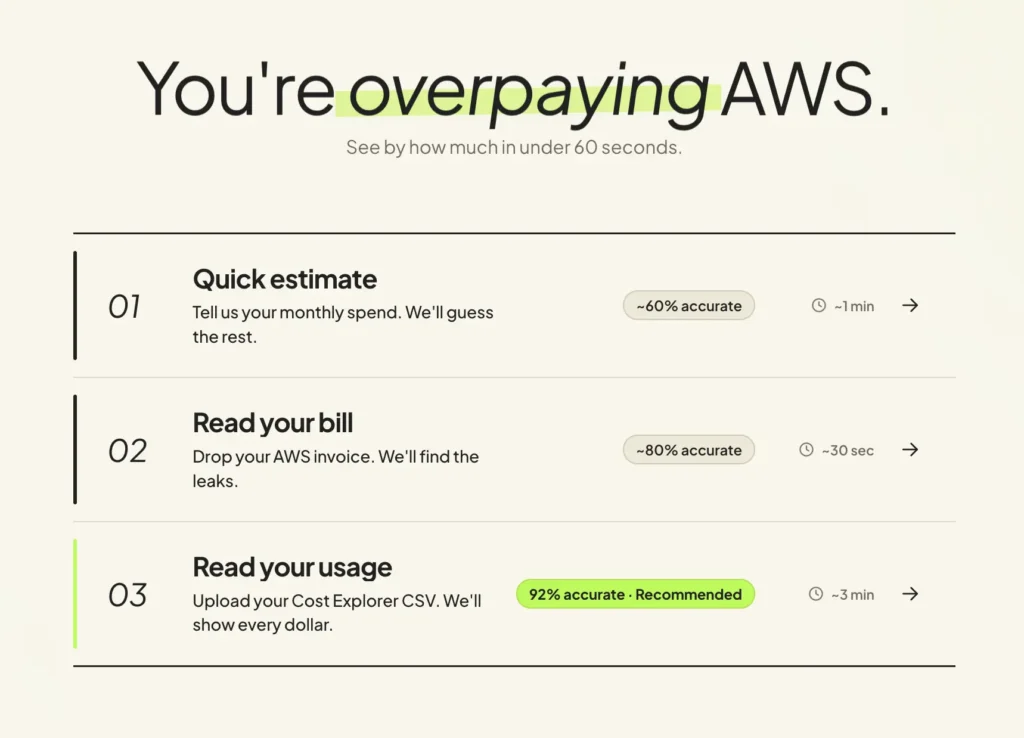
The Usage.ai AWS Savings Calculator gives you three input methods. They trade off speed against accuracy. Here’s the full picture before you dive in:
| Method | What You Need | Accuracy | Time | Best For |
| 01. Live Calculator | Rough spend per service | Benchmark estimate | ~1 min | Quick ballpark |
| 02. Drop Your Invoice | Your AWS invoice PDF | Bill-based estimate | ~30 sec | Fast, no CSV export needed |
| 03. Cost Explorer CSV | On-demand cost export | Depends on export detail and validation | ~3 min | The number you can take to finance |
Use the most detailed available billing data when evaluating savings. A claimed accuracy percentage does not by itself determine the dollar error in a savings estimate; that requires a defined benchmark, measured prediction errors and an eligible-spend baseline. Compare the methods on those criteria rather than multiplying accuracy percentages by the total AWS bill.
Method 01: The Live Calculator (Rough Estimate in 60 Seconds)
This method uses industry benchmarks against your spend inputs. It’s the fastest way to get a directional number, good enough for a quick internal conversation, not precise enough for a board deck.
- Time: ~1 minute
- What you need: Your approximate monthly spend per AWS service
Here’s How to Do It
- Go to usage.ai/savings-calculator and click the first card “Live calculator.”
- You’ll see a service selector. Pick every service your environment uses: EC2, RDS, ElastiCache, OpenSearch, Redshift, Lambda, DynamoDB, SageMaker. If you use something not listed, there’s an “Other” option.
- Next, enter your approximate monthly spend per service. Rough figures support a directional benchmark; they do not establish a percentage accuracy guarantee.
- Then use the slider at the bottom: “How much of your eligible spend is already covered?” This asks what percentage of your EC2, RDS, and similar workloads already run on Reserved Instances or Savings Plans. If you have no existing commitments, leave it at 0%. If you’re partially covered, estimate your best guess.
The bar chart on the left updates live. You’ll see a total monthly savings figure with a breakdown by service.
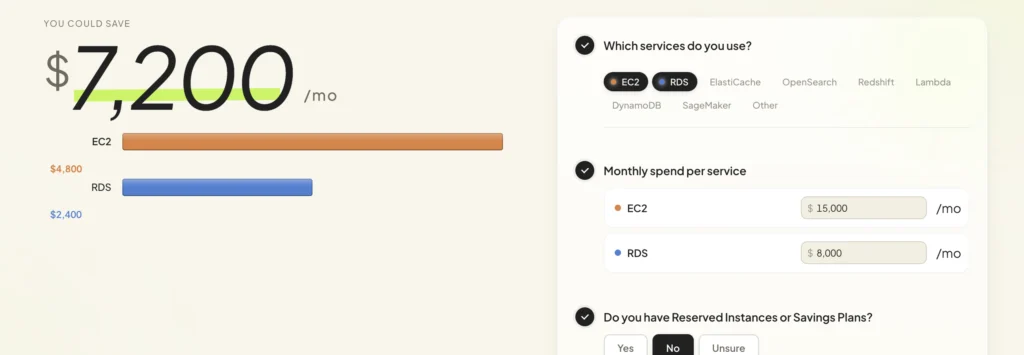
If you’re seeing $0: Two things to check. First, make sure you entered on-demand spend, and not figures that already include RI or Savings Plan discounts. Second, check that the coverage slider isn’t set near 100%.
Want more precision? The calculator itself will tell you: “Want a precise breakdown? Try Method 03.” That nudge is there for a reason.
Method 02: Drop Your Invoice (Bill-Based Estimate)
This is the most popular method and for good reason. Your AWS invoice is easy to find, the submission takes 30 seconds, and you get a meaningfully better estimate than the live calculator without needing to export anything from Cost Explorer.
The tradeoff: invoices show service-level totals only. No instance types, no regions, no existing commitment breakdown. The savings figure will be directionally accurate but won’t show you the per-instance optimization opportunities that Method 03 reveals.
- Time: ~30 seconds to submit. Breakdown report in your inbox in under 30 seconds.
- What you need: Your latest AWS invoice as a PDF.
Where to Find Your AWS Invoice
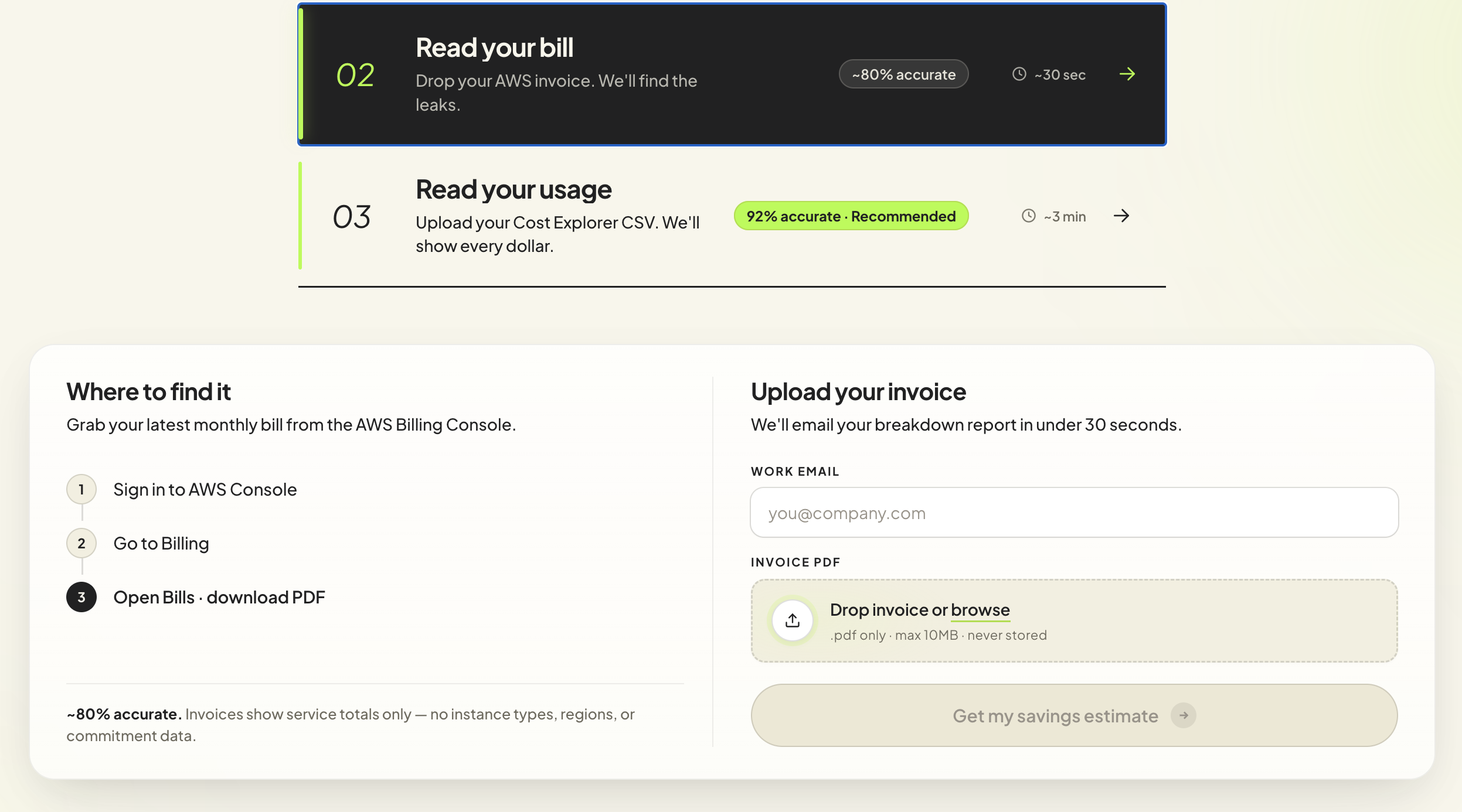
Sign in to the AWS Console. Go to Billing and Cost Management. Click “Bills,” open your latest completed month, and download the PDF invoice. That’s it, the whole thing takes about 90 seconds.
How to Submit It
- Go to usage.ai/savings-calculator and click the second card “Drop your invoice.”
- Enter your work email. Upload the PDF. Click “Get my savings estimate.”
- Your breakdown arrives by email in under 30 seconds.
A note if something goes wrong: The PDF needs to come directly from AWS Billing Console. Invoices exported from third-party billing tools sometimes don’t parse correctly. If you’re on a consolidated billing account, pull the PDF at the payer account level rather than a sub-account.
Method 03: Cost Explorer CSV – The One Worth Doing (Detailed Export Estimate)
A detailed CSV can provide service, Region and usage-type or instance-family information depending on the export configuration. Cost Explorer billing exports do not by themselves provide CPU utilization or per-resource performance. Validate the available dimensions and use operational metrics separately when sizing commitments.
More detailed billing dimensions can improve analysis, but no validated methodology is supplied here for a universal percentage accuracy claim.
- Time: ~3 minutes to export and submit. Report in your inbox in under 30 seconds.
- What you need: Root or admin access to AWS Cost Explorer.
Step 1: Set Up Cost Explorer Correctly
Sign in to AWS as root or admin. Navigate to Billing and Cost Management, then Cost Explorer.
Before you download anything, you need to apply the right filters. This is the part most people get wrong, a default Cost Explorer export will not give the calculator what it needs.
Apply these settings exactly:
| Setting | Value |
| Services | EC2, RDS, ElastiCache, OpenSearch, ECS, Lambda, DynamoDB, Redshift, SageMaker |
| Purchase Option | On Demand |
| Aggregate by | Amortized costs |
| Group by | Usage Type |
| Granularity | Daily |
Set the date range to the last full calendar month. Then download the CSV.
Why each setting matters:
- “Purchase Option: On Demand” isolates the spend with no commitment discount applied, the only spend where savings exist.
- “Group by: Usage Type” gives per-instance-family granularity so the calculator can match your usage against the right commitment tier.
- “Granularity: Daily” captures how your usage pattern varies across the month. A monthly aggregate would overestimate savings for spiky workloads.
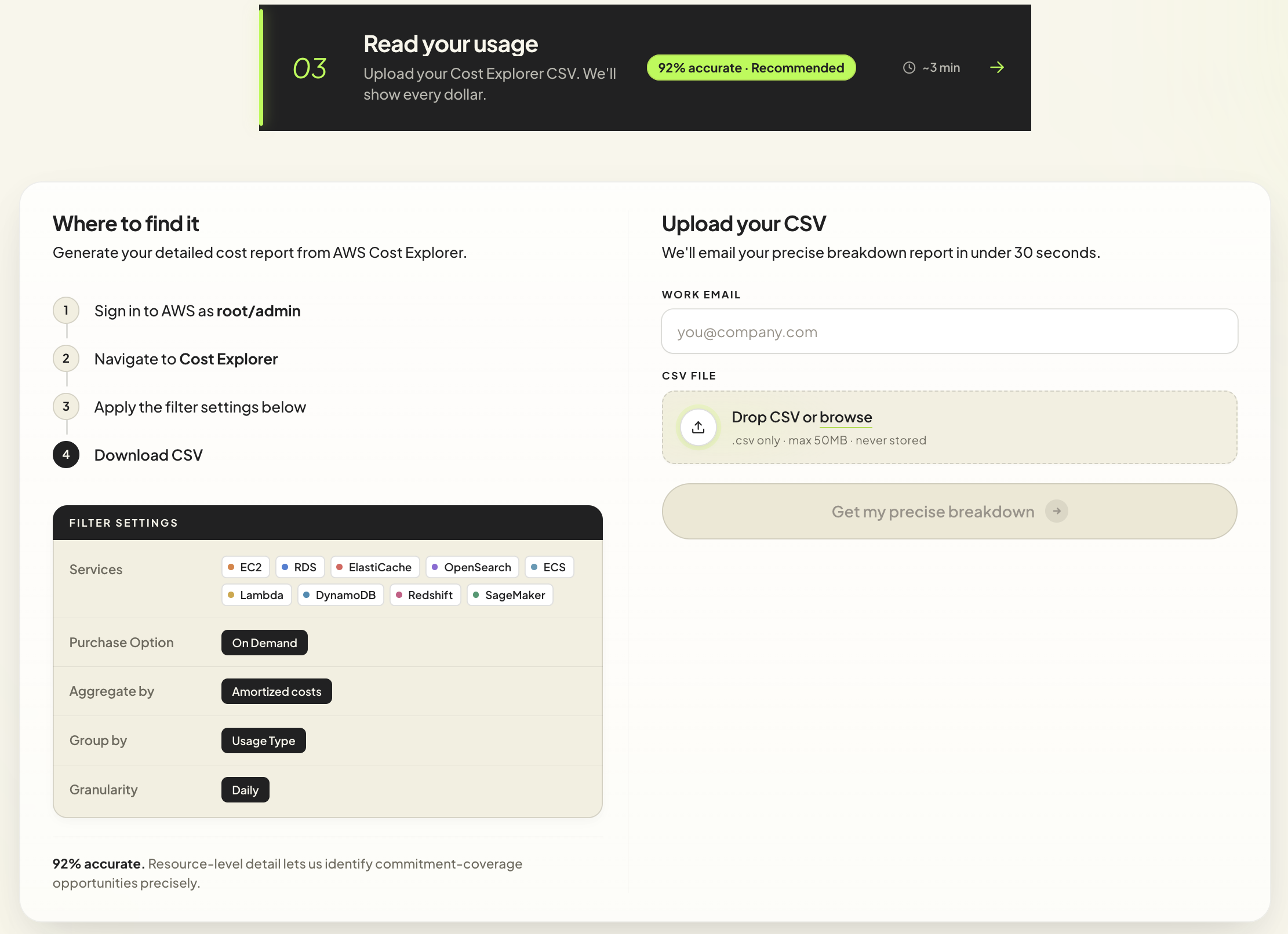
Step 2: Submit to the Calculator
Go to usage.ai/savings-calculator and click the third card “Cost Explorer CSV.”
Enter your work email. Upload the CSV. Click “Get my precise breakdown.”
Full per-resource report in your inbox in under 30 seconds.
How to tell if the export is right: The CSV should have multiple rows with daily entries across different Usage Types. If you download a single-row file, the filters weren’t applied, re-export with “Group by: Usage Type” and “Granularity: Daily” confirmed.
If you hit “no data”: Either the date range is set to a future period, or Cost Explorer hasn’t been activated yet. Cost Explorer needs 24 hours to activate after first login. On sub-accounts, it may need to be enabled at the management/payer account level.
Also read: Usage.ai Launches Free AWS Savings Calculator That Returns Your Overspend in 60 Seconds
What the Usage.ai AWS Savings Calculator Is Actually Measuring
The savings number in your report represents the delta between your current on-demand rates and the rates achievable through automated commitment purchasing, Savings Plans and Reserved Instances applied to your actual usage.
It does not count savings you’re already getting from existing commitments. The coverage slider in Method 01 handles that. Methods 02 and 03 detect existing coverage from your bill data directly.
Services covered: EC2, ECS/Fargate, Lambda (via Savings Plans), and RDS, ElastiCache, OpenSearch, Redshift, DynamoDB (via Reserved Instances). Services like S3, CloudFront, and data transfer don’t have commitment discount structures and aren’t included in the calculation.
What Happens After You Get Your Savings Estimate?
The Usage.ai AWS Savings Calculator gives you a directional number, something to work with. The next step is getting the exact, verified figure.
A Savings Test can use read-only billing and usage access to evaluate opportunities. Approved RI or Savings Plans purchases require separate financial permissions; read-only access cannot make purchases. Review estimate assumptions and approval scope before enabling automation.
From there, if you move forward, Usage.ai purchases commitments on your behalf. The platform monitors usage daily and adjusts as your patterns change. You get 3-year Reserved Instance pricing without the lock-in. Setup takes 30 minutes. No infrastructure changes.
Usage.ai Flex Commitments provide managed discounts under the applicable agreement. Eligible cashback compares commitment cost with equivalent On-Demand cost for the same usage. It is not a refund of every unused dollar or cancellation of the provider commitment; published payout timing is 90 days after accrual.
Platform fees are a percentage of realized savings under the applicable offer. For illustration only, a 20% fee on $3,000 of realized savings would be $600, leaving $2,400 net. Confirm the actual contracted fee and calculation; this is not a universal price quote.
Conclusion
The gap between what you’re paying AWS and what you should be paying is a number, not something that requires a 3-month FinOps audit to surface. The Usage.ai AWS Savings Calculator turns your actual bill into that number in under 60 seconds for free, no account access required, no commitment of any kind.
Choose benchmark inputs for an initial ballpark, an invoice for billing context or a suitably grouped CSV for more detail. Check covered services, rates, existing discounts, fees and future utilization before treating any estimate as a purchase case.

Frequently Asked Questions
1. What is the Usage.ai AWS savings calculator?
Usage.ai AWS savings calculator is a free tool at usage.ai/savings-calculator that estimates how much you’re overpaying on your live AWS environment. You provide your spend data, via manual inputs, an invoice PDF, or a Cost Explorer CSV and it returns a per-service savings breakdown. No AWS account access required for the estimate. Reliability depends on input detail and validation; a universal accuracy percentage is not established here.
2. Is it the same as the AWS Pricing Calculator at calculator.aws?
The public AWS calculator uses manually entered configurations. The in-console calculator can import historical usage and model bill changes. Usage.ai’s calculator estimates potential savings from data you supply without connecting an account.
3. How accurate is the savings estimate?
Reliability depends on the input method, export grouping, rates, existing discounts and utilization assumptions. Benchmarks are directional; invoices and detailed exports add billing context. Validate the result against an account-level assessment rather than relying on unsupported accuracy percentages.
4. Is the calculator free?
The savings calculator is free. If you proceed to the platform, fees are a percentage of realized savings under the applicable offer. Confirm the current rate, minimums, term and calculation in your agreement.
5. Do I need to give Usage.ai access to my AWS account to use the calculator?
The estimate can use files you export without connecting your AWS account. A platform evaluation can use read-only billing permissions; approved purchase automation requires additional financial permissions. Review the current security documentation and approval scope before connecting.
6. Which AWS services are covered in the calculation?
The calculator covers commitment-eligible services: EC2, ECS/Fargate, Lambda (via Savings Plans), and RDS, ElastiCache, OpenSearch, Redshift, and DynamoDB (via Reserved Instances). Services without commitment discount structures, S3, CloudFront, data transfer are not included.
7. What happens after I get my estimate?
You’ll receive a breakdown report by email in under 30 seconds. From there, the “Book a Savings Test” on the calculator page gives you a free 15-minute assessment with a verified, exact savings number broken down by service. No obligation.