
 AWS
AWS Microsoft Azure
 Google Cloud

Prioritize high-cost findings first, and decide whether each resource should be stopped, rightsized, retained, or deleted. In larger environments, combine organization-level visibility with per-account and per-Region checks so a single account view is not mistaken for complete coverage.
Waste accumulates fastest where resources scale quickly and ownership is fragmented. The goal is to identify resources that no longer justify their cost without disrupting active workloads.
What idle and underutilized mean
An idle resource has little or no meaningful workload activity over a defined observation period. Examples include an EC2 instance with almost no CPU or network use, an unattached EBS volume, or a SageMaker endpoint with zero invocations.An underutilized resource is still doing useful work, but its provisioned capacity is larger than demand. These resources usually need rightsizing rather than deletion. For broader guidance, see the cloud rightsizing guide.
AWS criteria vary by resource
EC2: for most instance types, peak CPU below 5% and network I/O below 5 MB per day over the default 14-day lookback; G- and P-family instances must also meet AWS GPU activity, encoder-use, and GPU-memory criteria.
EBS idle: fewer than one combined read/write operation per day over the lookback period for a non-root volume.
EBS unattached: no EC2 attachment during a 32-day lookback.
NAT Gateway: Compute Optimizer also analyzes attachment status over 32 days.
WorkSpaces: Always On WorkSpaces use 63 days of user-connection activity.
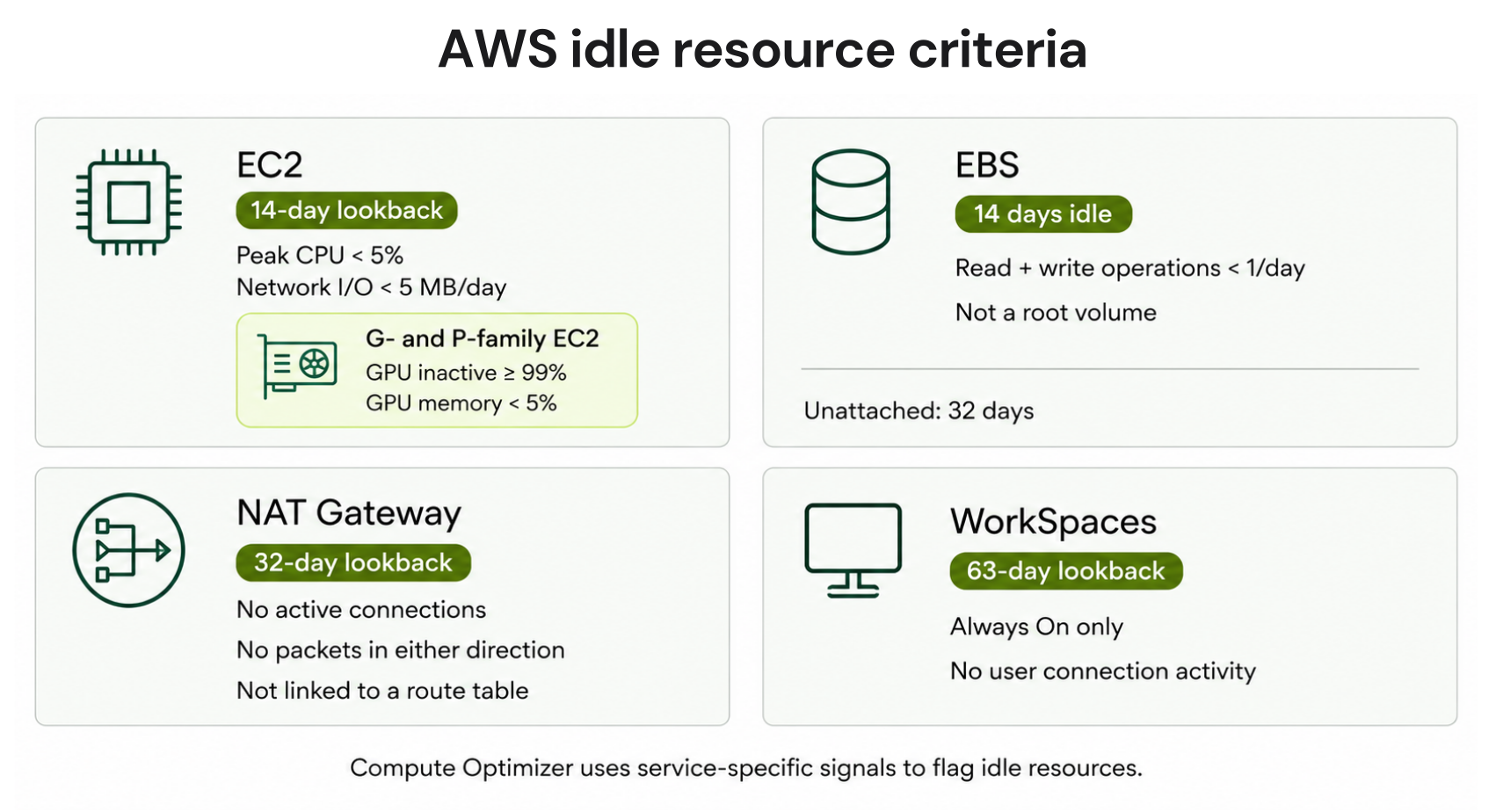
Common idle AWS resource signals
1. EC2 instances
Use AWS Compute Optimizer and CloudWatch to review CPUUtilization, NetworkIn, NetworkOut, and workload activity. For most EC2 instance types, the AWS idle threshold is below 5% peak CPU and below 5 MB per day of network I/O over the default 14-day lookback; G- and P-family instances must also meet AWS GPU activity, encoder-use, and GPU-memory criteria.Before stopping or terminating an instance, check scheduled jobs, Auto Scaling relationships, storage, IP dependencies, and recent CloudTrail activity. If it is active but oversized, use Compute Optimizer rightsizing recommendations and the EC2 pricing and cost optimization guide.
Stopping EC2 removes instance-hour compute charges, but EBS volumes, snapshots, public IPv4 addresses, and other dependent services can continue to generate cost.
2. EBS volumes and snapshots
EBS storage continues billing until it is deleted. Compute Optimizer can flag a non-root volume as idle when combined read and write operations are below one per day over the lookback period, and it treats a volume as unattached when it has had no EC2 attachment for 32 days.Before deletion, check retention requirements, IaC references, and whether a recovery snapshot is required. Also review gp3 volumes for excess provisioned IOPS or throughput.
3. Load balancers and NAT Gateways
For Application Load Balancers, review ActiveConnectionCount, RequestCount, healthy targets, target groups, and DNS. No requests and no healthy targets are investigation signals, not deletion approval.For NAT Gateways, review connection and packet activity plus route-table dependencies. Low traffic can still support disaster recovery or intermittent workloads.
4. Lambda and databases
For Lambda, review invocations and event sources such as EventBridge, S3, queues, and API Gateway. Infrequent functions can still be business-critical.For databases and caches, review connections, CPU, IOPS, cache activity, replicas, backups, and failover requirements. Low usage with active dependencies is usually a rightsizing case.
5. S3, ENIs, and EKS
Use S3 Storage Lens and lifecycle policies to identify stale data. Unattached ENIs are usually an inventory and governance problem, though associated public IPv4 addresses can still create cost.For EKS, compare pod requests with actual CPU and memory consumption, node utilization, and pod density. See the EKS cost optimization guide for more detail.
How to find idle AWS resources
Console quick-start
In the AWS Management Console, open Compute Optimizer, choose Recommendations, then choose Idle resources. Review findings by resource type, estimated savings, account, and utilization history.Compute Optimizer currently supports idle recommendations for EC2 instances, Auto Scaling groups, EBS, ECS on Fargate, Aurora and RDS, NAT Gateway, DynamoDB, ElastiCache, MemoryDB, DocumentDB, WorkSpaces, and SageMaker endpoints. Pair findings with AWS Cost Explorer analysis to prioritize spend.
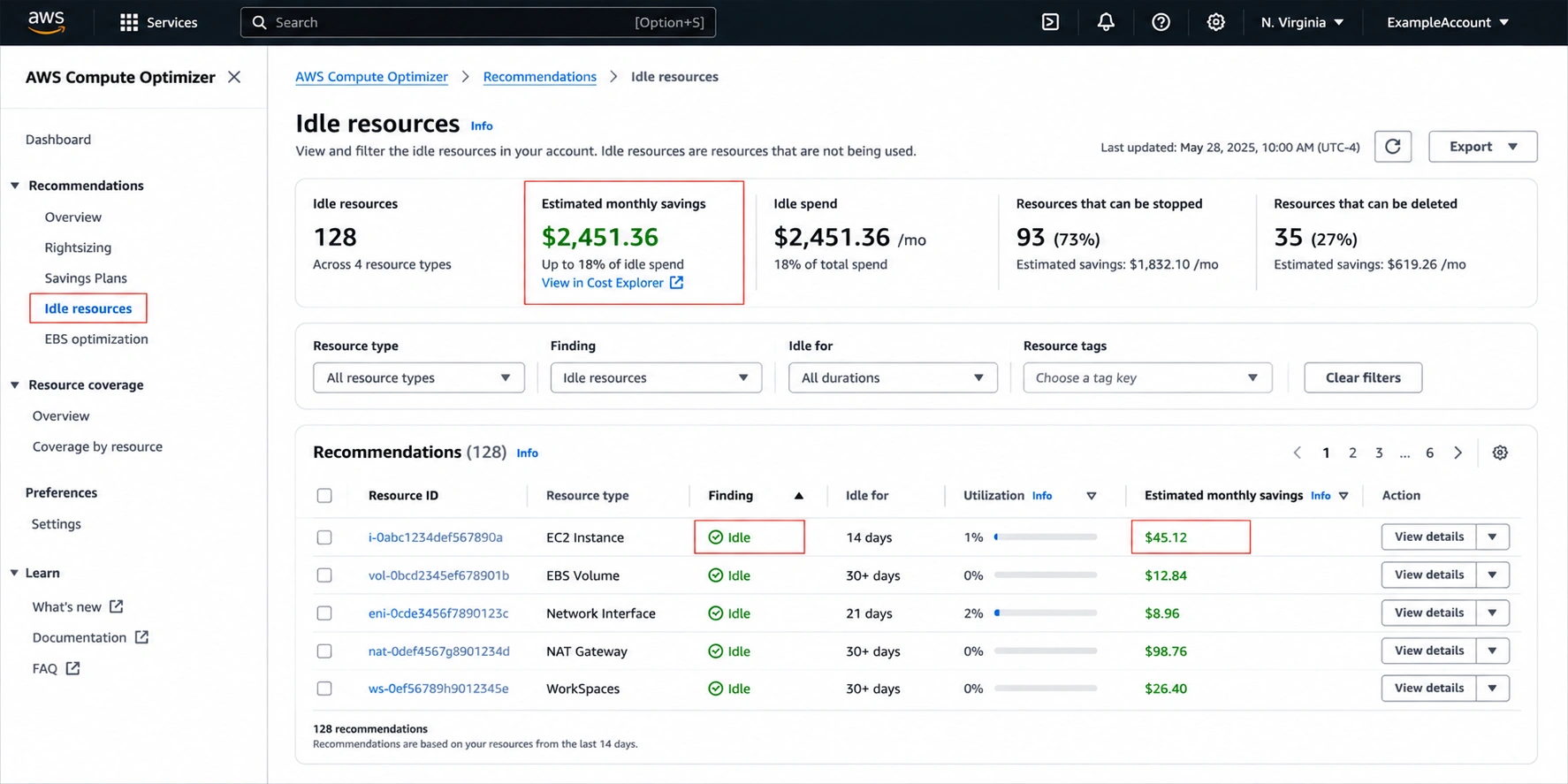
For CLI access, the IAM principal needs permission to call compute-optimizer:GetIdleRecommendations, or an appropriate read-only Compute Optimizer policy.
CLI quick-start
List all idle recommendations in the selected Region:--region us-east-1
--filters name=ResourceType,values=EC2Instance \
--region us-east-1
--order-by dimension=SavingsValue,order=Desc \
--region us-east-1
Multi-account operating model
A management account or delegated administrator can request recommendations for member accounts, but the accountIds parameter accepts only one account ID per request. Run the API or CLI workflow per target account and Region rather than assuming one response covers the organization.For broader inventory discovery, AWS Resource Explorer can search resource metadata and tags. Enhanced configuration adds cross-Region and multi-account search. Use it to find orphaned resources, then validate activity separately.
Worked example: size the waste
This example is illustrative. Verify current AWS prices and your own billing data before using it for budgeting.| Resource | Example quantity | Illustrative monthly waste |
|---|---|---|
| Running idle Linux m5.xlarge EC2 | 8 | $1,121.28 |
| Unattached gp3 EBS, 200 GiB each | 20 | $320.00 |
| Application Load Balancer base hours | 4 | $65.70 |
| NAT Gateway hours | 3 | $98.55 |
| Public IPv4 addresses for NAT Gateways | 3 | $10.95 |
| Total | $1,616.48/month |
Triage: stop, rightsize, or delete
| Finding | Best next action | Validate first |
|---|---|---|
| EC2 meets AWS idle criteria | Stop, observe, then consider termination | Owner, jobs, AMI and storage dependencies |
| EC2 is active but oversized | Rightsize | Memory, peak demand, burst behavior |
| EBS is unattached for 32 days | Snapshot if required, then delete | Retention and IaC references |
| Load balancer has no traffic or targets | Investigate for deletion | DNS, target groups, failover |
| NAT Gateway has negligible activity | Investigate for deletion | Route tables and DR paths |
| Database shows no useful activity | Stop or decommission where supported | Replicas, backups, dependencies |
Automate only low-risk actions
AWS Compute Optimizer Automation can apply supported recommendations directly or through scheduled rules filtered by criteria such as Region and tags.A practical automation boundary is unattached EBS cleanup. Compute Optimizer supports snapshot and delete unattached EBS volume for volumes unattached for at least 32 days. Use exclusion tags and keep production compute, database, and network deletion behind owner approval.
Idle-resource cleanup checklist
Review idle recommendations across every relevant account and Region.
Prioritize candidates by estimated monthly cost and ownership.
Validate CloudWatch activity, CloudTrail events, routes, DNS, event sources, tags, and IaC references.
Remeasure the post-cleanup baseline before increasing commitment coverage.
What is Usage.ai and where it fits after idle resource cleanup
Usage.ai is a cloud cost optimization platform that helps engineering and FinOps teams reduce the cost of the workloads they continue to run. With Flex Insured Commitments, teams can get the 57% savings of a 3-year commitment with none of the commitment risk.If eligible usage drops and a qualifying EC2 Flex Commitment ends up costing more than the On-Demand rate for that usage, we provide cashback protection on that difference, subject to program terms.
Our fee is a percentage of realized savings only. If we don’t save you money, you don’t pay anything.
Idle-resource detection and commitment optimization solve different problems. Your teams identify, remove, or rightsize waste first. Once the remaining usage baseline is stable, we focus on improving the rates paid for predictable cloud consumption and reducing the manual work involved in managing commitments.
This creates a practical optimization loop:
- Identify and remediate idle or underutilized resources.
- Recalculate commitment needs against the cleaner usage baseline.
- Adjust eligible commitment coverage as workloads change over time.
Get up to 57% savings with reduced commitment exposure and eligible cashback protection.
Frequently asked questions
Does stopping an EC2 instance stop all billing?
No. Stopping an EC2 instance stops compute instance-hour charges, but EBS storage, snapshots, public IPv4 addresses, and other supporting resources may continue to incur charges.
Does Compute Optimizer find idle resources automatically?
After you opt in and enough utilization history is available, Compute Optimizer analyzes supported resources and refreshes idle recommendations daily. Lookback periods vary by resource, including 32-day attachment analysis for EBS and NAT Gateway and 63-day user-connection analysis for WorkSpaces.
How often should teams audit idle AWS resources?
For fast-changing environments, automate detection regularly and route findings through an approval workflow. Stable environments can use a slower cadence when governance already prevents orphaned resources from accumulating.
Can idle-resource cleanup be fully automated?
Some actions can be automated safely, but the scope should be controlled. Compute Optimizer Automation supports EBS-focused actions such as snapshot-and-delete for qualifying unattached volumes; production compute and network deletion should remain behind ownership and dependency checks.
What is the difference between idle and underutilized?
Idle resources do little or no useful work and may be stop or deletion candidates. Underutilized resources remain active but have excess capacity, making rightsizing the more appropriate action.