.png)


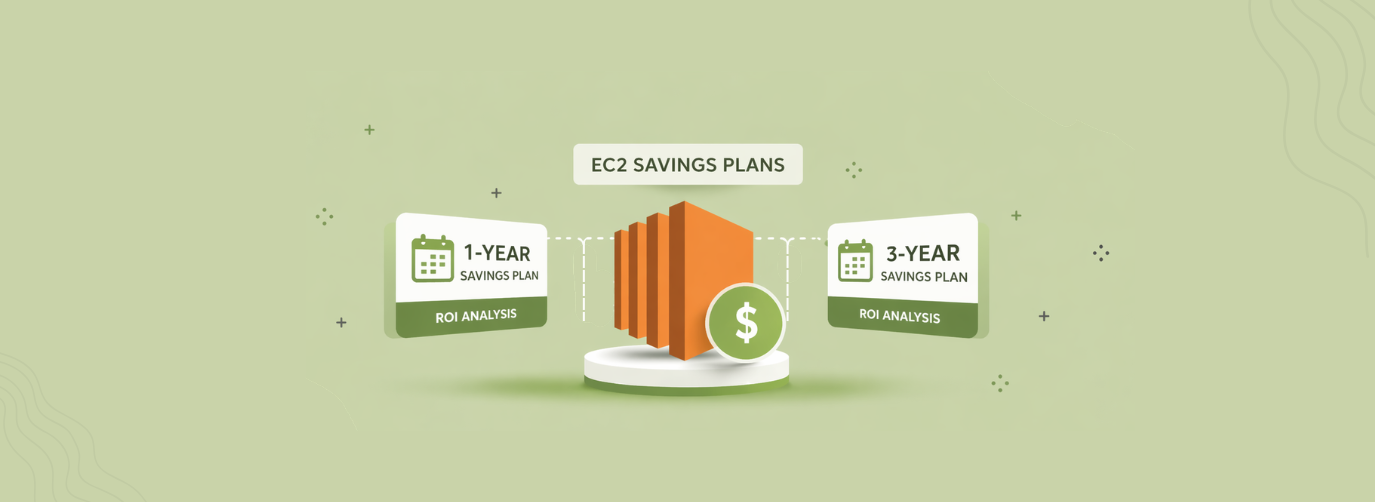
EC2 is where most AWS bills live and also where most commitment mistakes happen. AWS offers two plan types that cover EC2, i.e., Compute Savings Plans (flexible, lower discounts) and EC2 Instance Savings Plans (locked to one instance family, higher discounts). Both are commitment-based AWS discounts that require 1 or 3 years of minimum hourly spend.
Getting this decision right is worth up to 72% off your On-Demand spend. While, getting it wrong means paying for a discount you can’t fully use, with no way to unwind it. This guide covers both the EC2 savings plan types, how they work, and what they cover. You’ll also learn how to choose between them, and tips to size your commitment against the right baseline.
What Is an EC2 Savings Plan?
An EC2 Savings Plan is a commitment-based AWS discount that reduces EC2 compute costs by up to 72% in exchange for agreeing to spend a minimum dollar amount per hour for 1 or 3 years. AWS applies the discounted rate automatically to eligible usage at the billing layer. You don’t require to pre-select instance-type, tag resource or make any changes to your current infrastructure.
| EC2 Savings Plan is a pricing model where you commit to a minimum $/hour spend on eligible AWS compute in exchange for discounts of up to 72% off On-Demand rates, applied automatically at the billing layer. Two types cover EC2, i.e., Compute Savings Plans (up to 66% off) and EC2 Instance Savings Plans (up to 72% off). |
How does an EC2 Savings Plan work?
When you purchase an EC2 Savings Plan, you commit to spending a set dollar amount per hour, assume $10/hr, on eligible compute for 1 or 3 years. In return, AWS discounts your qualifying usage at a reduced rate for the full term.
- Any usage above your committed $/hr is billed at On-Demand rates.
- Any committed $/hr your actual usage doesn’t cover is forfeited every hour, without exception.
How does AWS apply the discount at the billing layer?”
The discount lives entirely at the billing layer. Once your plan is active, AWS runs an hourly calculation across your eligible usage, applies the Savings Plan rate starting with the highest-discount usage first, and covers as much as your committed $/hr allows. Nothing changes in your infrastructure.
What Are the Two Types of EC2 Savings Plans?
AWS offers two Savings Plan types that cover EC2. They share the same commitment mechanic of $/hr spend for 1 or 3 years, but they differ in coverage scope, discount depth, and how badly overcommitment hurts.
Choosing between them is the most consequential decision in the purchase process, and it can’t be changed after you buy.
What is a Compute Savings Plan?
A Compute Savings Plan applies to any EC2 instance regardless of instance family, size, region, operating system, or tenancy. It also covers AWS Fargate and AWS Lambda. The discount is up to 66% off On-Demand rates.
It offers complete flexibility where you can move between instance families, migrate regions, or shift workloads from EC2 to Fargate without breaking coverage. However, the flexibility comes at the cost of a slightly lower discount ceiling than EC2 Instance Savings Plans.
What is an EC2 Instance Savings Plan?
An EC2 Instance Savings Plan locks to a specific instance family and region, for example, M-family in us-east-1 and delivers up to 72% off On-Demand rates within that scope. You retain flexibility on instance size, operating system, and tenancy within the committed family and region. But outside it, coverage breaks entirely. That means, if you use EC2 in a different family or region, you are billed at On-Demand rates for the remainder of the term.
What is the difference between a Compute Savings Plan and an EC2 Instance Savings Plan?
| Compute Savings Plan | EC2 Instance Savings Plan | |
| Max discount | Up to 66% | Up to 72% |
| Instance family | Any | Locked to 1 |
| Region | Any | Locked to 1 |
| Instance size flexibility | Yes | Yes (within family) |
| OS flexibility | Yes | Yes (within family) |
| Fargate coverage | Yes | No |
| Lambda coverage | Yes | No |
| Overcommitment risk if usage shifts | Low | High |
| THE PRACTICAL RULE
Start with a Compute Savings Plan. Layer an EC2 Instance Savings Plan on top only after 12 months of confirmed stability in a single instance family and region. The extra discount isn’t worth the lock-in risk before that. |
Which EC2 Savings Plan type should you choose?
Choose a Compute Savings Plan when:
- Your architecture spans multiple instance families or regions
- You run workloads on Fargate or Lambda alongside EC2
- You’re in the process of migrating instance families or regions
- This is your first Savings Plan purchase and usage patterns aren’t fully established yet
Choose an EC2 Instance Savings Plan when:
- You have a stable, long-running fleet on a single instance family
- The same region will be used for the full 1 or 3-year term with high confidence
- You want the maximum available EC2 discount and the workload justifies the lock-in
- You already have a Compute Savings Plan covering the rest of your footprint
What is the most common EC2 Savings Plan mistake?
The most common mistake is purchasing an EC2 Instance Savings Plan before the architecture is stable. Teams lock into an instance family and region, then migrate to a different family six months later, leaving the committed dollars covering usage that no longer exists.
The EC2 Instance SP continues billing for the full term with no exit. A Compute Savings Plan purchased at the same time would have followed the workload automatically.
Which AWS Services Do EC2 Savings Plans Cover?
Your coverage depends entirely on which plan type you buy. However, the gap between the two is wider than most teams realize, especially for container workloads running on ECS and EKS.
What does a Compute Savings Plan cover?
A Compute Savings Plan covers three AWS services: Amazon EC2 (all instance families, all regions, all operating systems, all tenancy types), AWS Fargate (ECS tasks and EKS pods running on Fargate), and AWS Lambda (per-invocation and duration charges). Coverage is automatic across all three and you don’t require any configuration or setup. If your workload spans any combination of these services, a single Compute Savings Plan covers the full footprint.
What does an EC2 Instance Savings Plan cover?
An EC2 Instance Savings Plan covers Amazon EC2 usage within the committed instance family and region only. This includes ECS tasks running on the EC2 launch type and EKS worker nodes backed by EC2 instances in the committed family and region. Both are covered as EC2 usage, while Fargate and Lambda are not covered under any circumstances by an EC2 Instance Savings Plan.
Do EC2 Savings Plans cover ECS and EKS?
Yes, they do. But the coverage depends on launch type, and this is where most container teams get caught out.
| Workload | Compute SP | EC2 Instance SP |
| ECS tasks; EC2 launch type | Covered | Covered (within committed family/region) |
| ECS tasks; Fargate launch type | Covered | Not covered |
| EKS worker nodes; EC2 | Covered | Covered (within committed family/region) |
| EKS pods; Fargate | Covered | Not covered |
| Lambda | Covered | Not covered |
If your EKS cluster runs M-family worker nodes exclusively in us-east-1, an EC2 Instance Savings Plan for M-family/us-east-1 covers all that compute at the full 72% discount. If those same nodes ever migrate to a different family, or if any workloads shift to Fargate, that coverage breaks immediately.
What do EC2 Savings Plans not cover?
Neither plan type covers Amazon RDS, ElastiCache, OpenSearch, Redshift, or DynamoDB. Those services require separate commitment instruments, like Reserved Instances and Database Savings Plans. EC2 Savings Plans also do not apply to Spot Instance usage, as it is priced independently and cannot be discounted through any Savings Plan type.
How Does AWS Apply Savings Plans at the Billing Layer?
AWS applies commitment-based discounts from most specific to least specific:
- Reserved Instances — applied first, most specific (tied to a particular instance type, region, and OS)
- EC2 Instance Savings Plans — applied second, specific to one instance family and region
- Compute Savings Plans — applied last, broadest scope across all eligible usage
Within each tier, AWS applies the highest-discount-first rule. Your most favorable rate always gets used before a less favorable one, but only within the bounds of what each plan type covers.
What is the highest-discount-first rule?
Within each commitment tier, AWS applies discounts in order of highest savings rate first. If you hold a Compute Savings Plan that covers both M5 and C5 usage, and the M5 discount rate is higher, AWS applies the plan to M5 usage first until the committed $/hr is exhausted, then moves to C5.
This maximizes your effective savings rate automatically. However, it also means coverage isn’t distributed evenly across instance types.
What happens if two Savings Plans cover the same usage?
This is the double-commitment trap. If you purchase a Compute Savings Plan that covers M-family usage in us-east-1, then later add an EC2 Instance Savings Plan for M-family/us-east-1, the EC2 Instance SP is applied first as the more specific instrument.
The Compute SP then has nothing left to cover in that scope. Both plans bill you for their committed $/hr. One delivers savings and the other runs underutilized for the remainder of its term.
| THE PRACTICAL RULE
Before buying an EC2 Instance Savings Plan on top of an existing Compute Savings Plan, pull your Coverage Report in Cost Explorer and confirm the EC2 Instance SP targets usage your Compute SP isn’t already covering. |
How do you check for commitment overlap before buying?
- In AWS Cost Explorer, navigate to Savings Plans → Coverage Report.
- Filter by the instance family and region you’re considering for the EC2 Instance SP.
- Check what percentage of that usage is already covered by existing plans.
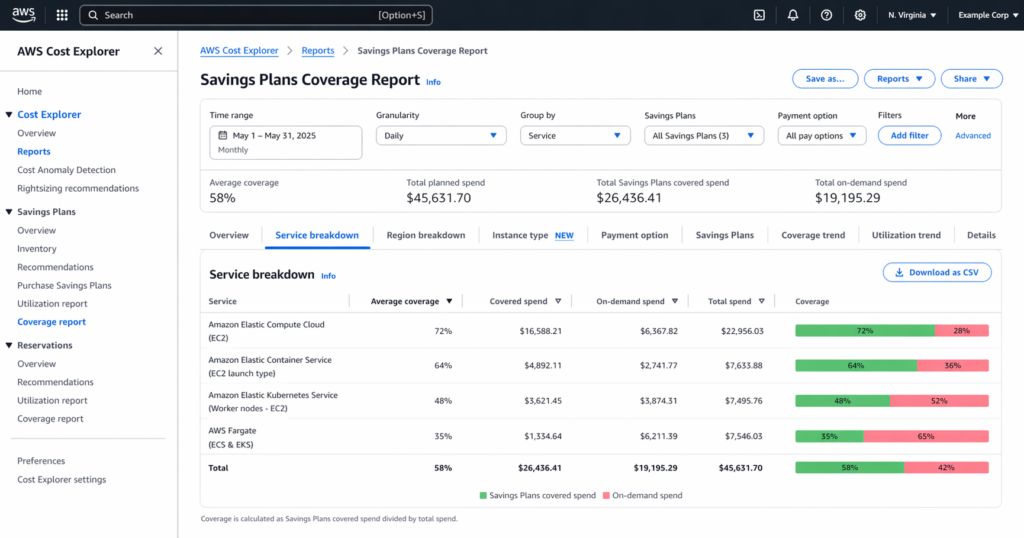
If coverage is already above 80% in that scope, adding an EC2 Instance SP on top will create overlap and the new plan’s committed $/hr will have insufficient uncovered usage to absorb.
EC2 Savings Plans vs. Reserved Instances: Which One Actually Saves More?
Both EC2 Savings Plans and Reserved Instances offer commitment-based EC2 discounts of up to 72%. The difference isn’t about the number, it is rather about what happens when your infrastructure changes and you need to exit a commitment.
What is the difference between an EC2 Savings Plan and a Reserved Instance?
The fundamental difference is what you’re committing to. With a Reserved Instance, you commit to a specific resource, like a particular instance type, operating system, and region.
On the other hand, with an EC2 Savings Plan, you commit to a spend rate, like a minimum $/hr that AWS applies automatically to whatever eligible usage you have.
The practical difference emerges at shorter terms and lower payment tiers.
- 1-year No Upfront EC2 Instance SP: typically 40–50% off, depending on instance family
- 1-year No Upfront Standard RI: comparable or marginally higher discount in some configurations, but locks to a specific instance type, not the full family
EC2 Savings Plans vs. Reserved Instances: Side-by-side comparison
| EC2 Instance Savings Plan | Standard Reserved Instance | Convertible Reserved Instance | |
| Max EC2 discount | Up to 72% | Up to 72% | Up to 66% |
| Instance size flexibility | Yes; automatic | No; locked | Via exchange |
| OS flexibility | Yes; automatic | No; locked | Via exchange |
| Region flexibility | No; locked to 1 | No; locked to 1 | No; locked to 1 |
| Instance family flexibility | No; locked to 1 | No; locked to 1 | Via exchange |
| Marketplace resale | No | Yes | No |
| Return policy | 7-day, ≤$100/hr | Limited | Exchange only |
| Covers Fargate / Lambda | No | No | No |
| Services beyond EC2 | No | RDS, OpenSearch, Redshift, ElastiCache | RDS, OpenSearch, Redshift, ElastiCache |
| Management overhead | Low, automatic | High | Medium |
When should you use each?
Choose an EC2 Instance Savings Plan when:
- Your EC2 fleet is stable within a single instance family and region
- You want automatic size and OS flexibility without managing exchanges
- Marketplace resale isn’t a requirement
- You’re covering pure EC2 compute and nothing else
Choose a Reserved Instance when:
- You need coverage for RDS, ElastiCache, OpenSearch, or Redshift
- Your team needs the Marketplace exit, the meaningful uncertainty about whether the workload will exist in 12 months
- Your workload is so precisely fixed that the Standard RI’s instance-level specificity delivers a marginally higher discount in certain configurations
What flexibility do EC2 Savings Plans have that Reserved Instances don’t?
EC2 Instance Savings Plans automatically apply across all sizes, operating systems, and tenancy types within the committed instance family and region. There are no exchanges, modifications, or Marketplace transactions required.
A Standard RI is tied to one specific instance type and OS. Change either and the RI stops covering the new usage. You pay On-Demand on the changed resource while the RI continues billing.
Convertible RIs allow exchanges, but each one is a manual process and the discount ceiling drops to 66%.
Can you sell or return an EC2 Savings Plan?
No, you can’t sell or return an EC2 Savings Plan and this matters more than most teams realize.
See, Standard Reserved Instances can be sold on the AWS Marketplace if your usage drops or your architecture changes. That exit option is real and meaningful. EC2 Savings Plans have no equivalent. The only return mechanism is a 7-day window for commitments of $100/hr or less. Above that threshold there is no exit. The commitment runs its full term regardless of what happens to your infrastructure.
Which services do Reserved Instances cover that EC2 Savings Plans don’t?
EC2 Savings Plans cover EC2, Fargate, and Lambda only. Standard and Convertible RIs extend to:
- Amazon RDS
- Amazon ElastiCache
- Amazon OpenSearch
- Amazon Redshift
For organizations with significant database or search spend, RIs are the only commitment instrument that reaches those services. EC2 Savings Plans leave that spend entirely at On-Demand rates.
For a full breakdown of every scenario: AWS Savings Plans vs Reserved Instances.
Payment Options and Term Length: How to Choose Before You Commit
Every EC2 Savings Plan purchase requires two decisions that can’t be changed after:
- how long you’re committing (term)
- how you’re paying (payment option).
Both affect your discount rate and your risk exposure. Getting them wrong won’t just cost you savings, but will also lock you into the wrong economics for up to three years.
What payment options are available for EC2 Savings Plans?
AWS offers three payment structures for every Savings Plan type and term:
- All Upfront: You pay the full committed amount at purchase and it delivers the highest available discount for a given term. It is the best option when cash reserves are available and usage confidence is high. The entire cost is recognized immediately with no monthly charges for the duration of the plan.
- Partial Upfront: You pay approximately 50% at purchase, and the remainder in equal monthly installments. Discount sits between All Upfront and No Upfront. This one can be a reasonable middle ground when you want a better rate than No Upfront but aren’t ready to commit full capital upfront.
- No Upfront: You pay nothing at purchase. The committed amount is billed monthly for the full term. It offers the discount of the three, but requires no capital outlay. It is the practical choice for first-time buyers, teams with conservative finance requirements, or commitments where usage confidence isn’t fully established.
How much does the payment option affect the discount?
The spread between No Upfront and All Upfront on a 1-year term is typically 3–5 percentage points depending on the instance family and region. On a 3-year term, the spread widens to 6–10 percentage points. To put that in dollars,
- on a team spending $500,000/year on EC2, a 5-point discount difference between No Upfront and All Upfront on a 1-year commitment equals $25,000/year.
- On a 3-year All Upfront vs. No Upfront comparison, that gap can reach $40,000–$50,000/year on the same spend level.
You need to evaluate whether the additional discount justifies the capital commitment and whether your usage will actually sustain the committed amount for the full term.
Should you choose a 1-year or 3-year EC2 Savings Plan?
The 3-year term delivers significantly more discount, typically 15–20 percentage points more than the equivalent 1-year plan across payment options. That’s a real number. But it comes with a real cost: three years of commitment to an instance family and region that may not reflect your architecture in year two or three.
Choose a 1-year term when:
- Your EC2 fleet has been stable for less than 12 months
- You’re in the process of migrating instance families, regions, or to containerized workloads
- This is your first Savings Plan purchase
- Finance requires annual commitment review cycles
- You’re uncertain whether the workload will exist at the same scale in 18 months
Choose a 3-year term when:
- The instance family and region have been stable for 12+ months with no migration planned
- The workload is foundational infrastructure with production databases on EC2, core API servers and are unlikely to change
- You’ve already run a 1-year plan successfully and want to lock in the higher discount on confirmed usage
- Finance has approved multi-year cloud commitments and the capital is available
For a detailed break-even analysis by term and payment option, see 1-Year vs. 3-Year AWS Commitments.
What is the right default for a first-time buyer?
1-year, No Upfront.
It delivers a meaningful discount of typically 40–50% off On-Demand for most EC2 instance families with no capital outlay and a 12-month maximum exposure window. It also gives you a full year to observe utilization, validate your sizing methodology, and build the cost history needed to justify a 3-year commitment with confidence.
The incremental discount from going All Upfront or 3-year on a first purchase rarely justifies the additional risk before you’ve proven out your commitment sizing process.
For a detailed break-even analysis by term and payment option, 1-Year vs. 3-Year AWS Commitments.
How to Size an EC2 Savings Plan Without Overcommitting
Most EC2 Savings Plan mistakes are made at sizing. What usually happens is they commit to the wrong number, utilization drops, and they spend the rest of the term paying for a discount that isn’t fully materializing. The fix is committing to the right baseline.
Why do most teams overcommit on EC2 Savings Plans?
There are three patterns that accounts for most cases:
- Committing to average spend. Average usage includes elevated periods, like launches, spikes, batch windows. Commit to average and 50% of hours your actual usage falls below the commitment. That gap is forfeited.
- Committing to peak spend. Peak is the ceiling of your usage distribution, not the floor. A commitment sized to peak will almost never be fully utilized outside high-traffic windows.
- Building in growth projections. Projected usage doesn’t exist yet. If growth doesn’t materialize on schedule, the commitment runs underutilized from day one.
How much should I commit to an EC2 Savings Plan?
Here are the four step you should follow before entering a commitment amount.
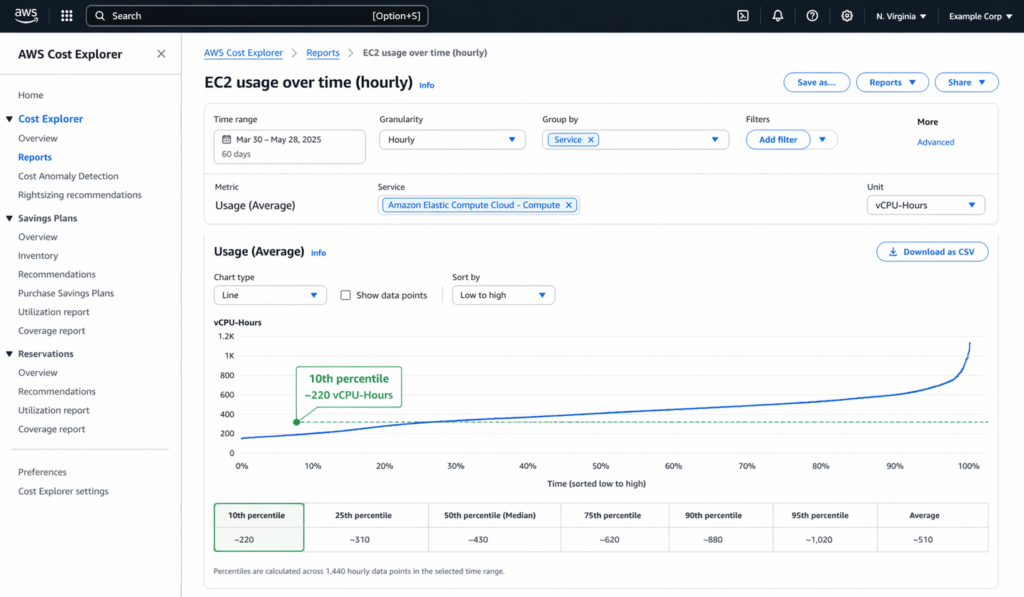
Step 1 — Pull 60 days of hourly Cost Explorer data
Navigate to Cost Explorer → EC2 usage → group by instance family and region (EC2 Instance SP) or total eligible compute (Compute SP). Set granularity to hourly. Monthly totals hide the variance that determines your real floor.
Step 2 — Identify your steady-state floor
Sort the hourly data low to high. Find the 10th percentile or the $/hr your usage almost never drops below. This is your floor. Ignore the average and the spikes. You’re looking for what persists through your quietest periods of nights, weekends, post-launch cooldowns.
Step 3 — Commit to 70–75% of that floor
Apply a conservative buffer. This absorbs unexpected usage drops, a workload decommissioned mid-term, a migration that pulls usage out of scope, a slowdown you didn’t anticipate. The marginal savings from covering the last 25–30% of your floor rarely justify the overcommitment risk.
Step 4 — Apply zero growth projections
Enter your commitment based on current, observed usage only. Add new commitments as growth materializes and stabilizes. Never buy ahead of growth.
Should I use AWS Cost Explorer recommendations as my commitment amount?
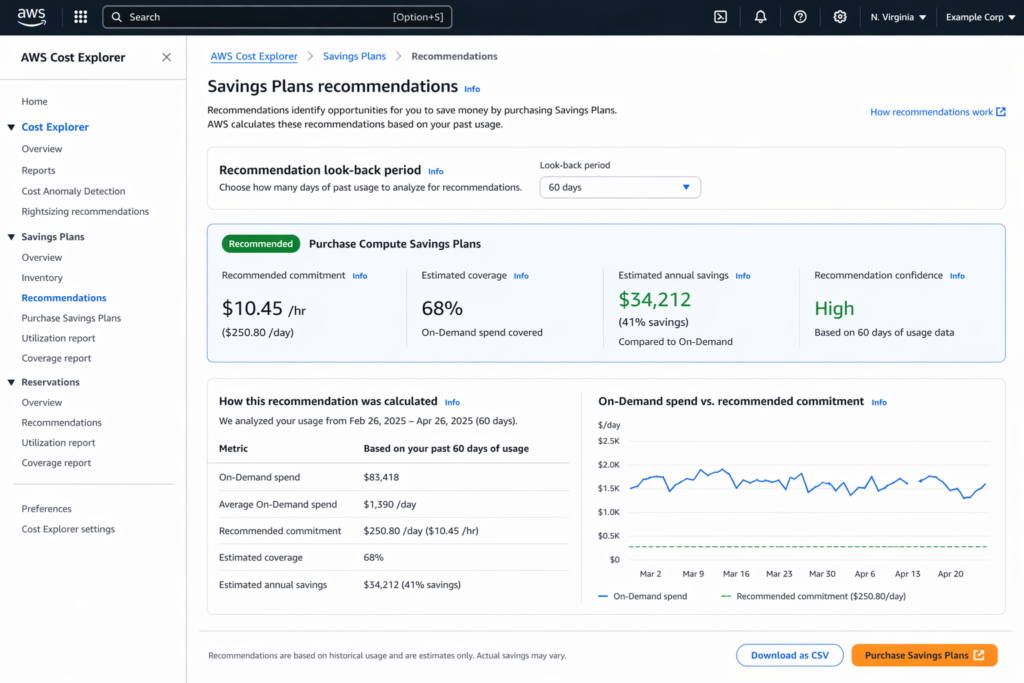
No, use them as a starting point, not a target. AWS Cost Explorer refreshes Savings Plan recommendations every 72+ hours. If your usage dropped recently, for example, a migration completed, a service scaled down, or a traffic event ended, the recommendation reflects a usage pattern that may no longer exist. Acting on stale data leads directly to overcommitment.
Pull the recommendation, apply your 70–75% buffer, and cross-reference it against the 60-day hourly dataset you pulled yourself. The recommendation is directional. Your floor is the number that matters.
Here’s a worked example with M5 fleet in us-east-1
A team runs a stable backend on M5 instances in us-east-1 with $12,000/month in On-Demand EC2 spend. Here’s how the sizing plays out:
| Amount | |
| Monthly On-Demand spend | $12,000/mo |
| Hourly baseline (÷ 730 hrs/mo) | $16.44/hr |
| Steady-state floor (10th percentile) | $14.20/hr |
| Commitment amount (75% of floor) | $10.65/hr |
| EC2 Instance SP effective rate, 1-yr No Upfront (~50% off) | ~$7.22/hr |
| Annual savings on committed portion | ~$63,000/year |
| Remaining 25% | On-Demand; fully flexible, zero commitment risk |
The team saves ~$63,000/year on the committed portion while keeping 25% of their baseline uncovered and flexible. If usage drops, the buffer absorbs it. If usage grows, they add a new commitment against the additional stable baseline.
How to Purchase an EC2 Savings Plan: Step-by-Step
There are three prerequisites that must be in place before you open the purchase console:
- IAM permissions: your account needs savingsplans:CreateSavingsPlan permission. Without it, the purchase flow will fail at confirmation.
- Cost Explorer enabled: recommendations won’t generate until Cost Explorer has been active for at least 24 hours. Enable it under Billing → Cost Explorer if it isn’t already on.
- Usage history: AWS needs 30–60 days of EC2 usage data to generate a meaningful recommendation. Less than 30 days produces an unreliable baseline.
Also confirm with your finance team that the term length, payment option, and commitment amount all need sign-off before you proceed. There is no approval step inside AWS, once confirmed, the commitment is live.
How do you purchase an EC2 Savings Plan in AWS?
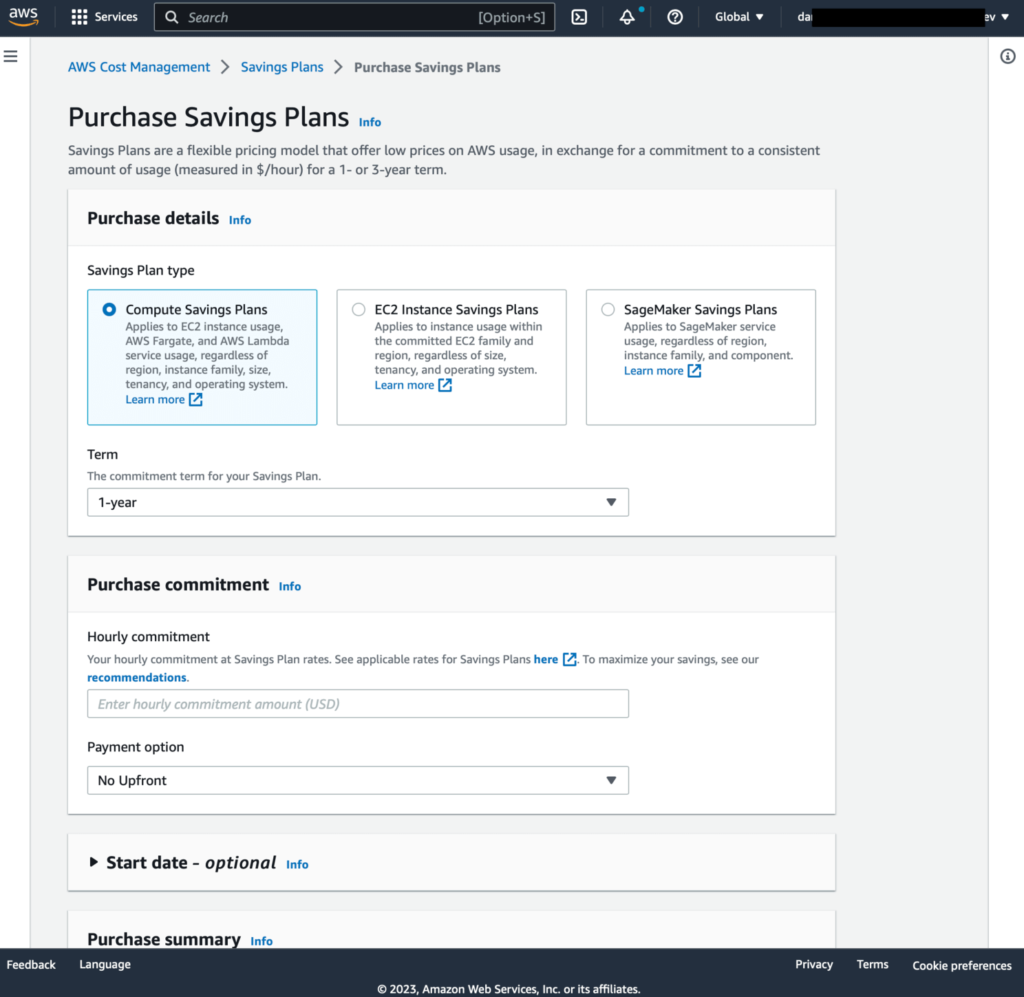
Step 1: Open the purchase console
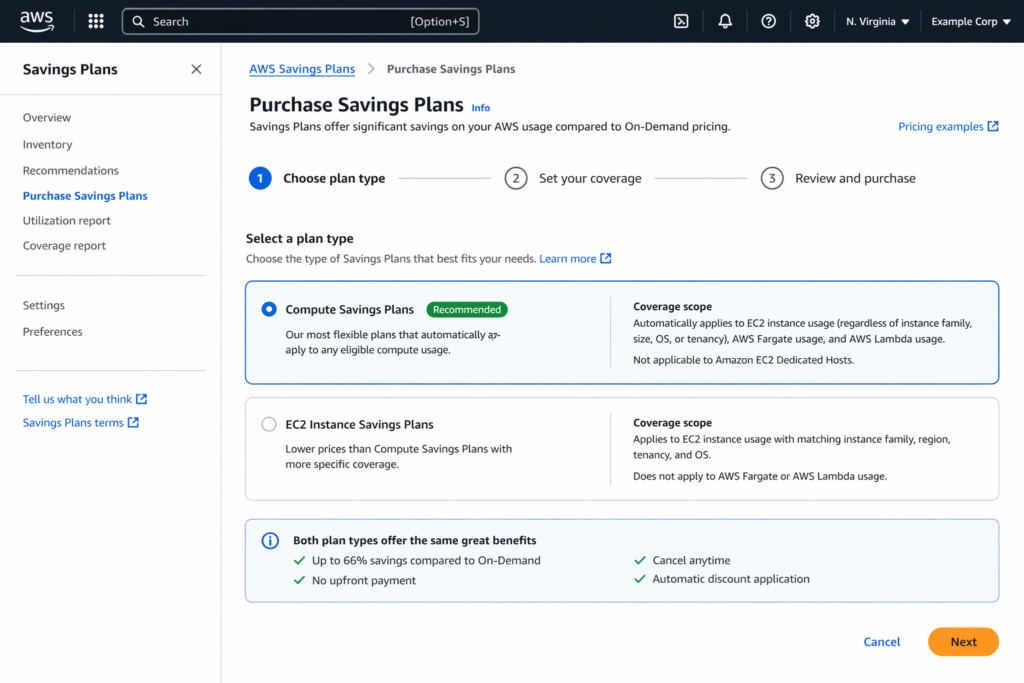
AWS Console → Billing and Cost Management → Savings Plans → Purchase Savings Plans.
Step 2: Select your plan type
Choose Compute Savings Plans for mixed or multi-service EC2 workloads. Choose EC2 Instance Savings Plans for a stable, single-family fleet where you want the maximum discount. If you’re unsure, choose Compute. It’s the lower-risk starting point.
Step 3: Select instance family and region (EC2 Instance SP only)
If you selected EC2 Instance Savings Plans, choose the instance family and region. Before selecting, verify in Cost Explorer that this family and region represent your highest and most stable EC2 spend. This selection cannot be changed after purchase.
Step 4: Review the AWS recommendation
AWS Cost Explorer refreshes Savings Plan recommendations every 72+ hours. If your usage has dropped recently, the recommendation reflects a usage pattern that may no longer exist. Do not enter the recommended amount verbatim. Apply your 70–75% buffer from Section 07 and cross-reference against your 60-day hourly floor before proceeding.
Step 5: Enter your commitment amount
Input your $/hr commitment of 70–75% of your steady-state floor as calculated above. For a first purchase, 70% is the conservative and safe entry point. For teams with 12+ months of confirmed stable spend, 80% is defensible.
Step 6: Select term and payment option
Choose 1-year or 3-year, and All Upfront, Partial Upfront, or No Upfront. If this is your first purchase, go for 1-year, No Upfront. It delivers a meaningful discount with no capital outlay and a 12-month maximum exposure window. See AWS Savings Plans buying strategy for the full term and payment break-even analysis.
Step 7: Review and confirm
Check every field before confirming: plan type, instance family and region (EC2 Instance SP), $/hr commitment, term, and payment option. There is no modification window after purchase. Once confirmed, the plan activates within a few hours.
How do you verify the purchase worked?
Within 24 hours of purchase, navigate to Cost Explorer → Savings Plans → Utilization Report and confirm the following:
- The plan appears in the inventory with status Active
- Utilization is above 0% if it’s showing 0% after 24 hours, the plan may not be covering eligible usage. Check that the instance family and region match your actual running instances.
- Target range within the first week: 80–100% utilization
What should you do if utilization falls below 70%?
Below 70% utilization is a signal that the commitment exceeded your actual steady-state floor. Look for common causes, like:
- A workload was decommissioned or scaled down after purchase
- Usage migrated to a different instance family or region outside the committed scope
- Seasonal demand dropped below the committed baseline
- The AWS recommendation used as a reference was based on stale 72+ hour data
If the plan is within 7 days of purchase and the commitment is $100/hr or less: the AWS return policy applies. Navigate to Savings Plans → Savings Plans Inventory → select the plan → Return Savings Plan.
If the plan is outside the 7-day window or above $100/hr: there is no exit. Adjust your next purchase cycle; reduce the commitment amount and extend your look-back period for the floor calculation.
What Happens If You Overcommit on an EC2 Savings Plan?
Overcommitment is the most expensive mistake you can make in Savings Plan management. And unlike most AWS billing mistakes, it can’t be corrected. Understanding exactly how forfeiture works, and why EC2 Instance Savings Plans carry the highest risk, is in fact what separates teams that manage commitments well from teams that discover the problem six months too late.
How does EC2 Savings Plan forfeiture work?
EC2 Savings Plan Forfeiture happens every hour, automatically, without exception.
If you commit to $10/hr and your eligible EC2 usage in a given hour is $7/hr, AWS bills you $10/hr. The $3 gap is gone; permanently. There is no rollover to the next hour or end-of-month reconciliation. AWS collects the full committed amount regardless of whether your infrastructure used it.
The annual impact compounds quickly. A 20% utilization shortfall on a $200,000/year commitment equals $40,000 in wasted spend, paid for discounts that never materialized. At a 30% shortfall, that number reaches $60,000/year. Every year, for the full term of the plan.
Why is an EC2 Instance Savings Plan the highest-risk commitment type?
There are three factors that make EC2 Instance Savings Plans the riskiest commitment instrument in AWS’s portfolio:
- Coverage breaks immediately outside the committed scope. If your fleet migrates from M-family to C-family mid-term, the EC2 Instance SP stops covering the new usage entirely. You pay On-Demand on the C-family instances while the M-family commitment continues billing, paying for a discount that has nothing to apply to.
- There is no Marketplace exit. Standard Reserved Instances can be sold on the AWS Marketplace if usage drops. EC2 Instance Savings Plans cannot be sold, transferred, or modified. There is no secondary market. The commitment runs its full term regardless of what happens to your infrastructure.
- There is no exchange mechanism. Convertible Reserved Instances can be exchanged for a different instance type or family. EC2 Instance Savings Plans have no equivalent. Once locked to M-family in us-east-1, that’s where the commitment stays for the full 1 or 3-year term.
What is the EC2 Savings Plan return policy?
AWS allows returns on Savings Plans purchased within the last 7 days, but only if the hourly commitment is $100/hr or less.
In practice, this covers very little at enterprise scale. A team spending $500,000/year on EC2 has an hourly On-Demand baseline of roughly $685/hr. A commitment sized at 70–75% of that floor sits around $480–$515/hr, which is well above the $100/hr return threshold.
The return window is useful for correcting small mistakes on pilot purchases. It is not a safety net for production-scale commitments.
How do you calculate the real cost of overcommitment?
The cost of overcommitment is the opportunity cost of capital tied up in a commitment that isn’t delivering its intended discount rate.
| Commitment | Utilization | Annual waste |
| $100,000/year | 80% | $20,000 |
| $100,000/year | 70% | $30,000 |
| $100,000/year | 60% | $40,000 |
| $200,000/year | 80% | $40,000 |
| $200,000/year | 70% | $60,000 |
| $200,000/year | 60% | $80,000 |
These are not hypothetical numbers. They represent what teams pay every year when they size against average or peak spend instead of their steady-state floor.
| THE PRACTICAL RULE
The cost of undercommitting is a missed discount on usage that runs at On-Demand rates. The cost of overcommitting is forfeited spend on a commitment that delivers nothing. Undercommitting is always the recoverable mistake. Overcommitting on an EC2 Instance Savings Plan above $100/hr is not. |
How to Monitor EC2 Savings Plan Performance
Purchasing a Savings Plan is not a set-and-forget decision. The teams that get the most out of their commitments are the ones checking numbers every week, not every quarter.
What is the Savings Plan Utilization Rate and why does it matter?
Utilization Rate measures how much of your committed $/hr is being consumed by actual eligible usage.
| Utilization | What it means | What to do |
| 80–100% | Healthy; commitment is well-sized | Monitor weekly, no action required |
| 70–79% | Borderline; usage has shifted slightly | Investigate which workloads moved out of scope |
| 60–69% | Underperforming; meaningful waste occurring | Review instance family/region coverage, identify gaps |
| Below 60% | Critical; usage has changed materially | Assess whether plan type mismatch is the cause |
A utilization rate below 70% doesn’t always mean the commitment was wrong at purchase. It often means something changed after purchase. It may be a migration, a scale-down, or an architectural shift that pulled usage out of the committed scope. The signal is the same either way: investigate immediately, don’t wait for month-end reporting.
What is the Savings Plan Coverage Rate and why is a high number not always good?
Coverage Rate measures what percentage of your total eligible On-Demand EC2 spend is being covered by Savings Plans.
| Coverage | What it means |
| 60–80% | Target range; good balance of coverage and flexibility |
| Above 85% | Warning sign; likely over-committed |
| Below 50% | Under-committed; significant On-Demand spend left uncovered |
Most teams optimize for high coverage assuming it means maximum savings. Coverage above 85% typically means the commitment is sized against average or peak spend rather than the steady-state floor. That last 15–20% of variable usage is expensive to cover and carries the highest overcommitment risk. Leaving it at On-Demand is intentional.
What does rising On-Demand spend alongside falling utilization mean?
This combination is the most important signal in Savings Plan monitoring and the most commonly missed.
Rising On-Demand EC2 spend while utilization is falling means new usage is coming online outside your committed scope. Specifically:
- New instance families being deployed that your EC2 Instance SP doesn’t cover
- New regions being used outside the committed region
- Workloads migrating to Fargate or Lambda that your EC2 Instance SP can’t follow
- New teams or accounts spinning up EC2 outside the consolidated billing scope of your existing plans
When you see this pattern, do not immediately buy more commitments. First, identify exactly where the new On-Demand spend is coming from. Then evaluate whether a Compute SP would cover it more efficiently than an additional EC2 Instance SP.
Where do you find Utilization and Coverage reports in AWS?
Both reports live in the same place:
AWS Console → Billing and Cost Management → Cost Explorer → Savings Plans
- Utilization Report: shows daily utilization % bars over your selected time range. Set the date range to 30 days and look for any sustained drop below 80%.
- Coverage Report: shows what percentage of eligible spend is covered by Savings Plans per day. Filter by instance family and region to identify specific coverage gaps.
Check both reports on the same day each week. Trends matter more than single-day readings. For example, a one-day dip to 72% is noise, but a week of readings below 72% is a signal.
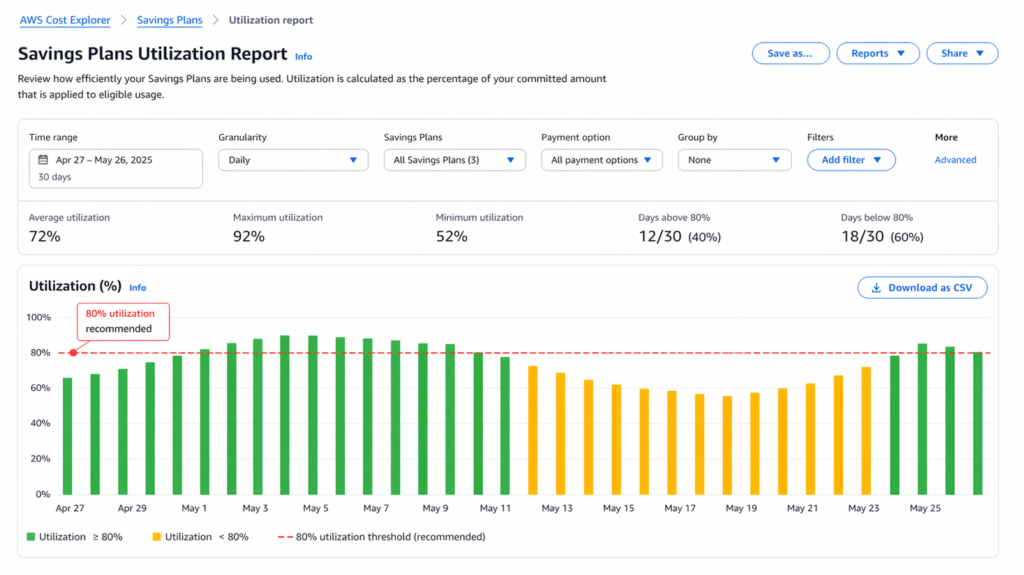
What are the three KPIs to track every week?
| KPI | Formula | Target | Red flag |
| Utilization Rate | SP-covered spend ÷ committed spend | 80–100% | Below 70% |
| Coverage Rate | SP-covered spend ÷ total eligible spend | 60–80% | Above 85% or below 50% |
| On-Demand EC2 trend | Week-over-week On-Demand spend change | Flat or declining | Rising while utilization falls |
For the full KPI framework including multi-account monitoring and escalation thresholds: AWS Savings Plans KPIs for FinOps →
How Do EC2 Savings Plans Work Across AWS Organizations?
If you’re running multiple AWS accounts under consolidated billing, Savings Plans behave differently than in a single-account setup.
How does AWS share Savings Plans across accounts?
By default, Savings Plans purchased in any account are shared across the entire AWS Organization. AWS applies the plan to the purchasing account’s usage first, then extends coverage to linked accounts, always at the highest-discount-first rate. A single plan purchased in the management account can cover EC2 usage across every linked account automatically.
Sharing can be disabled at the management account level if you need clean per-account cost attribution for chargeback or showback purposes. When disabled, each account’s commitments cover only that account’s usage and nothing flows across account boundaries.
What is the multi-account double-commitment trap?
The most common multi-account mistake is that two teams in separate linked accounts both purchase Savings Plans to cover their own EC2 usage without checking whether the organizational-level plan already covers it.
The result: one plan is fully utilized. The other runs underutilized because its target usage was already being covered at the org level. Both plans bill for their full committed $/hr. One delivers savings, and the other delivers waste.
Before purchasing a Savings Plan in any linked account, pull the Coverage Report at the management account level first. If coverage is already above 75% in the target instance family and region, the linked account purchase will create overlap.
For the full multi-account management guide, see Consolidated Billing and Savings Plans Sharing.
How Usage.ai Automates EC2 Savings Plan Management
Sizing EC2 Savings Plans conservatively, monitoring utilization weekly, and catching the overcommitment signal before it locks in is a continuous operational task. Most engineering and FinOps teams don’t have a dedicated person watching it daily. That’s exactly where commitments quietly go wrong.
What is the recommendation refresh problem?
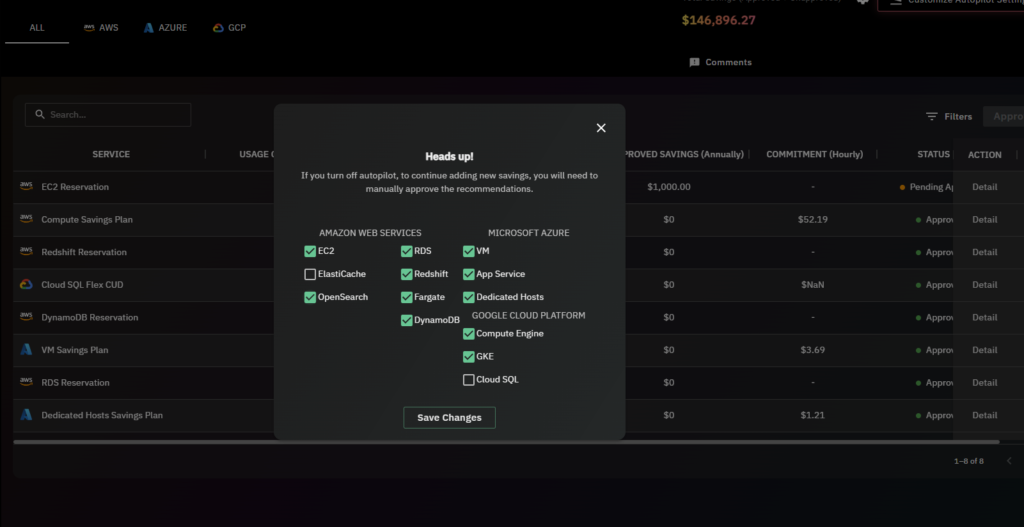
Every sizing decision in this guide depends on accurate, current usage data. AWS Cost Explorer refreshes Savings Plan recommendations every 72+ hours. Usage.ai refreshes every 24 hours.
That 48-hour gap has a measurable cost. At $6–12K/day in exposed On-Demand EC2 spend, a 3-day recommendation lag compounds to $18K+ per refresh cycle in missed savings opportunities. That’s the difference between acting on data that reflects your infrastructure today versus data that reflects it three days ago.
For EC2 Instance Savings Plans specifically where a single stale recommendation can lock you into the wrong commitment for 1 to 3 years, the gap between 24-hour and 72-hour refresh is a risk difference.
How does Usage.ai handle EC2 Savings Plan commitments?
Usage.ai purchases EC2 Savings Plan commitments on your behalf through the Flex Commitments Program, covering EC2, Fargate, and Lambda with 40–60% savings, $0 upfront, and no multi-year lock-in risk.
Commitments are backed by a cashback guarantee on underutilized capacity. If a commitment recommended by Usage.ai underperforms, you receive actual cash back.
For EC2 Instance Savings Plans, this guarantee is the difference between a tool that locks you into a commitment and one that protects your downside while still delivering the maximum discount.
How does Usage.ai compare to managing EC2 Savings Plans manually?
| Usage.ai | AWS Native Tools | |
| Recommendation refresh | Every 24 hours | Every 72+ hours |
| Time to full coverage | ~60 days | 6–9 months |
| Underutilization protection | Cashback + credits | None |
| Upfront cost | $0 | Your capital at risk |
| Fee structure | % of realized savings only | N/A |
| Setup time | 30 minutes | Ongoing manual work |
| Infrastructure changes required | None; billing layer only | None |
Usage.ai platform charges only on realized savings and if the commitment doesn’t perform, you don’t pay. Book a 15-minute savings assessment with a Usage.ai Azure expert to see exactly how much you’ll save.
Usage.ai manages over $91M in verified cloud savings for customers including Motive, EVGo (NASDAQ: EVGO), Blank Street Coffee, and Secureframe.