 AWS
 Microsoft Azure
 Google Cloud

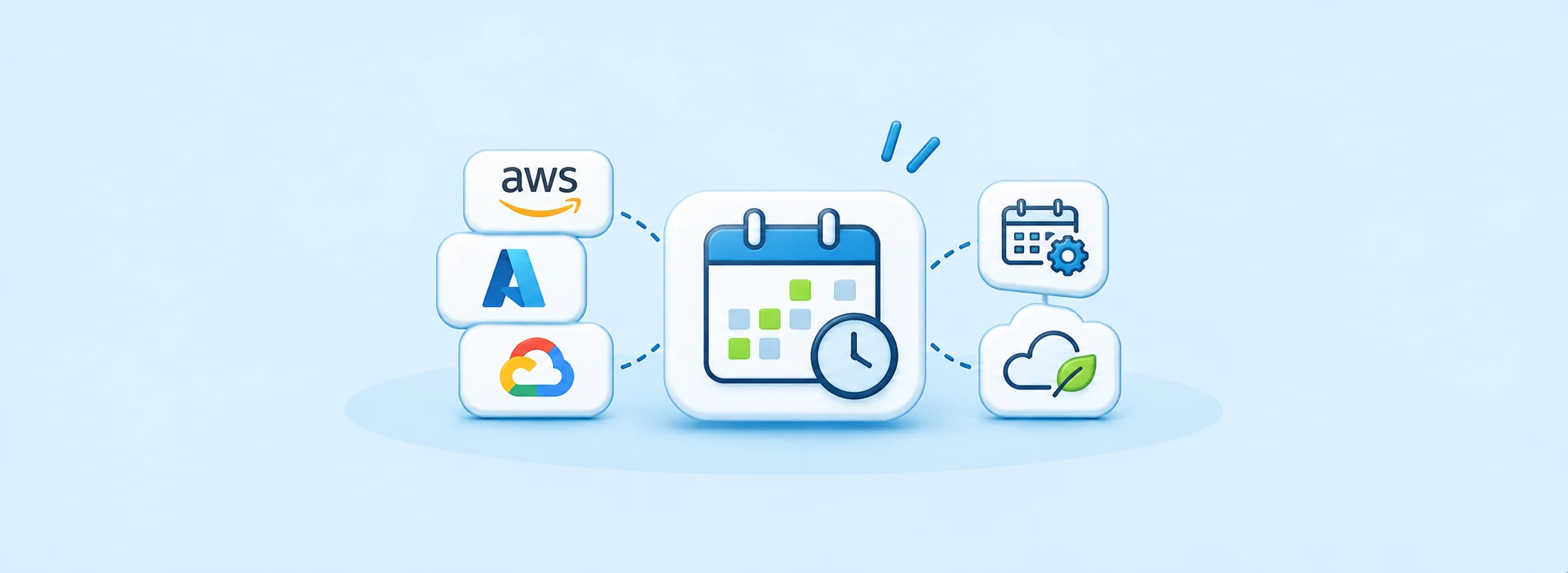
What Cloud Resource Scheduling Tools Do
These tools schedule when infrastructure runs. Depending on support, they start and stop virtual machines or databases, deallocate Azure VMs, or change group capacity and Kubernetes replica counts.Development, testing, training, and demo environments with predictable idle periods are common candidates.
Scheduling answers when resources run. Rightsizing changes their size; demand-based autoscaling adjusts capacity as demand changes. Our guide to cloud infrastructure optimization tools covers those broader choices.
The billing state matters. An Azure VM that is stopped but still allocated remains billable for instance usage. Deallocation ends that usage charge, while disks and some networking charges continue.
Best Cloud Resource Scheduling Tools Compared
We compared official product documentation and published pricing for resource coverage, scheduling controls, operating effort, and pricing models. This is an unranked comparison without hands-on testing. The native row groups separate provider approaches.| Tool or approach | Cloud scope | Scheduling approach | Best-fit need | Pricing basis |
|---|---|---|---|---|
| IBM Turbonomic Parking Edition | AWS, Azure, GCP | Managed parking policies | Grouped workload scheduling | Custom quote |
| CloudAvocado | AWS, GCP; Azure on request | Fixed and idle-aware schedules | Managed non-production scheduling | Resource-based plans |
| Skeddly | AWS, Azure, GCP | Scheduled actions | Action-based automation | Per action/resource processed |
| Harness AutoStopping | AWS, Azure, GCP | Activity-based and fixed schedules | Irregular access patterns | Tracked non-production spend |
| OpsNow Resource Scheduler | AWS, Azure, GCP | Centralized schedules | Teams already using OpsNow | Plan and contract scope |
| nOps Resource Scheduler | AWS | Recommended schedules | Usage-informed AWS scheduling | Not separately published |
| ProsperOps Scheduler | AWS EC2, RDS | Tag-based schedules | AWS ADM customers; Early Access | Per resource per month |
| Cloud Custodian | AWS, Azure, GCP | Resource-specific policies | Engineering-owned automation | Free software; operating costs |
| kube-green | Kubernetes | Workload sleep and wake | Namespace-level scheduling | Free software; operating costs |
| Native options | Provider-specific | Native schedules and runbooks | Supported single-cloud requirements | Service and deployment costs |
IBM Turbonomic Parking Edition
Key Features:
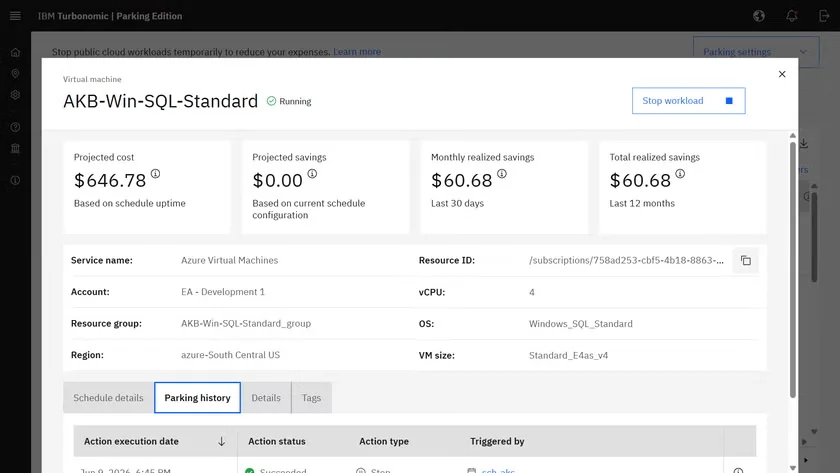
Workload sets Group resources and sequence startup or shutdown.
Parking policies Reuse scheduling rules across environments.
Savings views Track parking opportunities and estimated impact.
Cons: ❌ Broader rightsizing and performance optimization belong to the full Turbonomic platform, beyond Parking Edition.
Pricing: Custom quote for the selected offering and scope.
CloudAvocado
Key Features:
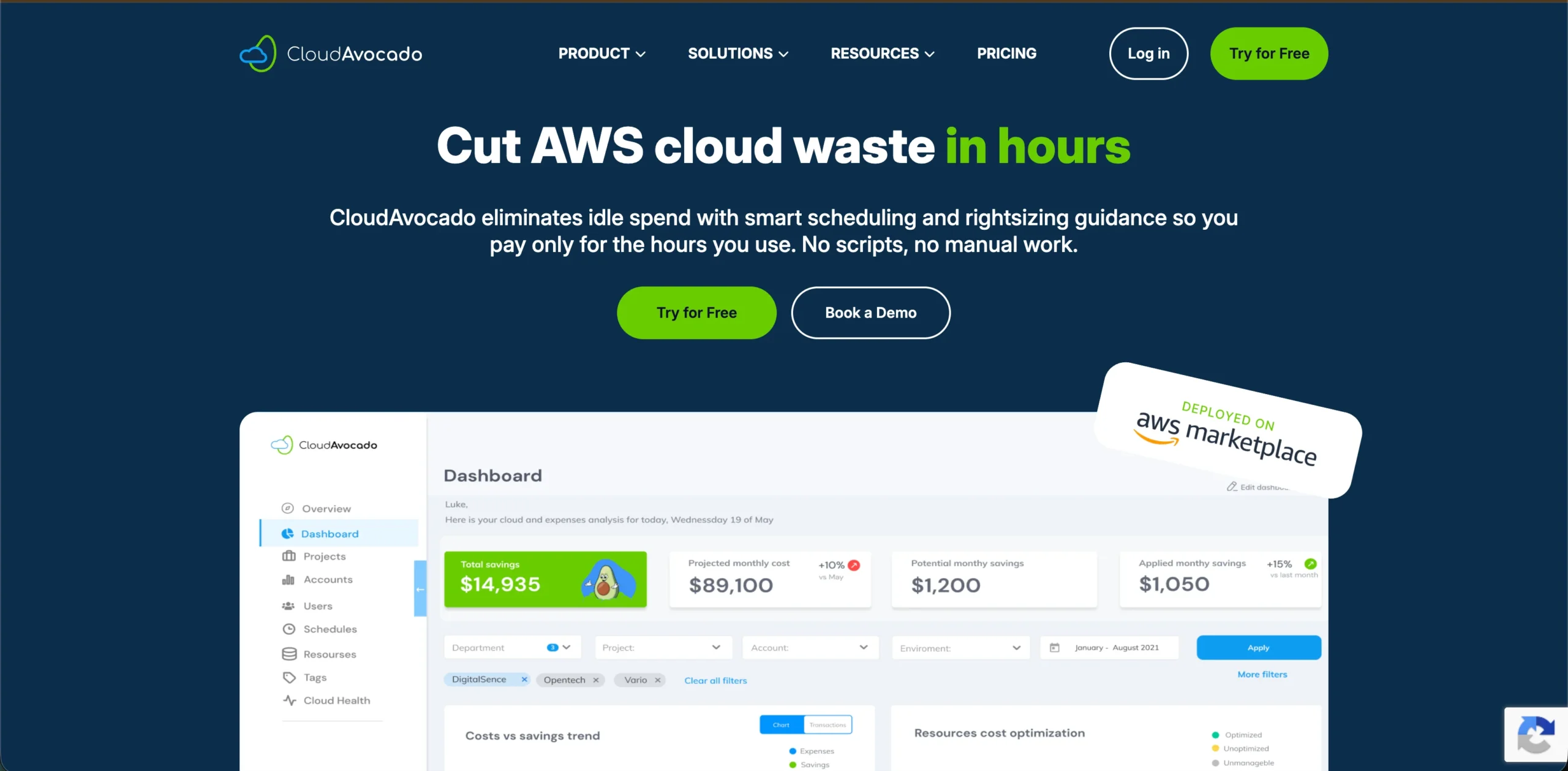
Tag targeting Apply schedules to matching resources.
Snoozing Temporarily pause scheduling for a resource or an entire schedule.
Idle-aware stopping Wait for configured inactivity after working hours.
Cons: ❌ Resource coverage varies by plan.
Pricing: Free for 10 resources with EC2 scheduling; paid tiers expand capacity and supported functions.
Skeddly
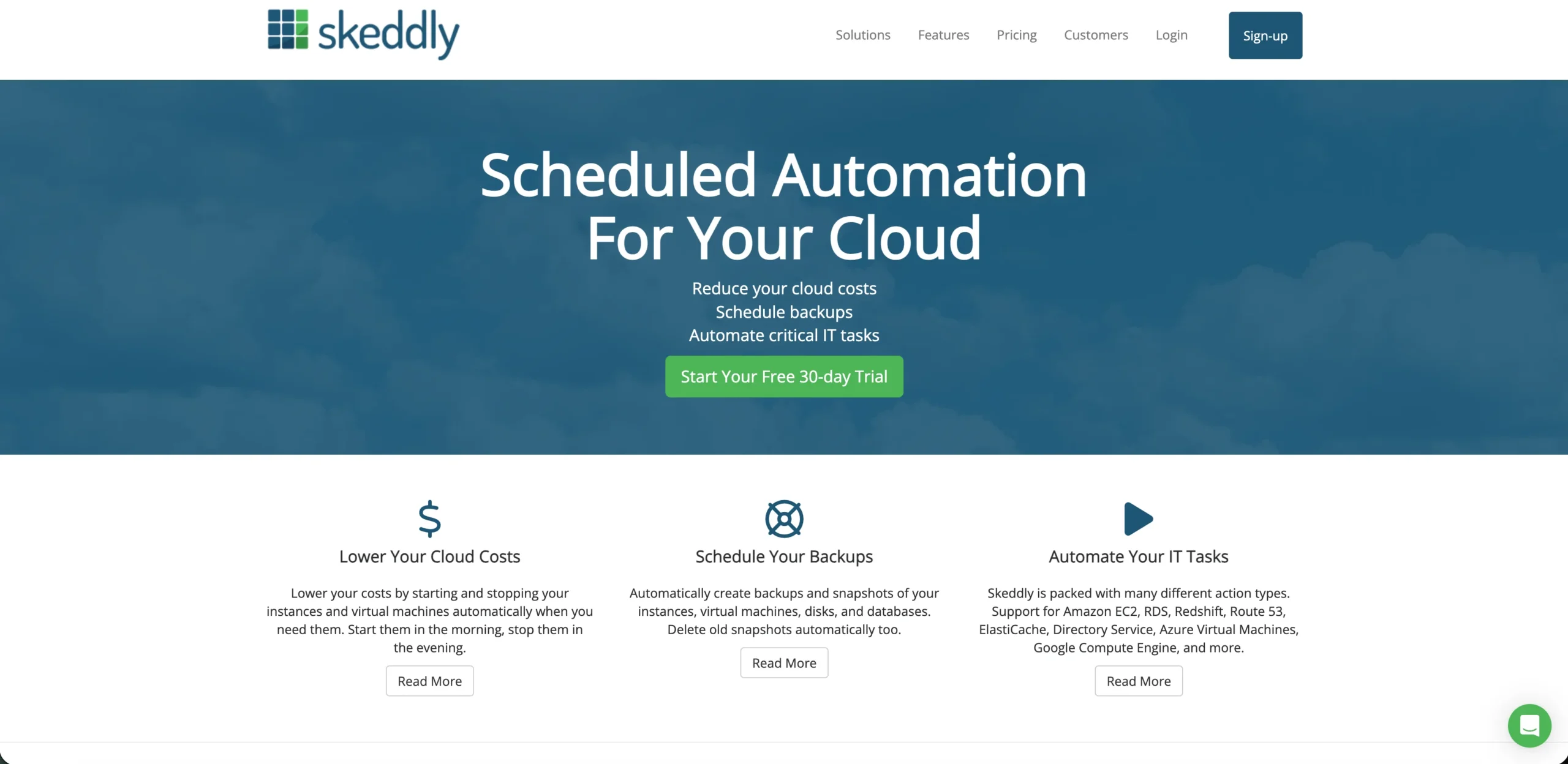
Key Features:
Recurring schedules Run hourly, daily, weekly, or monthly.
One-time actions Schedule individual operations.
Permissions generator Build AWS access policies around selected actions.
Cons: ❌ Action catalogs and charges differ between providers; count resources started and stopped.
Pricing: Action-dependent charges; EC2 starts/stops are metered per instance, with 100 free starts and 100 free stops each calendar month. No monthly minimum.
Harness AutoStopping
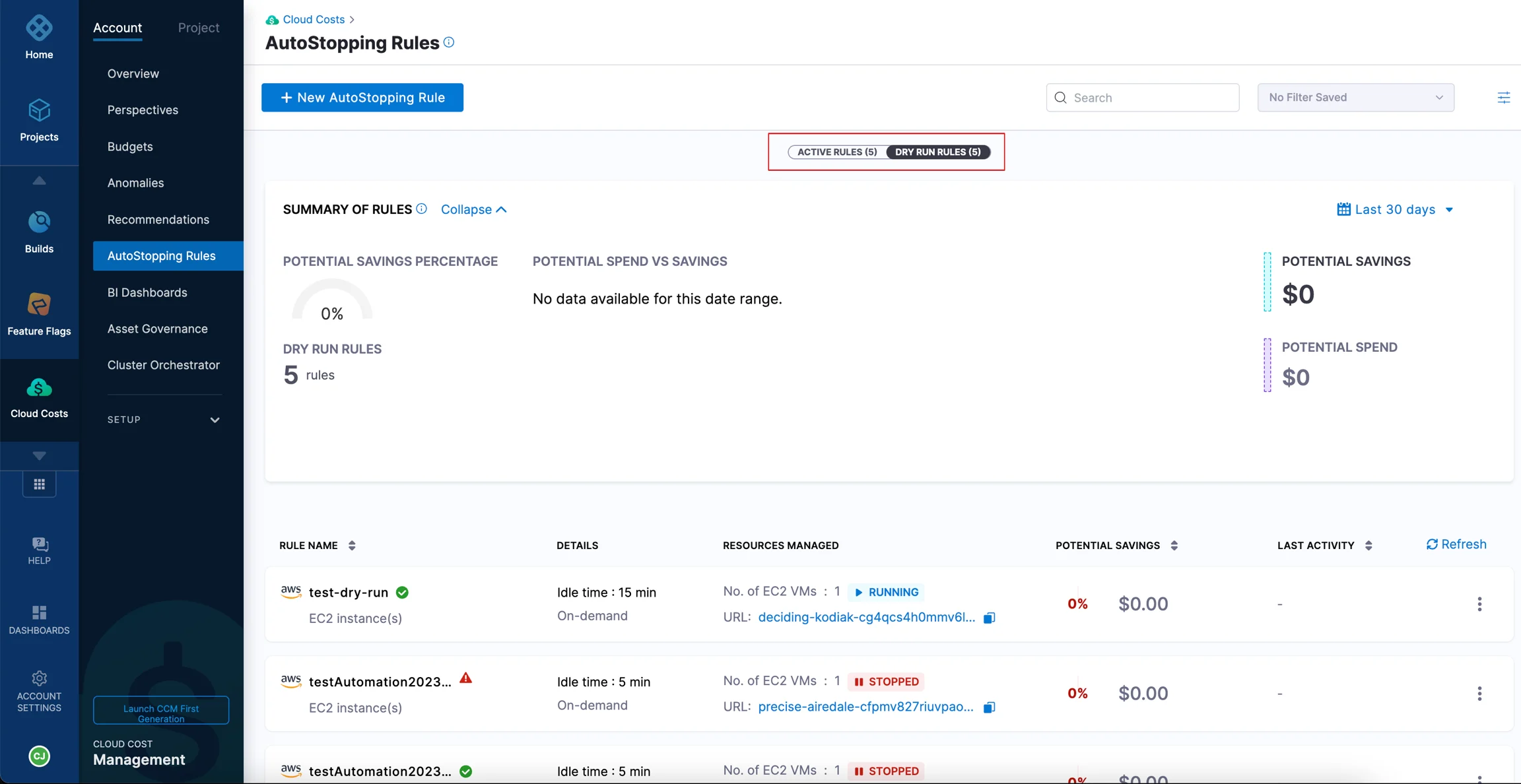
Key Features:
Idle thresholds Define when inactivity triggers stopping.
On-demand restart Respond to supported access signals.
Fixed schedules Set planned uptime or downtime windows.
Cons: ❌ Proxy configuration and restart time can affect how quickly developers regain access.
Pricing: Published licensing specifies 1.25% of annual tracked non-production cloud spend, subject to the order form and discounts.
OpsNow Resource Scheduler
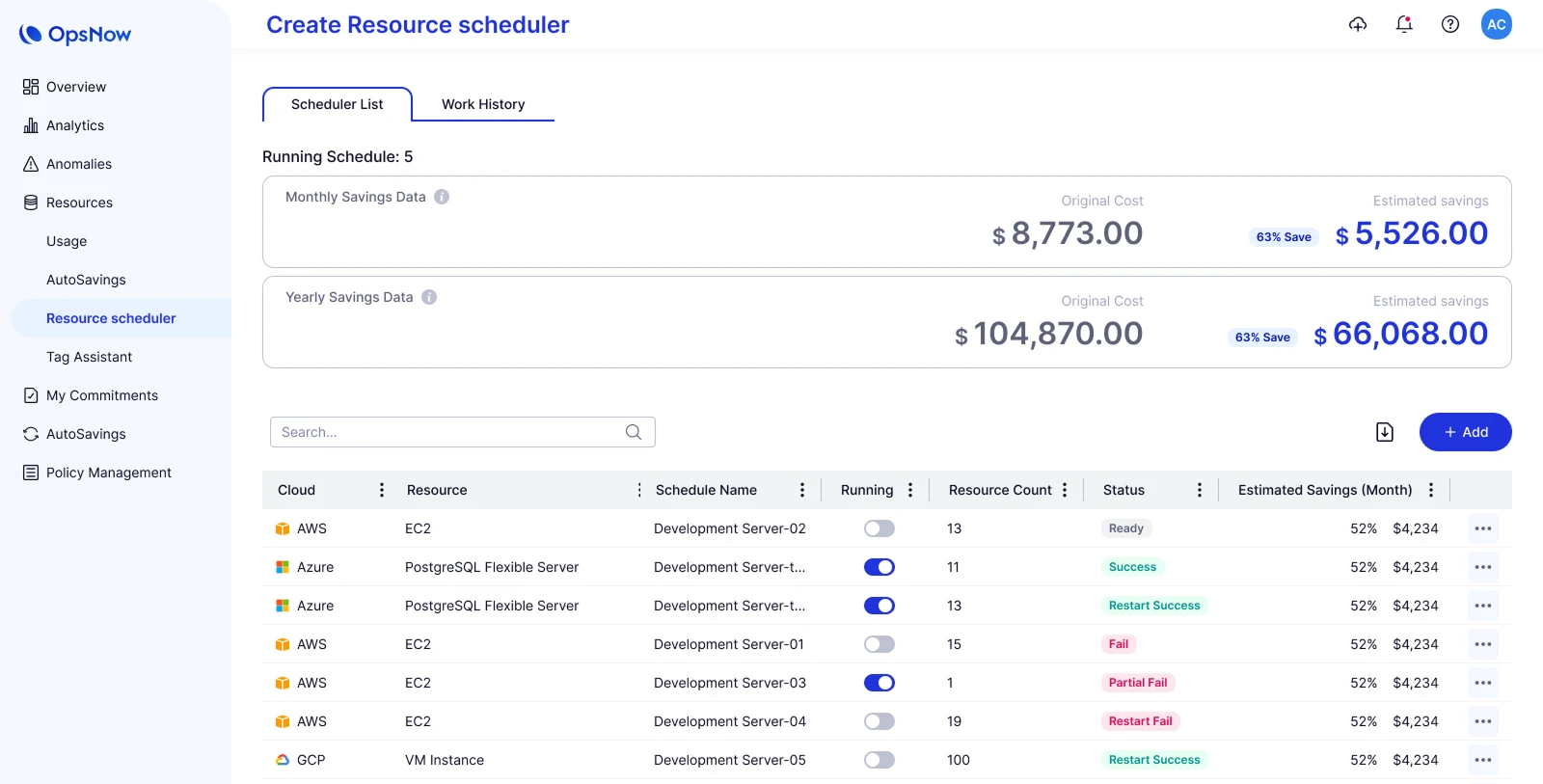
Key Features:
Target selection Choose individual resources or matching tags.
Schedule controls Set operating days, times, and time zones.
Execution history Inspect successful actions, failures, and detailed logs.
Cons: ❌ Resource types and available actions differ by provider.
Pricing: Sold through FinOps Plus plans; no standalone scheduler rate is published.
nOps Resource Scheduler
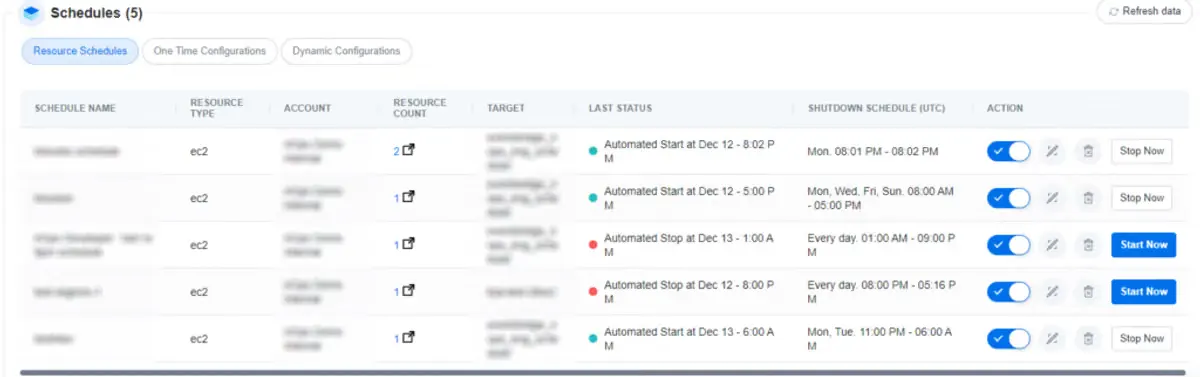
Key Features:
Schedule recommendations Identify recurring periods of low usage.
Resource review Select which recommendations to implement.
EventBridge integration Execute start/stop workflows in connected AWS accounts.
Key Features: Pros: ✅ Combines scheduling with other AWS optimization workflows.
Cons: ❌ The scheduler covers AWS resources; multicloud rate optimization is a separate capability.
Pricing: Scheduler fees are not published separately. Our nOps review examines broader platform buying considerations.
ProsperOps Scheduler
Key Features:
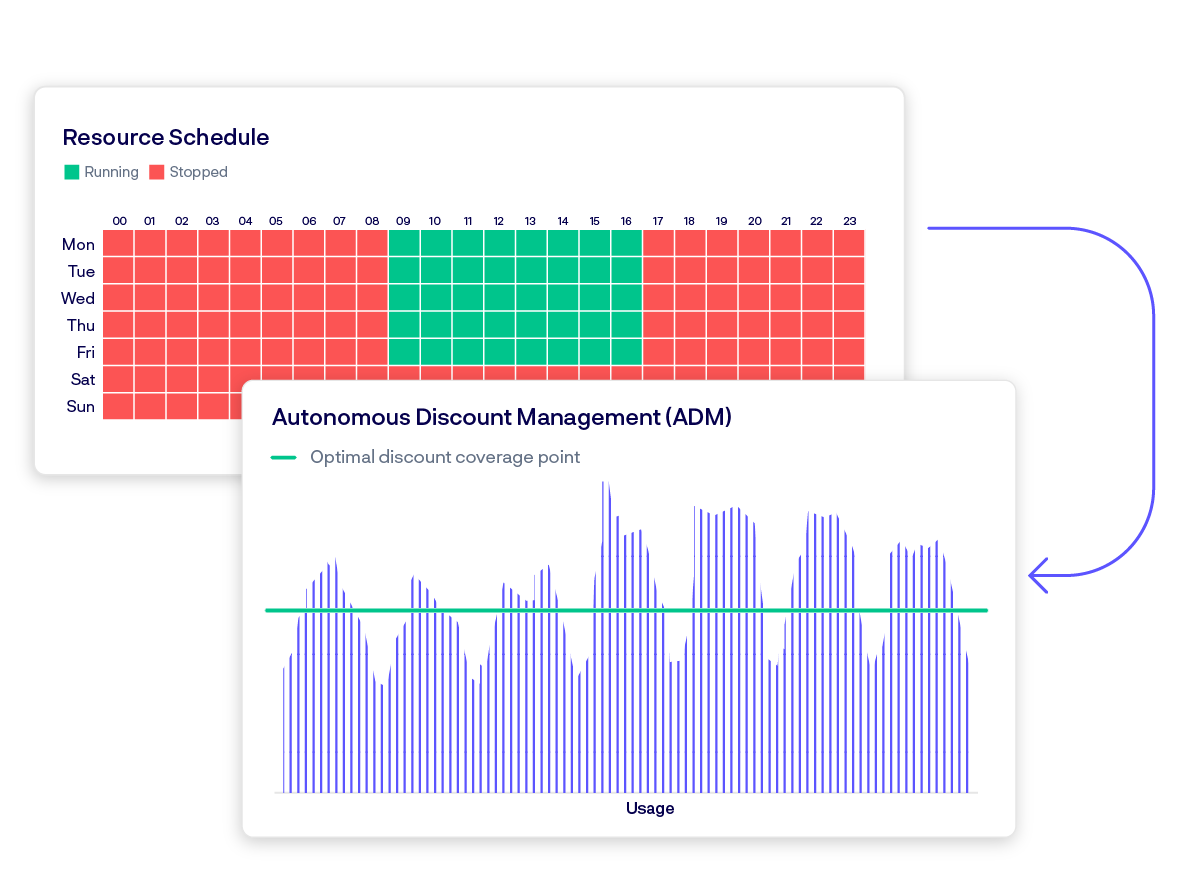
Weekly schedules Define events and time zones through tags.
Failure handling Retry failed actions for up to 15 minutes.
Event logs Record schedule changes and resource state transitions.
Cons: ❌ It acts at scheduled transitions, so a manually restarted resource can remain running until another event.
Pricing: Per managed resource per month, separately from discount-management fees. Our ProsperOps pricing guide explains the distinction.
Cloud Custodian
Key Features:
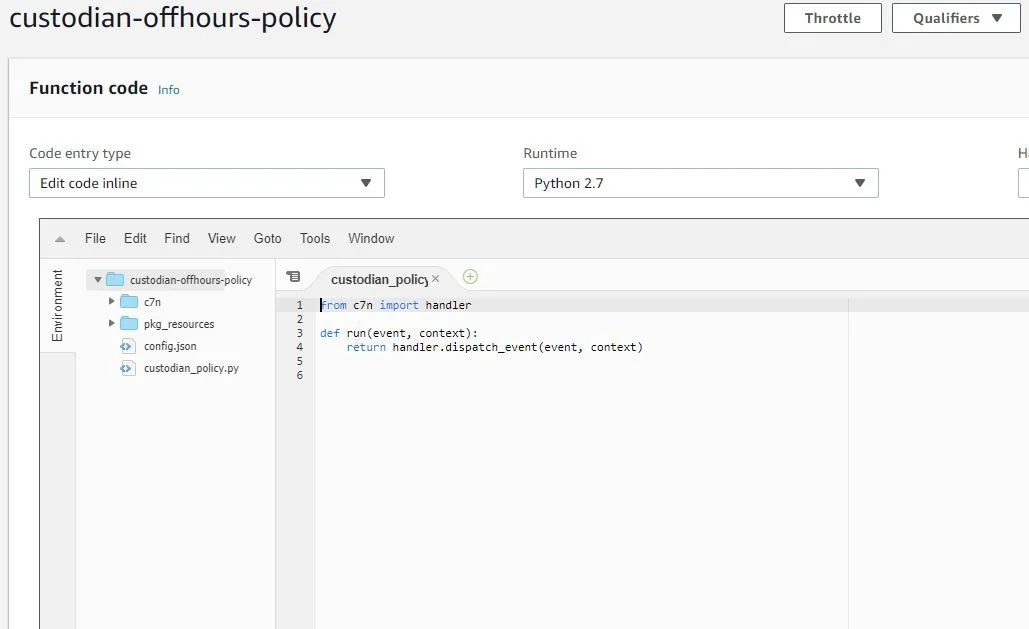
Off-hours filters Select resources according to operating windows.
Resource rules Combine filters with supported cloud actions.
Schedule exceptions Configure time zones and skipped dates.
Cons: ❌ Your team owns deployment, permissions, updates, and troubleshooting; supported filters and actions vary by resource.
Pricing: Free, open-source software. Budget for execution infrastructure and engineering maintenance.
Kube-green
Key Features:
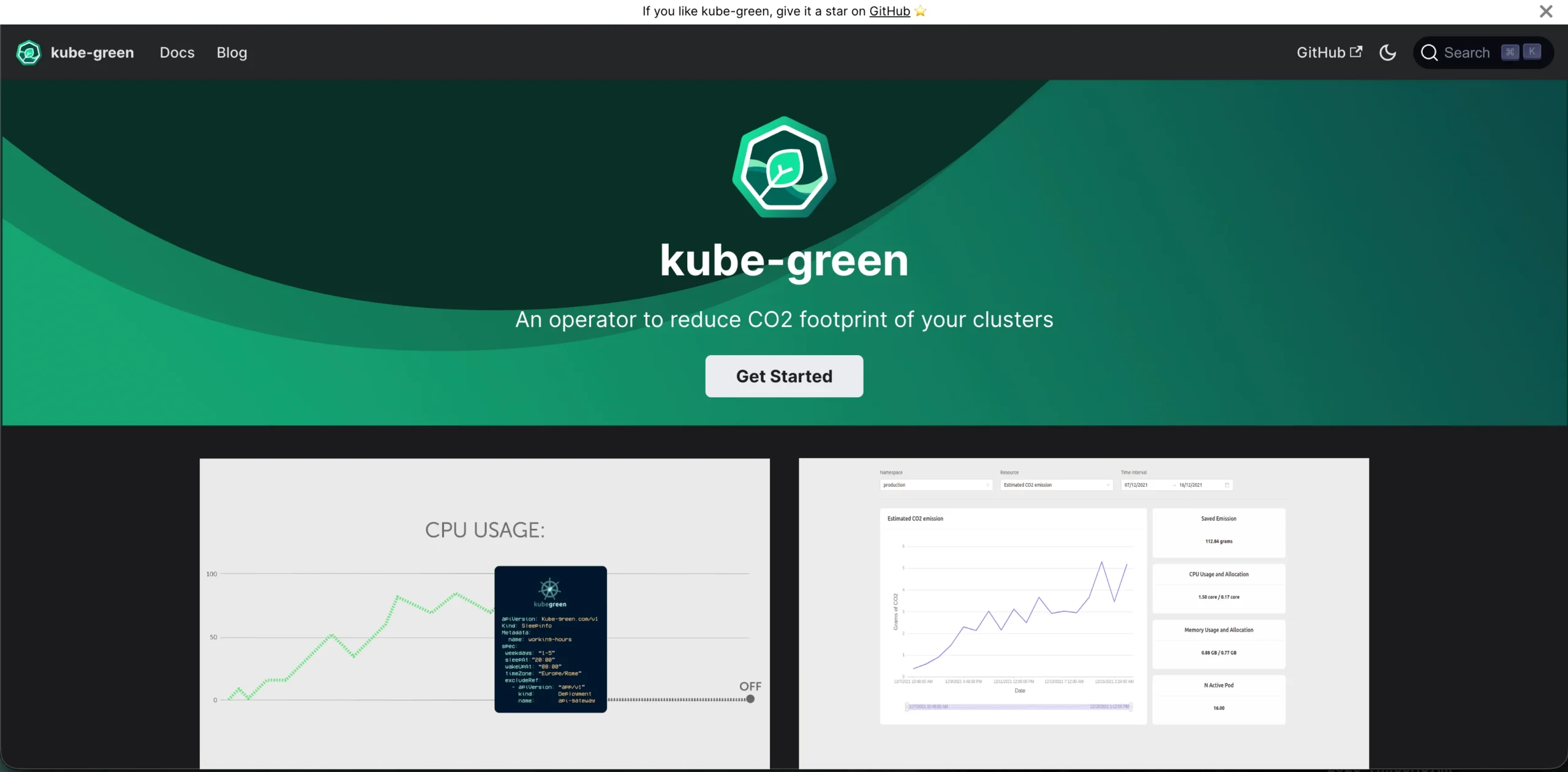
SleepInfo rules Define weekdays, sleep times, and wake times.
Workload support Manage Deployments and StatefulSets; optionally suspend CronJobs.
Exclusions Protect selected resources from scheduled changes.
Cons: ❌ Sleeping workloads does not itself remove nodes or guarantee lower infrastructure charges.
Pricing: Free, open-source software; cluster and operating costs remain. Our Kubernetes rightsizing and autoscaling comparison covers complementary capacity controls.
Native Cloud Scheduling Options
Key Features:
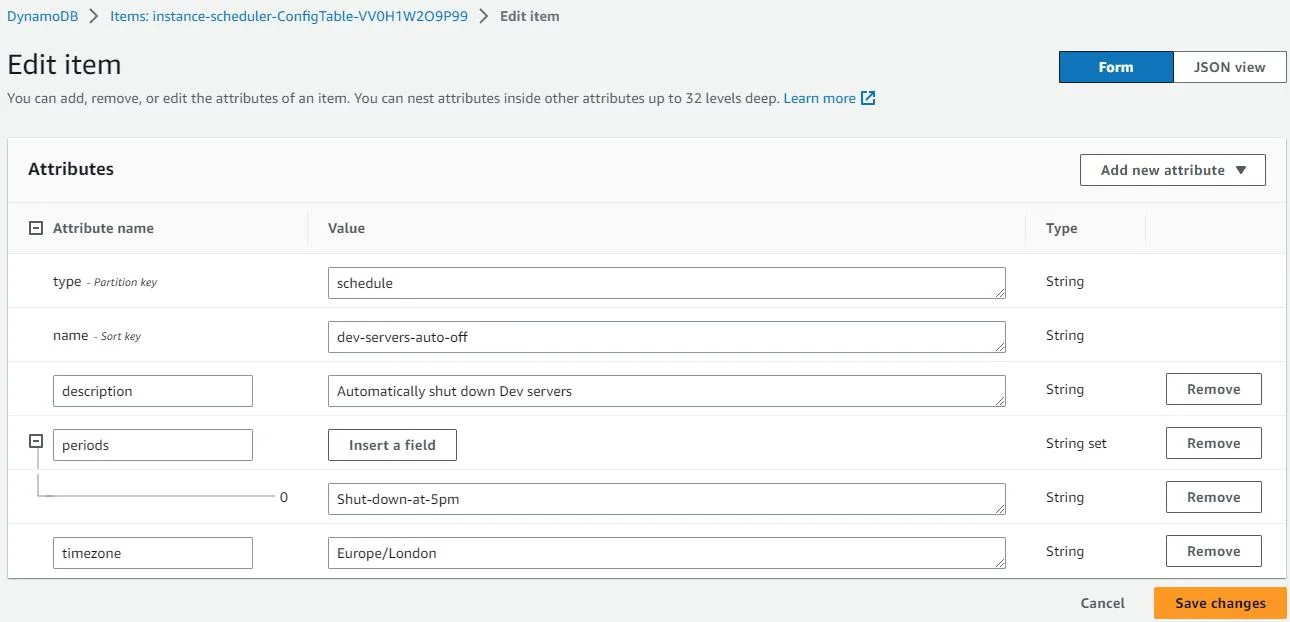
AWS Instance Scheduler on AWS schedules supported EC2 instances, RDS databases, and Auto Scaling groups across accounts and regions. It deploys supporting AWS infrastructure that your team operates. Quick Setup Resource Scheduler is an EC2-only alternative using tag-based configurations across selected accounts and regions.
Azure Scheduled Automation runbooks execute VM start and deallocation operations. Your team maintains the runbooks and permissions.
Google Cloud Compute Engine instance schedules automate VM start/stop actions. Scheduled operations can begin up to 15 minutes late, so allow for readiness requirements.
Cons: ❌ Each cloud has separate configuration, coverage, and operating behavior.
Pricing: Quick Setup has no additional fee. Budget for supporting AWS infrastructure and Azure Automation usage. On Google Cloud, stopped VMs incur no CPU charges, but disks and external IP addresses can still incur charges.
How Usage.ai Complement Cloud Scheduling
Scheduling changes your usage pattern. That makes commitment coverage worth reassessing alongside the new operating hours.At Usage.ai, we analyze usage and existing commitments across AWS, Azure, and Google Cloud. We recommend eligible purchases or automate them within your approved controls, with commitments held in your own cloud account. We adapt future purchasing as sustained usage changes; existing commitments retain their provider terms.
Our Savings Test can use read-only access. Purchasing requires additional permissions, and our commitment automation does not start, stop, or resize workloads. We charge a share of new realized savings.
Our Cashback protection helps cover the difference when eligible Flex Insured Commitments cost more than the same usage at On-Demand rates, under your agreement’s coverage and payment terms.
Evaluate Cloud Scheduling Tools Before Buying
Use this illustrative exercise in a vendor demonstration or your own pilot. It reports no vendor tests or measured savings.Check Operational Fit
Assume a test application and database must be usable from 9 a.m. to 7 p.m. on weekdays. Start the database before the application, protect a separate always-on resource, and extend one evening until 9 p.m.| Situation | Required outcome |
|---|---|
| Morning startup | Application is usable by 9 a.m., not merely starting. |
| Late work | Extension ends and the normal schedule resumes. |
| Excluded resource | Protected resources remain unaffected. |
| Failed startup | Alert availability, recipients, and recovery ownership are clear. |
| Manual restart | Engineers understand whether another shutdown will occur. |
| Maintenance | Backups and maintenance have suitable operating windows. |
Calculate Net Savings
Assume no existing commitments and 28 days without a clock change: 672 baseline hours. Twenty 8:30 a.m.–7 p.m. windows plus one two-hour extension produce 212 modeled running hours. The 30-minute startup allowance is an assumption to test, not a readiness guarantee.Use fictional USD amounts and proportional running charges:
| Cost over 28 days | Always running | Scheduled |
|---|---|---|
| Running charges | $1,000.00 | $315.48 |
| Unchanged costs | $200.00 | $200.00 |
| Added scheduling and operating cost | $0.00 | $50.00 |
| Total | $1,200.00 | $565.48 |
This simplified model assumes billed hours match the windows, excludes one-time setup and existing commitments, and retains persistent and always-on costs. Actual transition times and billing minimums can change the result.
For committed workloads, include unused commitment charges in the account-level comparison; stopping usage does not cancel a Savings Plan.
Choose Your Scheduling Approach
Start with native options when they meet your resource and control requirements. Choose a managed scheduler when centralized exceptions and operating visibility justify the fee. Choose policy-based tooling when engineering ownership is an advantage.Shortlist on operational fit, then compare net cost. A cheaper scheduler that cannot restore your application when needed is the wrong fit.
If scheduling changes your ongoing usage, we can help you reassess your commitment coverage.
Explore purchasing controls and eligible cashback protection. No cloud access needed for the demo; savings assessment is separate.
Frequently asked questions
What permissions do cloud schedulers need?
Discovery requires read permissions; changing resource states requires action permissions. AWS Quick Setup also needs Key Management Service (KMS) permissions to start instances with encrypted Amazon EBS (persistent disk) volumes. Limit access to the intended resources and operations rather than granting broad cloud administration rights.
Can scheduling disrupt backups or maintenance?
Yes, shutdown windows can overlap with background work. Review service behavior: RDS removes some pending actions when stopped and handles certain parameter changes after restart. Coordinate schedules with backup and maintenance owners rather than assuming every job resumes automatically.
Does stopping resources delete data?
It depends on where the data lives. EBS-backed EC2 instances retain attached EBS data when stopped, but instance-store (temporary local disk) data is lost. Memory contents are also lost during an ordinary stop. Identify persistent storage and save unfinished work before introducing scheduled shutdowns.
Why does RDS restart automatically?
RDS automatically restarts a DB instance after seven consecutive stopped days so it does not fall behind required maintenance. This matters during long holidays or project pauses: a stopped database may resume billing for instance usage before your team returns. Plan the scheduler’s response to that restart.
Can scheduling and autoscaling work together?
Yes. AWS Auto Scaling supports scheduled actions alongside scaling policies. Set the group’s desired capacity and appropriate minimum and maximum limits, rather than stopping individual managed instances. After a scheduled action, scaling policies continue operating within those bounds, so the two mechanisms need compatible settings.