.png)
In Google Cloud, every action, whether deploying a VM, accessing a storage bucket, or modifying network settings is governed by GCP IAM. It is the authorization system that defines who can access specific resources and what operations they are permitted to perform across projects and organizations. Because Google Cloud environments often span multiple teams, services, and environments, a clear understanding of GCP IAM is essential for maintaining security, enforcing least privilege, and avoiding unintended access through inherited permissions.
This guide provides a practical, structured explanation of GCP IAM, covering its core components, how access is evaluated, and the best practices needed to design secure and scalable access control in Google Cloud.
GCP IAM (Google Cloud Identity and Access Management) is the access control system that manages authentication and authorization across Google Cloud resources. It determines which identities can perform specific actions on resources within an organization, folder, project, or individual service.
In practical terms, GCP IAM enforces role-based access control (RBAC). Instead of assigning permissions individually, administrators grant predefined or custom roles to users, groups, or service accounts. Each role contains a set of permissions, and those permissions allow specific API actions such as creating instances, reading storage objects, or modifying networking rules.
What makes Google Cloud IAM distinct is its integration with the Google Cloud resource hierarchy. Permissions granted at higher levels, such as the organization or folder level are inherited by lower-level resources, including projects and individual services. This inheritance model simplifies large-scale access management but can also create unintended access if roles are assigned too broadly.
Also read: Cloud Cost Analysis: How to Measure, Reduce, and Optimize Spend
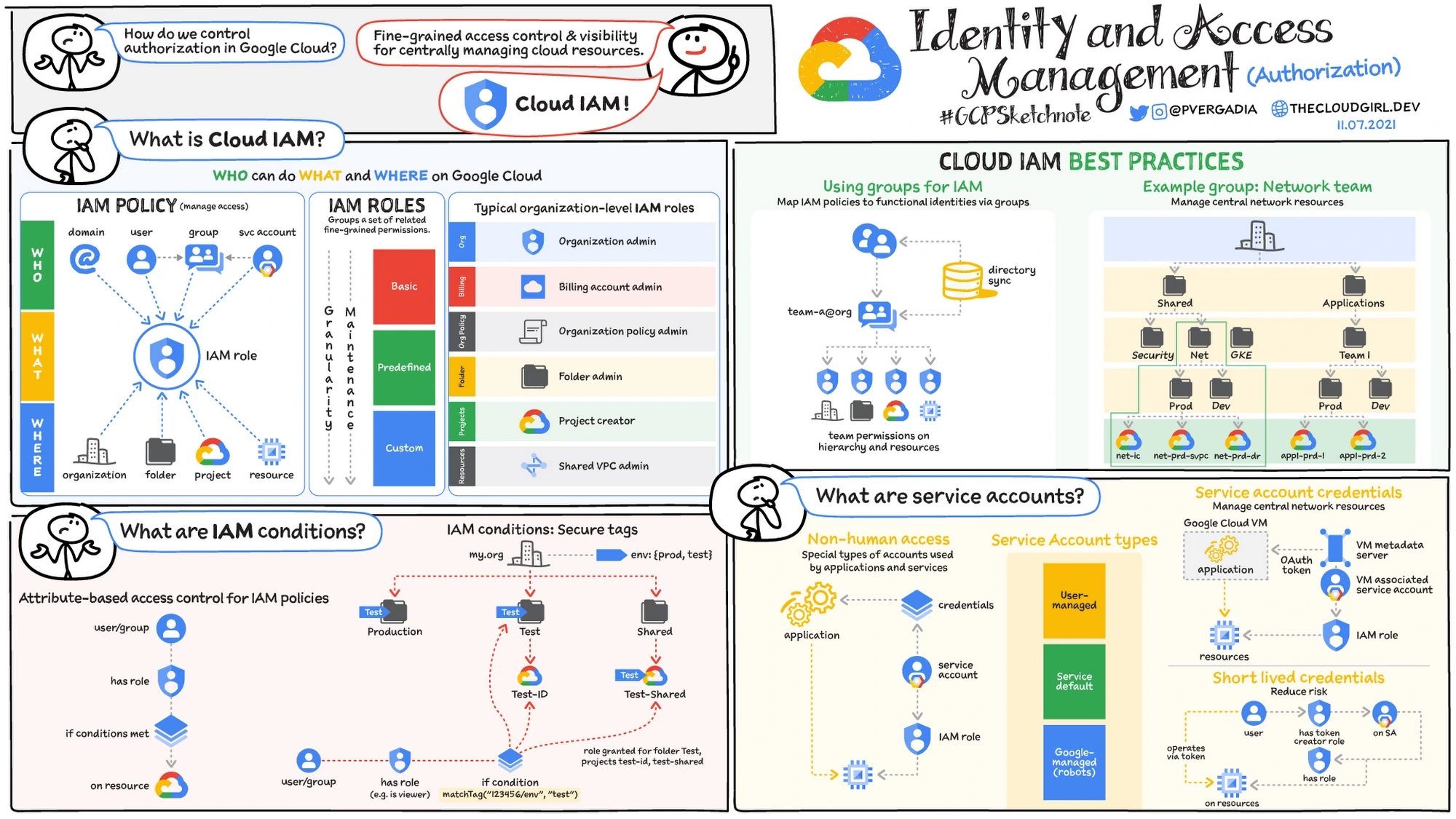
At a structural level, GCP IAM is built around three core components: identities, roles, and policies. Every access decision in Google Cloud is the result of how these three elements interact within the resource hierarchy.
To understand how Google Cloud IAM works in practice, it helps to frame it around three fundamental questions:
Identities answer the “who.” Roles define the “what.” Policies bind identities to roles at a specific level of the hierarchy.
Individually, these components are straightforward. The complexity and power of GCP IAM comes from how they operate across organizations, folders, projects, and individual resources through permission inheritance.
Let’s break each one down.
Source: Google Cloud
In GCP IAM, an identity (also called a principal) represents an entity that can be granted access to resources.
The main identity types in Google Cloud are:
For most organizations, best practice is to assign permissions to groups instead of individual users, which simplifies access management and reduces administrative overhead.
Service accounts require special attention. Because they authenticate programmatically, overly permissive service accounts can create hidden security risks, especially if long-lived keys are not rotated properly.
Also read: GCP Cost Optimization Best Practices
Roles in GCP IAM are collections of permissions. Instead of granting individual permissions one by one, administrators assign roles that bundle related permissions together.
There are three main types of roles:
Using primitive roles at the project or organization level is one of the most common IAM misconfigurations. They grant far more permissions than most users require, violating the principle of least privilege.
Source: Google Cloud
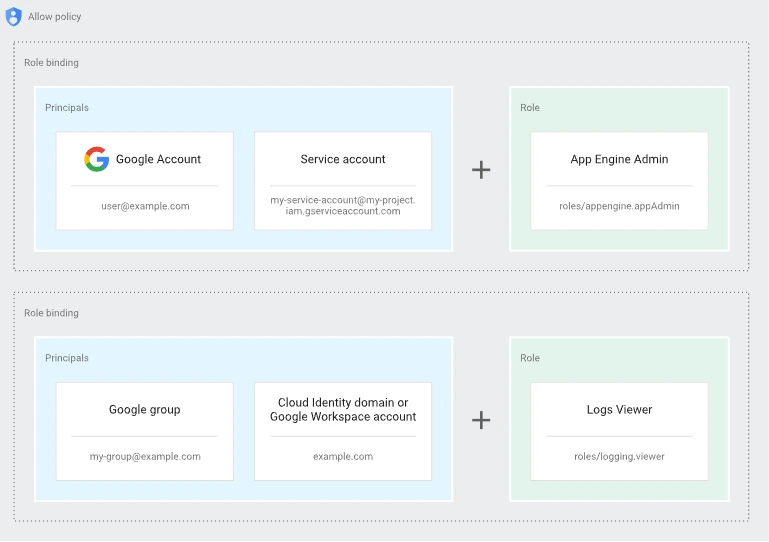
An IAM policy connects identities to roles at a specific level in the resource hierarchy. Each policy contains one or more bindings, and each binding includes:
A simplified policy example looks like this:
{
  "bindings": [
    {
      "role": "roles/storage.objectViewer",
      "members": ["user:alice@example.com"]
    }
  ]
}
When this policy is attached to a project or resource, the specified identity receives all permissions included in that role.
Policies can be attached at the organization, folder, project, or resource level. Because permissions are inherited downward, a policy applied at a higher level automatically applies to all child resources unless explicitly restricted by conditions.
Understanding GCP IAM requires understanding how Google Cloud evaluates access requests across its resource hierarchy. Permissions are not checked in isolation; they are evaluated within a structured hierarchy and inherited downward.
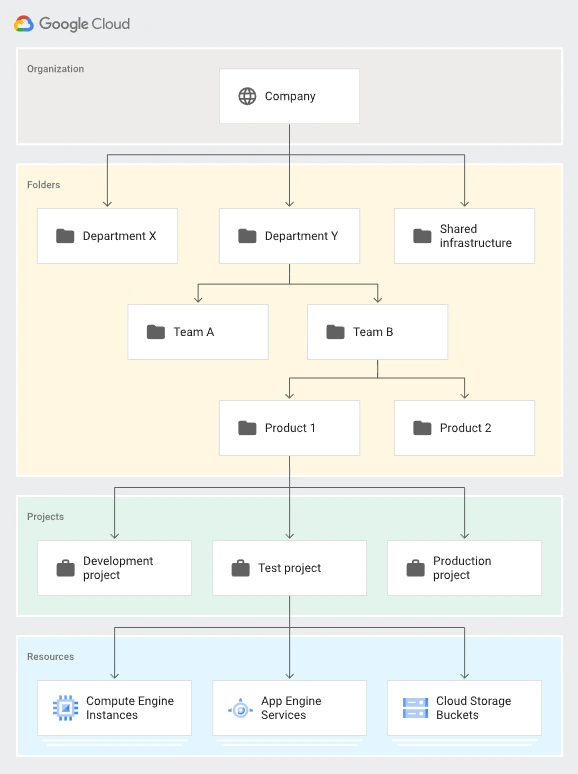
Google Cloud resources are organized in four main levels:
Source: Google Cloud
Policies can be applied at any of these levels. When a role is granted at a higher level, such as the organization or folder, that permission is automatically inherited by all child resources below it.
This inheritance model simplifies large-scale access management but can unintentionally expand permissions if roles are assigned too broadly.
Also read: How to Get Executive Buy-In for FinOps
When an identity attempts to perform an action (such as creating a VM or reading a storage object), GCP IAM evaluates access in the following sequence:
GCP IAM follows a union model of permissions. If a user has multiple roles, their effective permissions are the combined total of all granted roles.
However, unlike some other cloud providers, traditional GCP IAM does not rely primarily on explicit deny rules in standard role bindings. Access is generally allowed if a permission is granted by any binding.
This makes least-privilege design especially important. Overlapping role assignments can quietly grant more access than intended.
Consider a role like Editor granted at the folder level. Every project and resource under that folder inherits those permissions. If that folder contains production workloads, the access impact can be significant.
Because of inheritance:
Understanding how GCP IAM evaluates permissions and inherits policies is the key to preventing over-permissioned environments and maintaining secure cloud access control.
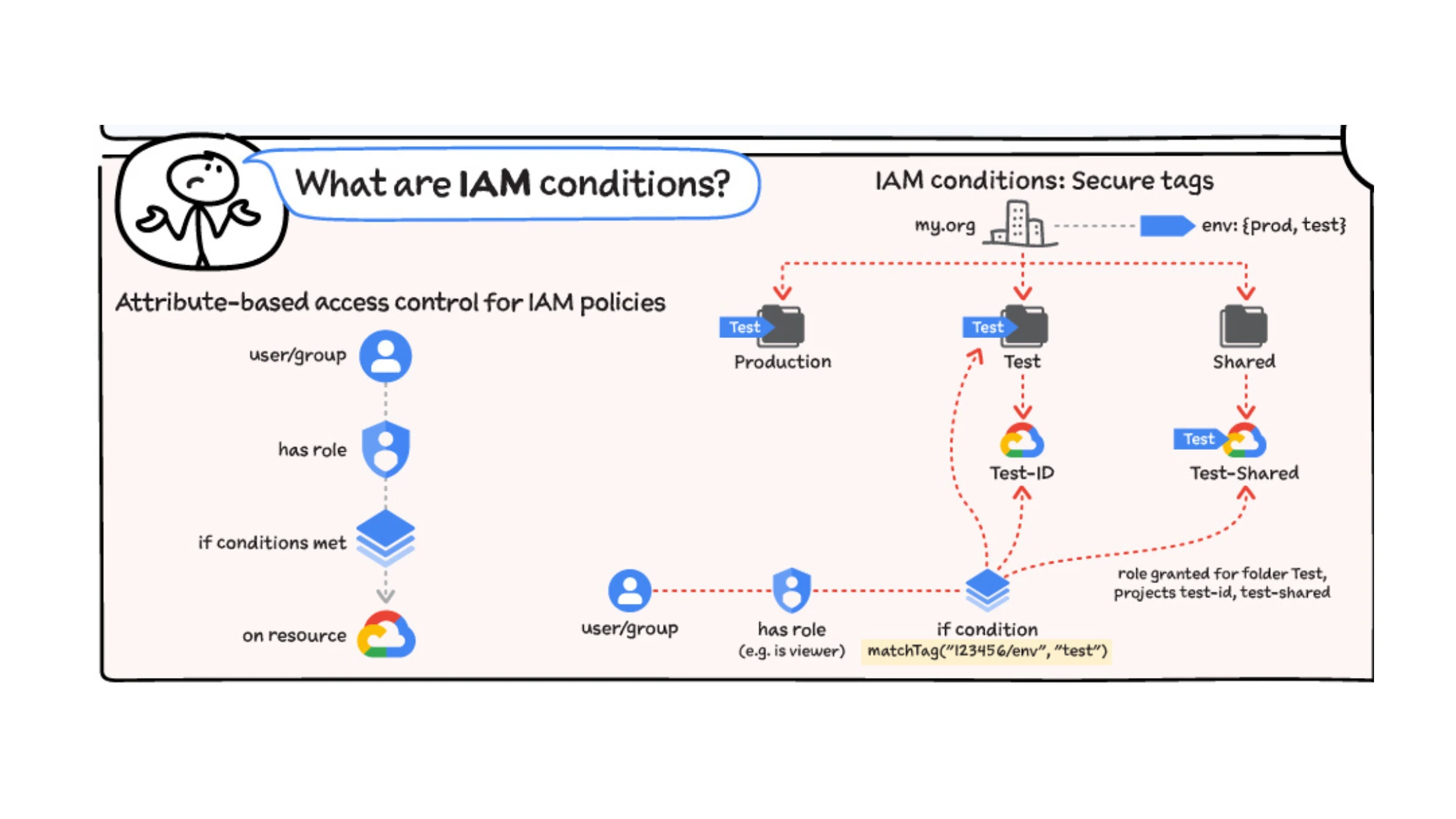
Source: Google Cloud
IAM Conditions allow you to apply context-aware access control in GCP IAM. Instead of granting a role permanently and universally, you can restrict access based on specific attributes such as time, request details, or resource characteristics.
Without conditions, a role assignment applies broadly wherever it is attached. With conditions, access becomes more granular and controlled.
IAM Conditions can evaluate:
For example, you might grant a developer temporary access to a project that automatically expires after a specific date.
A simplified conditional binding looks like this:
{
 "bindings": [
    {
      "role": "roles/viewer",
      "members": ["user:dev@example.com"],
      "condition": {
        "title": "TemporaryAccess",
        "expression": "request.time < timestamp('2026-01-01T00:00:00Z')"
      }
    }
  ]
}
In this example, the user has viewer access only until the specified timestamp. After that date, the condition evaluates to false and access is denied.
IAM Conditions are particularly useful for:
They allow organizations to move closer to true least-privilege enforcement without constantly modifying role bindings manually.
However, because conditions add logical complexity to policy evaluation, they should be documented clearly and audited regularly.
Also read: Google BigQuery Committed Use Discounts (CUDs): Pricing Guide (2026)
In GCP IAM, service accounts are non-human identities used by applications, virtual machines, and automated workloads to authenticate and interact with Google Cloud services.
While user accounts represent people, service accounts represent software. For example:
In each case, the workload uses a service account to request permissions defined by IAM roles.
A service account:
Because service accounts often operate without direct human oversight, over-permissioned service accounts can create significant security exposure.
Service accounts can authenticate in two primary ways:
Long-lived keys are risky. If leaked, they can grant persistent access until manually revoked. Many security incidents in cloud environments involve exposed service account keys.
Best practice is to:
GCP IAM also supports service account impersonation, allowing one identity to temporarily assume the permissions of a service account without sharing keys. This approach reduces credential sprawl and improves auditability.
In mature environments, the number of service accounts often exceeds the number of human users. Without governance, they accumulate broad permissions and become difficult to track.
Designing secure GCP IAM policies means auditing service accounts regularly, limiting their roles, and ensuring authentication methods follow security best practices.
Also read: GCP Committed Use Discount vs Sustained Use Discount
Granting roles in GCP IAM can be done through the Google Cloud Console, the gcloud CLI, or infrastructure-as-code tools. The core concept remains the same: you bind an identity to a role at a specific level of the resource hierarchy.
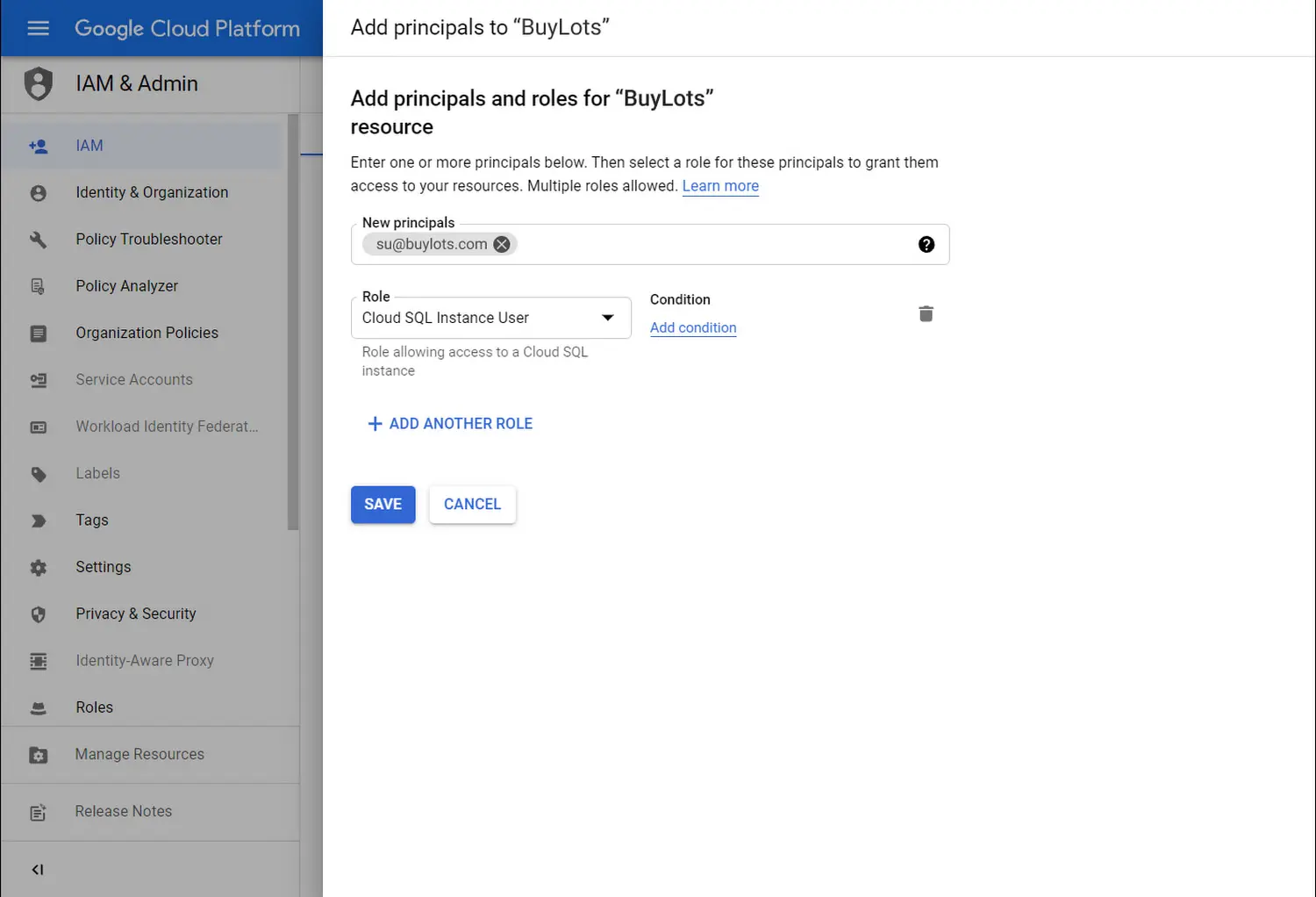
Source: Google Cloud
The role immediately applies at the selected scope (organization, folder, or project) and inherits downward.
Granting a Role Using the gcloud CLI
You can also assign roles using the command line:
gcloud projects add-iam-policy-binding PROJECT_ID \
  --member="user:alice@example.com" \
  --role="roles/viewer"
This command updates the IAM policy for the specified project and binds the identity to the selected role.
Quick Tips to Consider
Granting roles correctly is central to maintaining secure and well-structured GCP IAM policies.
Designing secure GCP IAM policies requires more than assigning roles. It requires structure, discipline, and regular review. The following best practices help reduce risk while keeping access manageable at scale.
Grant identities only the permissions required to perform their job. Avoid broad roles when more specific predefined or custom roles are available. Over-permissioned accounts are one of the most common cloud security risks.
Primitive roles such as Owner, Editor, and Viewer grant wide permissions across services. In production environments, use predefined or custom roles that align closely with specific job functions.
Instead of assigning permissions directly to users, grant roles to Google Groups and manage membership within the group. This simplifies onboarding and offboarding and reduces configuration errors.
Because GCP IAM uses inheritance, granting a role at the organization or folder level automatically applies it to all child projects and resources. Always confirm the scope before assigning access.
Service accounts often accumulate excessive permissions over time. Regularly:
IAM Conditions allow time-bound or context-aware permissions. This reduces the need to manually revoke access and lowers long-term risk exposure.
Use Cloud Audit Logs, IAM Policy Analyzer, or IAM Recommender. Regular review ensures permissions reflect current organizational needs.
Strong GCP IAM governance requires ongoing review, clear ownership, and careful control of role assignments across the resource hierarchy.
GCP IAM sits at the center of security and governance in Google Cloud. Every action taken in a project, whether by a user or a workload ultimately passes through its authorization model. Because permissions inherit across the resource hierarchy and accumulate across multiple role bindings, small decisions can scale quickly, for better or for worse.
A well-designed GCP IAM structure enforces least privilege, limits the use of broad roles, carefully scopes permissions at the right hierarchy level, and continuously audits service accounts and policies. When implemented thoughtfully, IAM becomes an enabler rather than a bottleneck providing both security and operational clarity.
1. What is GCP IAM?
GCP IAM (Google Cloud Identity and Access Management) is the system that controls who can access Google Cloud resources and what actions they can perform. It uses role-based access control (RBAC) to assign permissions to users, groups, and service accounts across organizations, folders, projects, and individual resources.
2. What is the difference between a role and a policy in GCP IAM?
In GCP IAM, a role is a collection of permissions, while a policy binds one or more identities to a role at a specific level of the resource hierarchy. Roles define what actions are allowed, and policies define who receives those permissions and where they apply.
3. How does inheritance work in GCP IAM?
GCP IAM uses a hierarchical resource model: organization → folders → projects → resources. When a role is granted at a higher level, it is inherited by all child resources beneath it. This means permissions assigned at the organization or folder level automatically apply to lower-level projects and services.
4. What is a service account in GCP IAM?
A service account is a non-human identity used by applications and workloads to authenticate and access Google Cloud services. Service accounts are granted IAM roles just like users, but they are intended for programmatic access rather than interactive human use.
5. Does GCP IAM support explicit deny rules?
Traditional GCP IAM role bindings primarily follow an allow-based model. If a permission is granted by any applicable role binding, access is allowed. While Google Cloud offers additional policy controls in certain contexts, standard IAM role bindings rely mainly on permission grants rather than explicit deny rules.
6. What are IAM Conditions in Google Cloud?
IAM Conditions allow administrators to restrict role bindings based on context, such as time or request attributes. For example, access can be granted only until a specific date or limited to certain conditions, helping enforce least privilege and temporary access policies.
7. What is the principle of least privilege in GCP IAM?
The principle of least privilege means granting identities only the minimum permissions required to perform their tasks. In GCP IAM, this involves using predefined or custom roles instead of broad primitive roles and carefully selecting the scope at which permissions are assigned.
Share this post


.svg)
.svg)

