
AWS offers more than 750 EC2 instance types across multiple regions, operating systems, and tenancy models (verify current count at aws.amazon as types are added regularly). Each instance has multiple pricing models: On-Demand, Spot, Reserved Instances (RI), and Savings Plans (SP). Reserved Instances alone, split further by term length (1-year or 3-year), upfront payment option (All Upfront, Partial Upfront, No Upfront), and offering class (Standard or Convertible).
The result: a single instance type can have a dozen distinct price points depending on your commitment parameters. If you are trying to evaluate whether a 1-year Standard RI, a Compute Savings Plan, or On-Demand pricing makes the most sense for a specific instance in a specific region, looking up all three requires visiting separate AWS pages and manually cross-referencing the numbers.
This guide walks through what each pricing model means in practice, and how to use Usage.ai’s free EC2 pricing tool to see all three rates side-by-side for any instance type in under 2 minutes.
What Are the EC2 Pricing Models? (And What Each One Actually Costs)
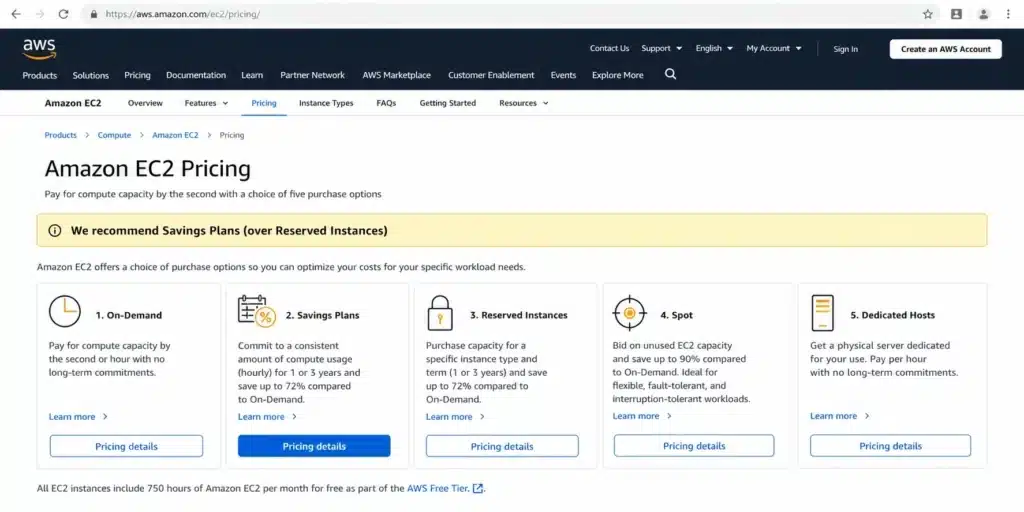
AWS EC2 has four core purchasing options: On-Demand Pricing, Reserved Instances (RI), Savings Plans (SP) and Spot Instances. The right model depends entirely on how predictable your usage is.
On-Demand Pricing
You pay the listed hourly rate with no commitment. AWS bills Linux instances per second (60-second minimum); Windows instances bill per hour. There is no discount and this is the baseline rate. On-Demand is appropriate for workloads that are unpredictable, short-lived, or in active testing.
A common reference point, for example, an m5.large in us-east-1 runs at $0.096/hour On-Demand for Linux. Running that instance 24/7 for a full month costs roughly $70.
Reserved Instances (RI)
You commit to a specific instance type in a specific region for 1 or 3 years. In return, AWS applies a discounted hourly rate to matching usage. The discount depth depends on term length and upfront payment:
- Longer term = deeper discount
- More upfront = deeper discount
- Standard offering class = deeper discount than Convertible, but no flexibility to change instance family
Reserved Instances are applied by AWS automatically when your running instances match the RI’s parameters. You do not “use” them manually. AWS matches and applies them.
Note on commitment specificity: Native AWS RIs are tied to a specific instance type, region, and in some cases OS and tenancy. If you purchase a Standard RI and later want to move to a different instance family, modification options are available within the same family but cross-family changes require using the RI Marketplace or waiting out the term. Understanding this upfront helps you choose between Standard RIs (deeper discount, more specific) and Convertible RIs or Savings Plans (slightly lower discount, more flexibility) before committing.
Savings Plans (SP)
Savings Plans are a commitment to a minimum hourly spend level (for example, $0.10/hour) rather than a specific instance type. In exchange, AWS applies discounted rates to eligible compute usage up to your committed spend.
There are two types relevant to EC2:
- Compute Savings Plans: Apply to EC2 regardless of instance family, size, region, OS, or tenancy. Also cover Fargate and Lambda. It offers maximum flexibility, and slightly lower discount.
- EC2 Instance Savings Plans: Apply to a specific instance family in a specific region. Higher discount than Compute SP, less flexible than Compute SP.
Savings Plans were introduced by AWS in 2019 as a more flexible alternative to RIs. For most steady EC2 workloads, they are now AWS’s recommended commitment model. See Compute Savings Plans vs EC2 Instance Savings Plans.
Spot Instances
Spot uses spare AWS capacity at significant discounts. AWS states up to 90% off On-Demand (verify at aws.amazon). The tradeoff, however, is AWS can reclaim Spot instances with a 2-minute warning when capacity is needed elsewhere. Spot is appropriate for fault-tolerant, interruptible workloads: batch jobs, CI/CD pipelines, and ML training runs that support checkpointing.
| See exactly how much you’re overpaying on EC2 (in 60 seconds)
Usage.ai analyzes your live AWS bill and shows your exact savings gap. No infrastructure access. No commitment. |
How AWS Organizes EC2 Pricing and Why a Comparison Tool Helps
AWS publishes EC2 pricing across multiple dedicated pages, each accurate and well-maintained:
Each page is the authoritative source for its pricing model. The reason a comparison tool adds value is that evaluating multiple models for the same instance requires switching between them. For a FinOps engineer answering “what does an m6i.xlarge cost under each model in us-east-1?”, pulling the answer involves:
- Looking up the On-Demand rate on the EC2 On-Demand pricing page
- Switching to the Reserved Instance pricing page and selecting region, OS, tenancy, term, and payment option
- Checking Savings Plans rates on the SP pricing page. See how Savings Plans work.
When you’re evaluating five or ten instance types across two or three term scenarios, doing this in a single sortable table is faster. That’s the job the Usage.ai EC2 pricing tool does – aggregate those three pricing models into one view.
How to Use the Usage.ai EC2 Pricing Tool (Step-by-Step)
Prerequisites: A web browser. No AWS account required. No login required. The tool is free and publicly accessible at ec2pricing.usage.ai.
What you will accomplish: A filtered, side-by-side view of RI Rate, On-Demand Rate, and SP Rate for any EC2 instance type across your target region and commitment parameters.
Estimated time: under 2 minutes.
Step 1: Open the Tool

Navigate to ec2pricing.usage.ai in your browser.
The page loads a table of EC2 instances with the following columns:
- Instance Type — the AWS instance identifier (e.g., m5.large, r6g.4xlarge)
- Region — the AWS region for that price point
- Tenancy — Shared or Dedicated
- Upfront Option — the RI payment model (e.g., No Upfront)
- Term Length — 1yr or 3yr
- Offering Class — Standard or Convertible
- Pre-Installed Software — OS or software license where applicable
- RI Rate (Hourly) — the Reserved Instance hourly rate under those parameters
- OD Rate (Hourly) — the On-Demand hourly rate
- SP Rate (Hourly) — the Savings Plan hourly rate
The table loads approximately 3,900 rows covering instance types across multiple regions and commitment combinations.
Step 2: Set Your Filters

The filter bar at the top of the tool contains five controls. Set these to match your actual purchasing parameters before reading any prices.
- Tenancy: Select Shared (default for most workloads) or Dedicated (required if you run workloads with host-level isolation requirements). Dedicated tenancy adds cost, only select it if your compliance or licensing requirements mandate it.
- Upfront Option: This filter controls the RI payment structure. Options include No Upfront, Partial Upfront, and All Upfront. The No Upfront option requires no cash outlay but results in a higher effective hourly RI rate. All Upfront requires full payment at commitment time but gives the deepest RI discount. If you are comparing models to decide whether to commit at all, No Upfront is the right starting point. It shows the floor of the RI discount without the cash flow consideration.
- Term Length: Select 1yr or 3yr. A 3-year term gives a deeper RI discount than a 1-year term, but commits you for a longer period. For teams uncertain about their instance type stability over 3 years, 1-year terms are the more defensible default.
- Offering Class: Standard or Convertible. Standard RIs give deeper discounts but cannot be exchanged for a different instance family. Convertible RIs can be exchanged during the term if your instance family needs change, the discount is slightly lower. If you are comparing for the first time and have not committed to a specific instance family, Convertible is the safer filter to use for evaluation.
A Reset button is available to clear all filters back to default.
Step 3: Search or Sort by Instance Type

Once your filters are set, use the table’s sort and search functionality to find the instance type you need.
- Sort any column by clicking the column header. Sort by RI Rate to find the lowest committed rate for your filtered parameters. Sort by OD Rate to see the full On-Demand cost spectrum.
- Search for a specific instance family using your browser’s built-in search (Ctrl+F or Cmd+F) if the table does not have a native search bar, or scroll to your instance family in the Instance Type column.
The Region column is important: the same instance type will show different rates for different regions. us-east-1 (US East, N. Virginia) consistently has among the lowest rates for most instance families. Regions in Europe, Asia Pacific, and South America typically carry higher rates.
Step 4: Read the Three Rates Side-by-Side
[SCREENSHOT: Close-up of a single table row showing the RI Rate, OD Rate, and SP Rate columns clearly, with the three numbers visually highlighted or easy to read. Alt text: “Single EC2 instance row showing RI Rate of $0.6094, OD Rate of $0.9362, and SP Rate of $0.6955 for an r6g.4xlarge in ca-central-1.”]
With your filters set and your instance type located, each row gives you three numbers for the same instance under the same parameters:
- RI Rate (Hourly): What you pay per hour when a matching RI covers that instance
- OD Rate (Hourly): What you pay per hour with no commitment
- SP Rate (Hourly): What you pay per hour when a Savings Plan covers that instance
The gap between OD Rate and RI Rate is your potential RI savings. The gap between OD Rate and SP Rate is your potential Savings Plan savings. For most instance types, RI Rate (Standard, 1yr, No Upfront) and SP Rate will be close The key difference is flexibility, where RIs lock you into a specific instance type; Savings Plans do not.
Example reading:
For an r6g.4xlarge in ca-central-1, Linux, Shared, No Upfront, 1yr, Standard:
- RI Rate: $0.6094/hr
- OD Rate: $0.9362/hr
- SP Rate: $0.6955/hr
In this case, the Standard RI delivers a deeper per-hour discount than the SP rate for the same term. The SP rate provides more flexibility (not locked to r6g family or ca-central-1 region) at a slightly higher rate.
Step 5: Change Term or Offering Class to Compare Scenarios

Once you have your base comparison, change the Term Length filter from 1yr to 3yr and note how the RI Rate drops. Then switch Offering Class from Standard to Convertible and observe the rate change.
This step is where the tool saves the most time compared to the AWS pricing page. What would require three separate page loads on AWS takes three filter clicks here.
A useful rule of thumb for the comparison:
- If the 3yr RI rate does not drop significantly enough to justify the extended lock-in for your workload stability horizon, the 1yr term is more defensible
- If Standard and Convertible RI rates are close, Convertible is usually the better choice for teams that anticipate any instance family changes in the next 12 months
- If the SP Rate is within 5–8% of the Standard RI Rate, the flexibility of Savings Plans is almost always worth the small rate premium for most teams
Step 6: Verify Numbers Before Making Commitment Decisions
The tool pulls pricing data directly from AWS. However, AWS updates EC2 pricing, so verify any rate you intend to commit to against the official AWS pricing pages before purchasing.
What the Tool Does Not Show
The Usage.ai EC2 pricing tool shows RI, On-Demand, and SP hourly rates. It does not show:
- Spot pricing: Spot rates fluctuate in real time based on spare capacity. Check the AWS EC2 Spot pricing page in the console for current Spot rates.
- EBS storage costs: EC2 and EBS are billed separately. A production instance with attached gp3 volumes will have additional storage costs not reflected in the tool.
- Data transfer costs: Outbound data transfer from EC2 is billed separately. For instances serving significant external traffic, data transfer can be a meaningful part of the total bill.
- Windows or SQL Server licensing premiums: The Pre-Installed Software column in the tool indicates where software licenses are included in the rate. Pure Linux instances show no software premium. Verify Windows rates carefully as they carry a per-hour license cost that can double the effective instance rate on smaller sizes.
The tool is designed for instance pricing comparison. Here are two free calculators that can serve to your different needs:
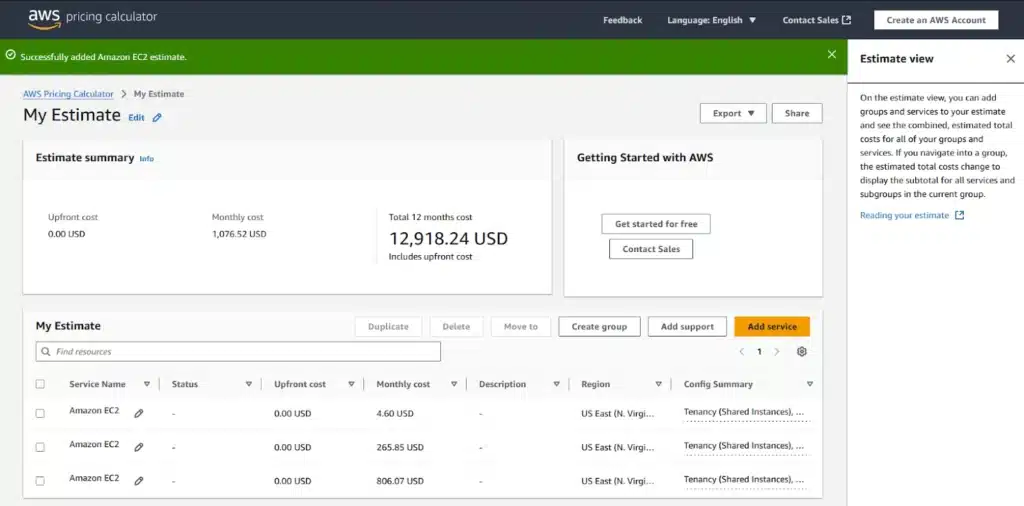
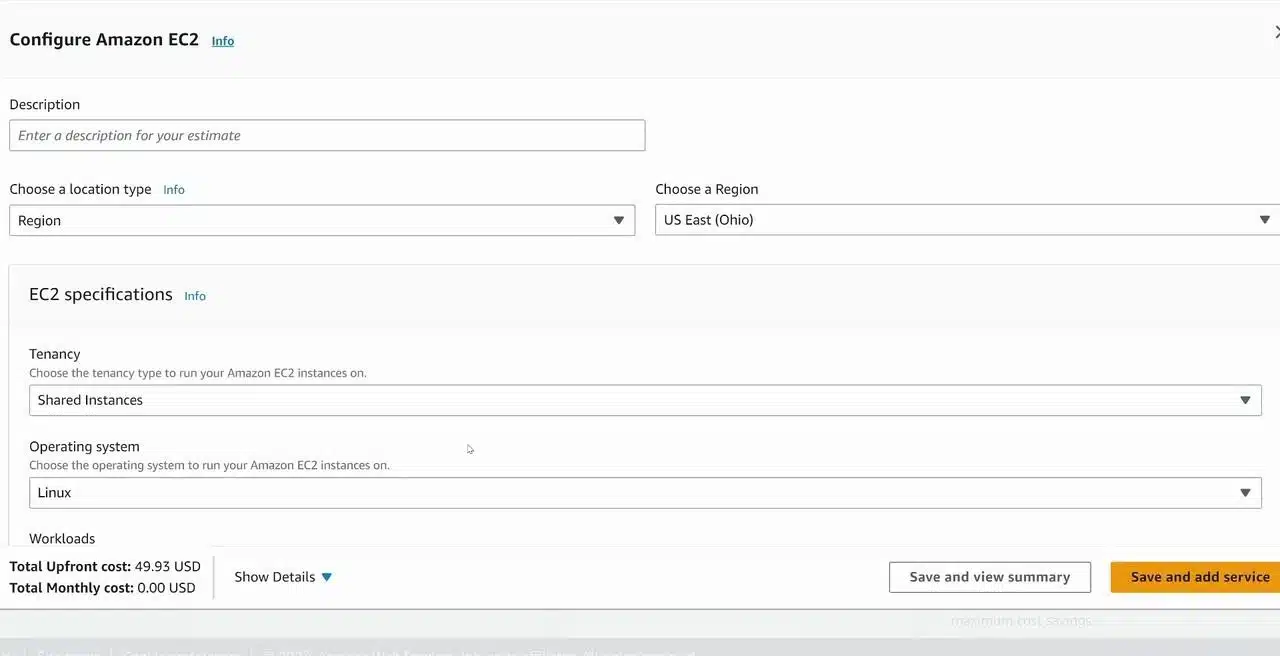
- Estimating the cost of a new infrastructure configuration: Use the AWS Pricing Calculator at calculator.aws. Input your instance types, storage, and networking to get a projected monthly cost before you build.
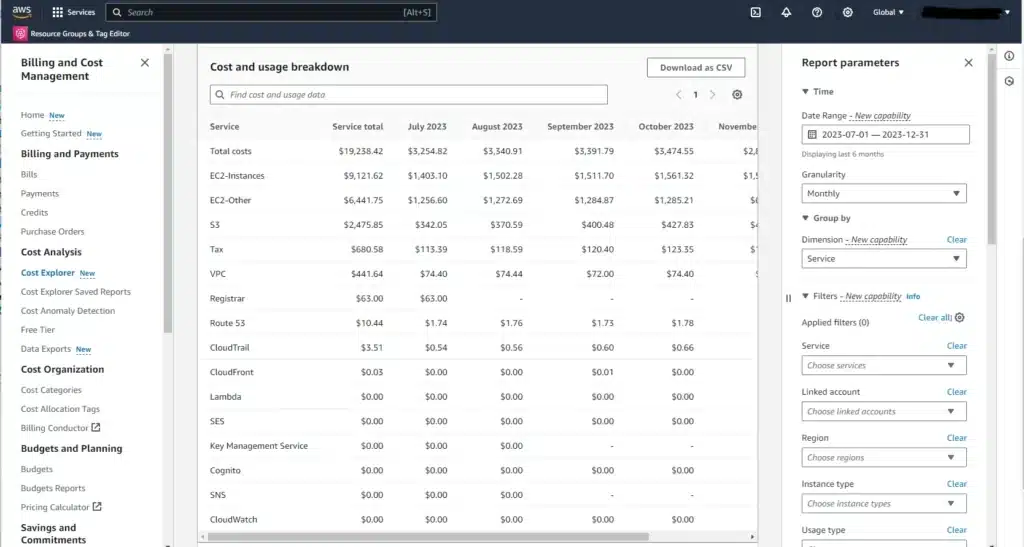
- Finding out how much you’re overpaying on your existing AWS bill: Use Usage.ai’s free Savings Calculator. Upload your AWS invoice or Cost Explorer CSV and it shows your potential savings in under 3 minutes; no AWS account connection required.
| Already running RIs or Savings Plans?
Find out if they’re actually covering your usage. Upload your Cost Explorer CSV to Usage.ai’s free Savings Calculator and see your coverage gaps and potential savings in under 3 minutes. No AWS account connection required. |
How to Decide Which Pricing Model to Commit To
Comparing the rates is step one. Deciding which model to buy is step two. Here is the framework FinOps teams use:
Choose On-Demand when:
- The workload is new and usage patterns are not yet established (less than 2 months of history)
- Usage is genuinely unpredictable or expected to change significantly within 3 months
- The instance is a test or staging environment with variable uptime
Choose Savings Plans when:
- You have at least 2–3 months of steady EC2 usage history
- You want commitment discounts without locking into a specific instance family or region
- Your team expects to change instance types, migrate to Graviton, or shift between EC2, Fargate, and Lambda over the commitment term
- You want a single commitment that covers multiple instance types
Choose Reserved Instances (Standard) when:
- Your instance type and region are stable and unlikely to change for 1 or 3 years
- You want the deepest available discount and can accept the commitment specificity
- The workload is a specific service (RDS, ElastiCache, Redshift, OpenSearch, DynamoDB); RIs remain the primary commitment model for these services
Use Convertible RIs when:
- You want RI-level discounts but need the ability to exchange the commitment if your instance family changes
- You are comfortable with a slightly lower discount rate in exchange for flexibility
The deeper question, particularly for teams spending $50K+/month on EC2, is not which pricing model to choose manually, but how to ensure commitments stay correctly sized as usage evolves. That is where automation matters.
What Happens When Your EC2 Usage Changes Mid-Commitment
This is worth understanding before committing to any RI term. If you purchase 20 x m5.xlarge RIs and your team migrates half of those instances to a different family three months later, those RIs no longer match your running usage. AWS will apply the RI discount to any remaining matching instances, but if there are none, the commitment continues at its hourly rate with no matching usage to absorb it.
AWS provides a few options for handling this natively:
- Modify the RI to a different size within the same instance family (size flexibility is available for Linux/Unix RIs within a family)
- Sell the RI on the AWS Reserved Instance Marketplace (Standard RIs only, subject to eligibility conditions)
- Exchange the RI for a different Convertible RI (Convertible class only)
These options cover many scenarios. Where they have limits is in cross-family changes, for example, migrating from m5 to m7g (Graviton) which is a common optimization path. In those cases, a Standard RI purchased against m5 cannot be applied to m7g usage.
Usage.ai’s Insured Flex Commitments address this at the structural level. Rather than purchasing 1- or 3-year RIs natively, Usage.ai holds the commitment on its own books and passes the discount to the customer. If usage drops or shifts, Usage.ai’s buyback guarantee covers the underutilized commitment, returned as cashback (real money, not credits). Commitments adjust quarterly. There is no multi-year lock-in passed to the customer.
For teams where usage patterns shift faster than a 1-year commitment window, this removes the primary constraint on committing to discounts at all. To see how much your current EC2 spend could be optimized, visit usage.ai.

Frequently Asked Question
1. What is the fastest way to compare EC2 instance pricing across On-Demand, RI, and Savings Plan rates?
Use a dedicated EC2 pricing comparison tool. Usage.ai’s ec2 pricing free tool displays RI Rate, On-Demand Rate, and Savings Plan Rate in a single row per instance, filterable by region, tenancy, term length, and offering class. The AWS native pricing page does not show all three models side-by-side, requiring separate page lookups for each model.
2. What is the difference between a Reserved Instance rate and a Savings Plan rate for EC2?
Both apply a discounted hourly rate compared to On-Demand pricing. The key difference is specificity. An RI rate applies to a specific instance type in a specific region, and you cannot change that without exchanging or modifying the RI. A Savings Plan rate applies to a committed hourly spend level and covers eligible EC2 usage regardless of instance family, size, or region (for Compute Savings Plans). RIs typically give a slightly deeper discount; Savings Plans give more flexibility.
3. How much cheaper is a Reserved Instance compared to On-Demand EC2 pricing?
It depends on the term length, payment option, offering class, and instance family. As a general range, a 1-year Standard RI with No Upfront payment saves roughly 30–40% compared to On-Demand for most general-purpose instance families. A 3-year Standard RI with All Upfront payment can save up to 60% or more on certain families.
4. What is the difference between Standard and Convertible Reserved Instances?
Standard RIs offer a deeper discount but cannot be exchanged for a different instance family or type during the commitment term. They can be sold on the AWS RI Marketplace under certain conditions. Convertible RIs offer a slightly lower discount but can be exchanged for a different Convertible RI of equal or greater value during the term, providing flexibility if your instance family requirements change.
5. Does the Usage.ai EC2 pricing tool require an AWS account to use?
No. The tool at ec2pricing.usage.ai is publicly accessible with no login, no AWS account, and no connection to your AWS environment required. It is a free standalone pricing reference tool for comparing EC2 rates.
6. What is a buyback guarantee for EC2 commitments?
A buyback guarantee means that if a compute commitment goes underutilized, the platform purchasing that commitment will buy it back and return the value to you. Usage.ai’s Insured Flex Commitments include a buyback guarantee on every commitment purchased through the platform — underutilized commitments are returned as cashback (real money), not credits. This is different from native AWS RIs, which provide no buyback option outside of the limited RI Marketplace.